
Post to your socials
Turn any library item into a social post — pick your accounts, write one caption for every platform, add hashtags, and post now or schedule it.
Two ways to start a post
You can start from a piece of content in your Studio library, or from the Posts page — both open the same Post Content composer.
- In the sidebar, click Studio and open the card for your content type (for example Video).
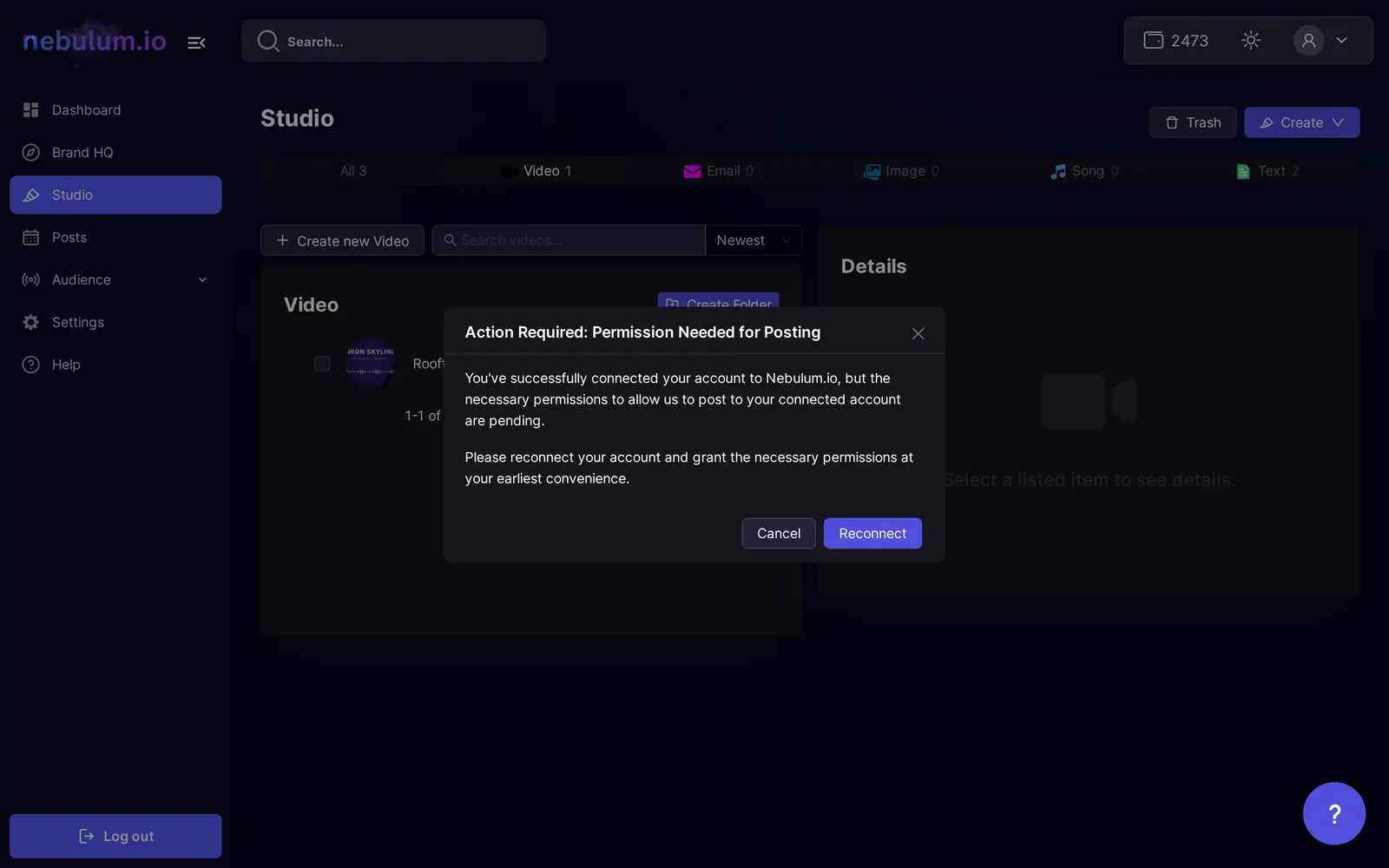
- Hover the content you want to share and click the Prepare a Post icon in the Actions column.
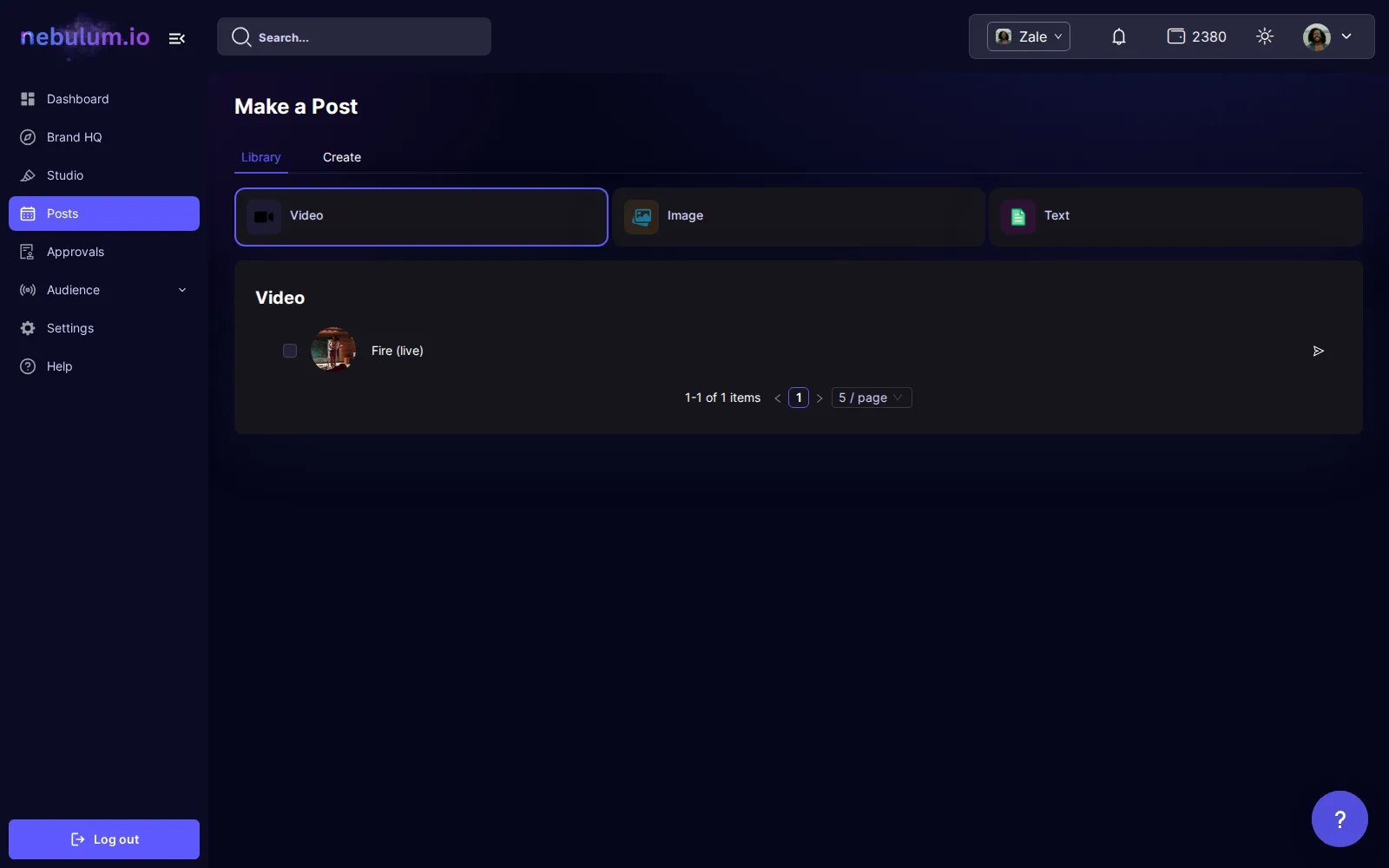
- Or, in the sidebar, click Posts and then Make a Post.
- On the Library tab there, find your content and click its Prepare a Post icon.
Pick your platforms and accounts
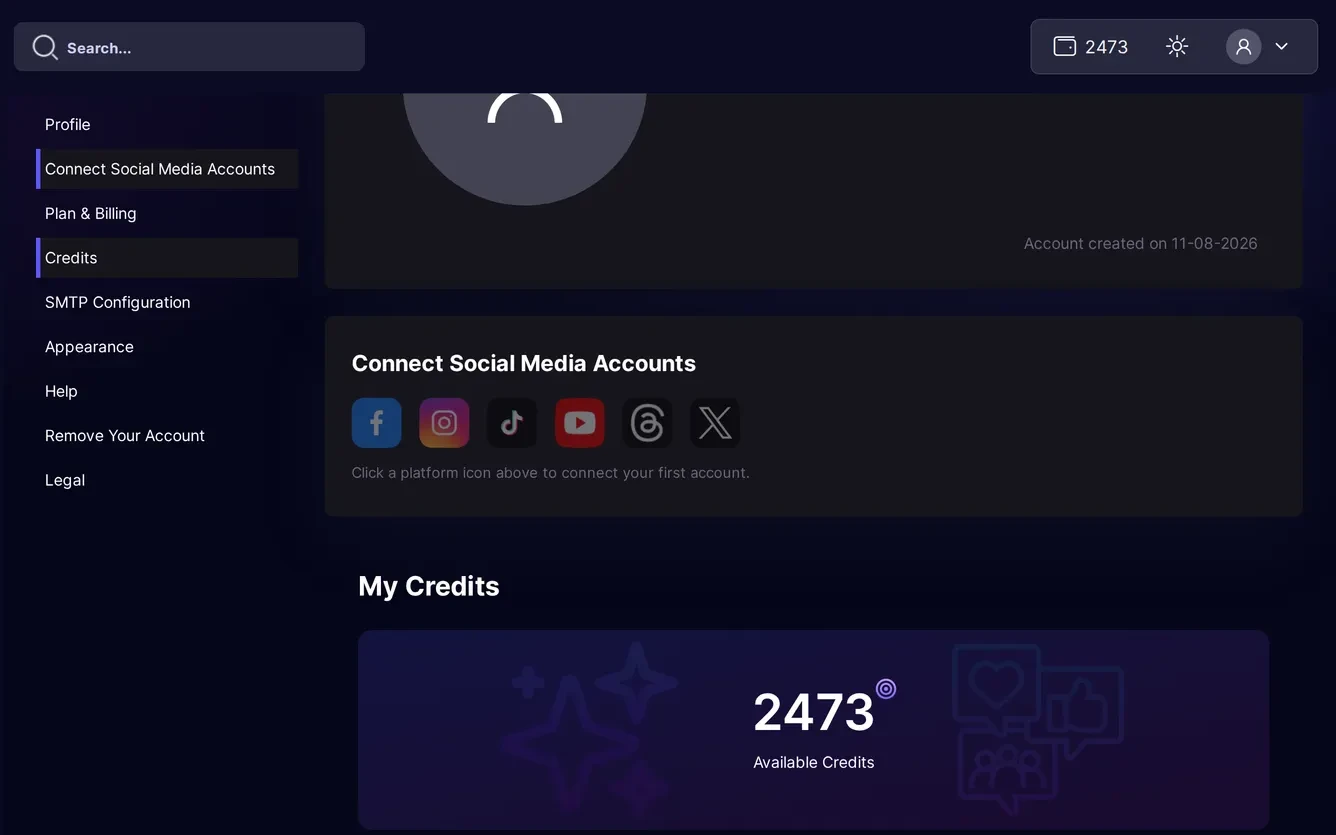
The composer needs at least one connected social account — without one, the post page sends you back and Make a Post shows a connect-your-accounts prompt instead. Connect one under Settings → Connect Social Media Accounts (full walkthrough in the related guide).
- Under Select Accounts, review the preview of your media.
- Tick each page or account you want to post to — accounts are grouped by platform, and ticking a platform's name selects all of its pages.
- Look right: every selected account gets its own tab under Customize & Publish, where you can fine-tune that platform before posting.
Tip: Text posts can only go to X and Threads — other platforms are greyed out with a short explanation. TikTok also checks the video file format, and both TikTok and X check file size and duration — a red message appears under the platform if a file is unsupported.
Write one caption for everything
The caption card starts read-only — nothing is typeable until you click the round pencil button.
- On the caption card under Select Accounts, click the round pencil button (Edit).
- For a video, fill in the Title and Caption / Description; images and text posts have a single caption box.
- Optionally click Write with AI and pick an option like Generate from scratch or Make punchier — any credit cost shows next to each option.
- Click Apply, then To All, to push your caption into every selected account's tab.
- Open any platform tab to tweak its copy on its own — tabs that differ from the default show an orange dot.
Note: Typing the caption is not enough — until you click Apply and choose To All, the per-account tabs keep their original text.
Post now, schedule, or save a draft
Any credits a post costs show in the confirmation dialog before you commit. Drafts cost nothing.
- To post later, pick a slot in the date-and-time picker (up to one month ahead), then click Schedule Post and confirm.
- To publish right away instead, click the small arrow next to Schedule Post, choose Post Now, then confirm in the Ready to Share Your Genius with the World? dialog.
- Or choose Save as Draft to store everything without posting, so you can finish later from the Posts page.
- On a brand where your posts need approval, the buttons read Schedule for approval and Send for approval, and nothing asks first. Someone who can post on the brand reviews it, and any credits are charged only when it posts. Edit on a failed post works the same way.
Tip: Once posting starts you can safely navigate away — it continues in the background, and results show up on your Posts page.
Your post saves itself
The post saves itself to your drafts as you work, even before you pick an account or fill in every field, and every change updates the same draft. The badge beside the post buttons shows Saving… and then Saved. If you leave, open Posts → Drafts to pick up where you left off; a draft you reopen keeps saving as you edit it. When you post, schedule or save it, the draft is replaced by the real thing. A post that opens under From your plan: is the exception: it doesn't save itself, so use Save as Draft to keep your changes.
Tip: Not saved? The reason shows under the badge, and saving picks up again on its own. Posting or scheduling still checks everything each account needs, such as a post type for a Facebook video.
Related guides
- Connect your social accountsLink Facebook, Instagram, TikTok, YouTube, Threads, and X once so Nebulum can post for you — and fix or remove connections later.
- Schedule & manage postsEverything you've queued lives on the My Posts page — switch between List and Calendar views, filter, edit or cancel posts, and rescue failed ones.
- Reusable hashtag setsSave your go-to hashtags as named sets and drop them into any caption with one click.
- Credits explainedWhat credits are, where to see what each action costs, where to check your balance and spending history, and what to do when you run out.
Signed in? Open this guide in Nebulum. New here? Start free.