
Schedule & manage posts
Everything you've queued lives on the My Posts page — switch between List and Calendar views, filter, edit or cancel posts, and rescue failed ones.
Your posts in List view
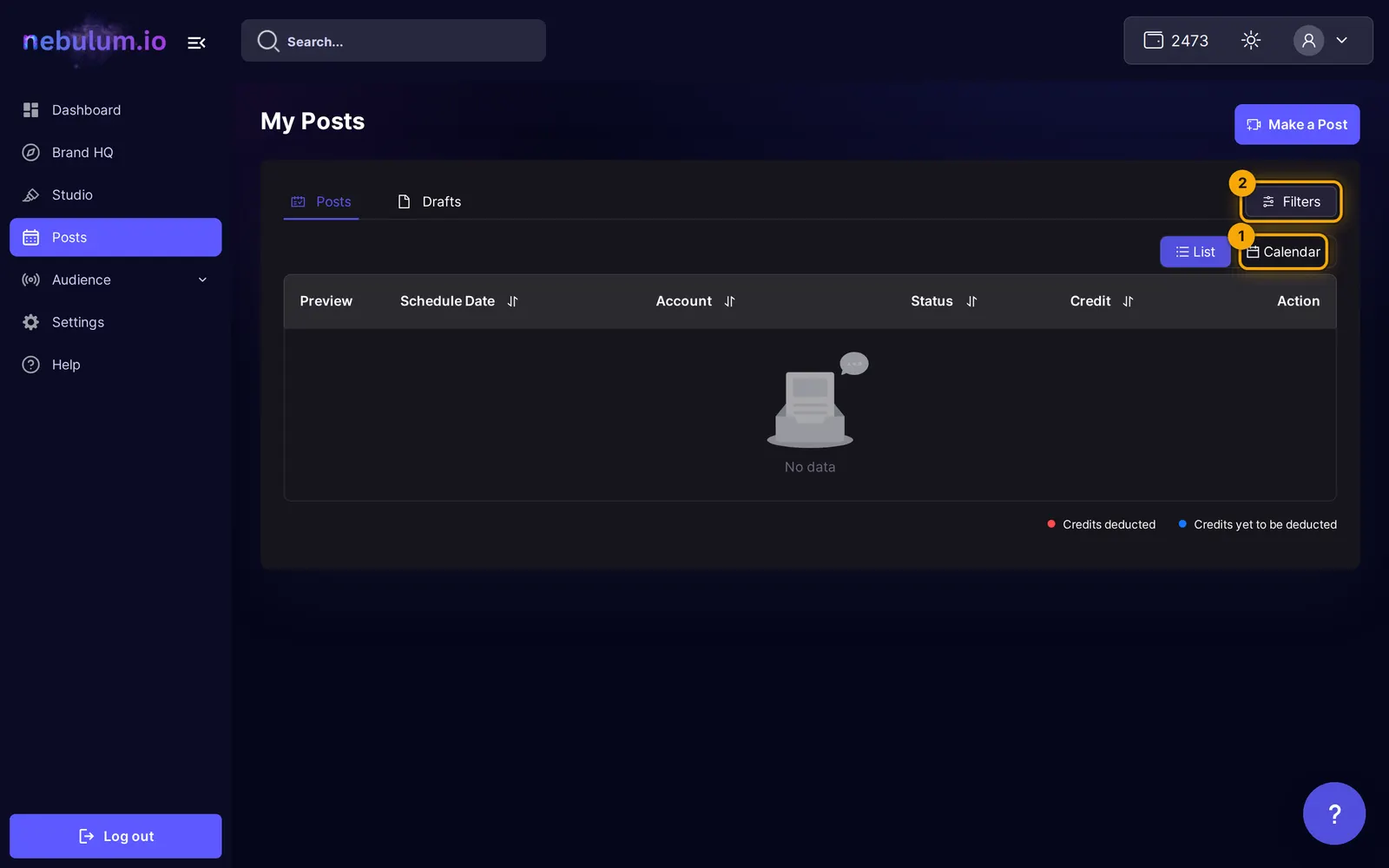
- Click Posts in the sidebar — the My Posts page opens on the Posts tab in List view.
- Read each row's status tag: Scheduled (waiting to go out), Posted (published), Failed (something went wrong), or Pending Retry.
- Click the Schedule Date column header to sort by date; click it again to flip the order.
- Switch to the Drafts tab to see posts you saved without scheduling.
Tip: Hover a row's icon buttons to see what they do: Edit, Delete, View, plus Retry on failed posts and Post to other socials on posted ones.
Filter and find posts
- On the My Posts page, click the Filters button (slider-controls icon).
- In the Filters modal, pick a status pill, choose accounts under Social Account, pick Categories, or set a Date Range.
- Click Apply — your active filters appear as removable chips.
- Click Reset next to Filters (or Clear All inside the modal) to start over.
The Calendar view
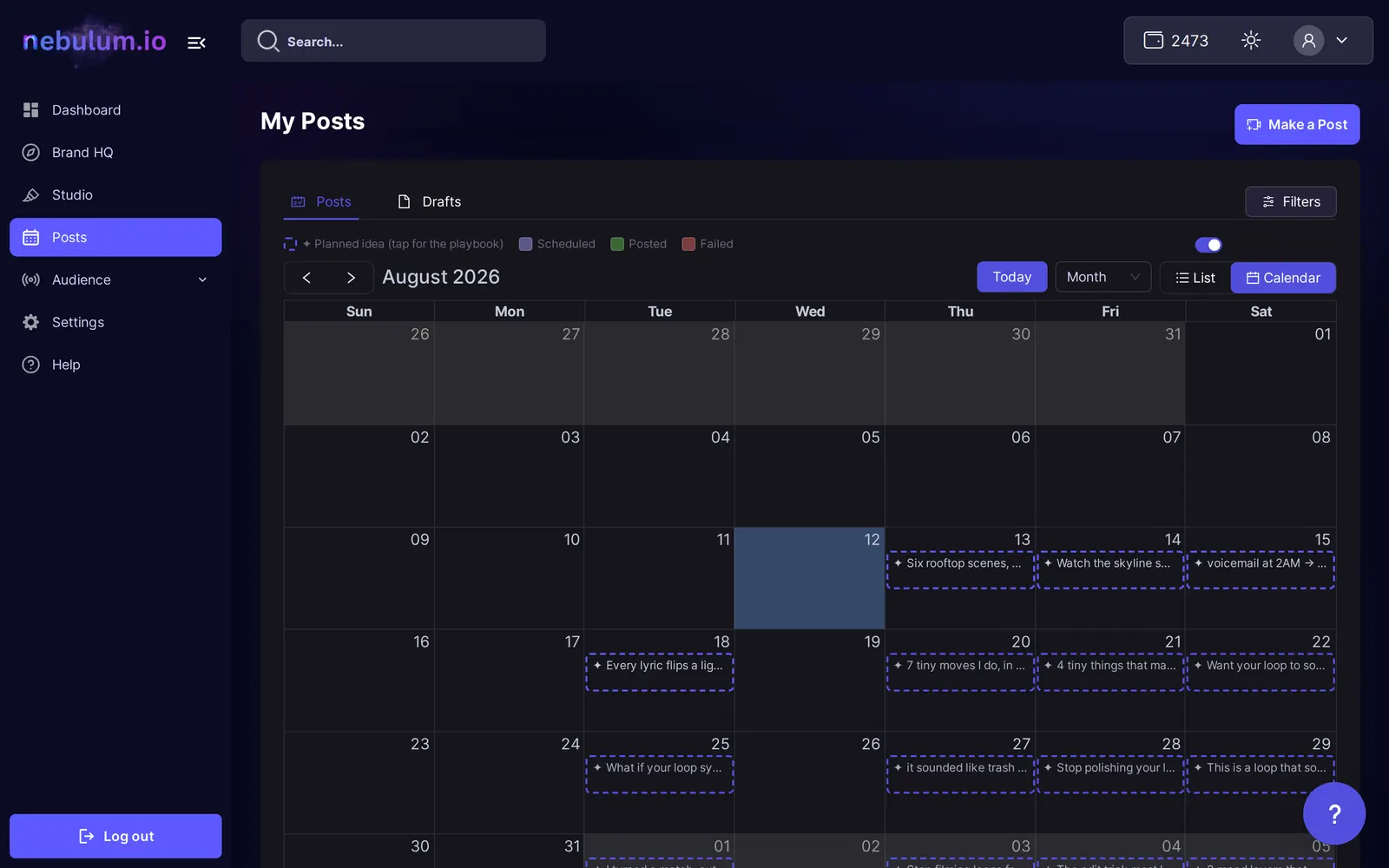
- On the Posts tab, click Calendar on the List / Calendar toggle.
- Use the arrows to move between months, and Today to jump back to the current date.
- Use the view dropdown to switch between Month, Week, Day, and Agenda.
- Hover a post chip to see the account, its status, and quick actions.
- Drag a post to a different day or time slot to reschedule it instantly.
Tip: Drag-rescheduling is fenced: you can't drop a post on a past date or more than 30 days ahead — a message explains both.
Your Brand HQ plan on the calendar
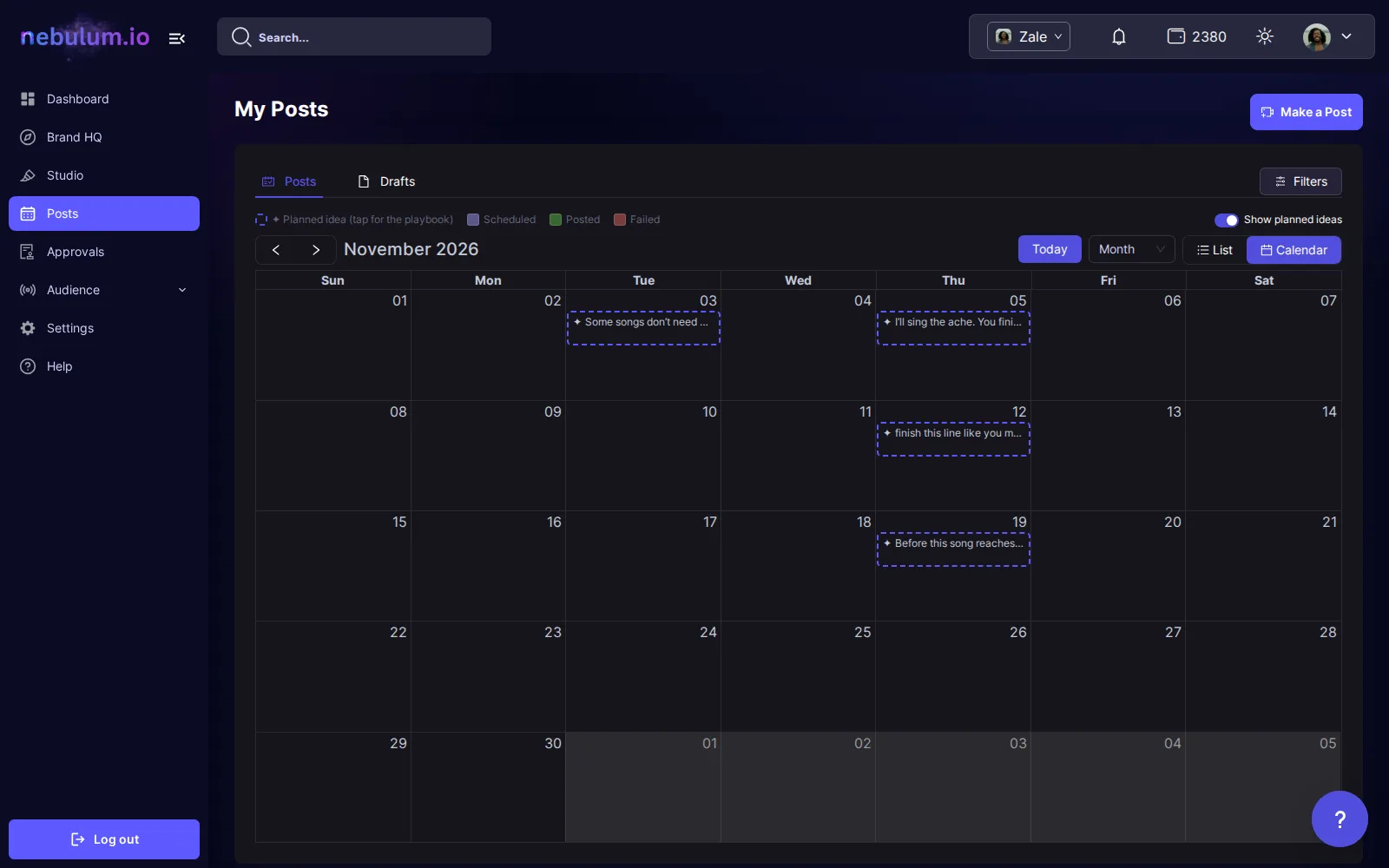
- Above the calendar, switch on Show planned ideas: ✦ chips are your plan's approved concepts that have a post date, beside your real posts.
- Click a ✦ chip to open its concept, with its brief and its next step.
- Drag a ✦ chip to another day to move the concept.
Tip: Planned ideas come with planning. If your brand's plan doesn't include it, the switch doesn't show.
Edit or cancel a scheduled post
- In List view, hover a scheduled post and click the pencil icon (Edit) — the Update Post Schedule modal opens.
- Change the caption, thumbnail, Schedule Date, or platform options, then click Save.
- To un-schedule it instead, open the dropdown arrow next to Save and choose Move to Drafts.
- To cancel a post entirely, click the trash icon (Delete) and confirm in the Delete Post dialog — deleting is how you cancel a post; there is no separate cancel button.
Note: Posted items can't be edited or deleted — they only offer View and Post to other socials. And moving a post to Drafts clears its scheduled date, so you'll pick a new one when you schedule it again.
Rescue failed posts
Failed posts are hidden from the default list — when any exist, a red warning icon appears next to Filters.
- Click the red warning icon (tooltip Failed Schedules) to show only failed posts.
- For a single post, click its circular-arrows icon (Retry) to try again immediately, or Edit to see the failed reason and choose Post Now, Schedule Post, or Save as Draft. On a brand where your posts need approval, they read Send for approval and Schedule for approval.
- For several at once, tick their checkboxes, then click Retry (N) to re-attempt them together.
- Or click Re-schedule (N) to open the Bulk Re-schedule Failed Posts page — leave Auto Scheduling on and set Spread Over, Starting, and the Daily Time Window.
- Click Re-schedule All N Posts — a results screen shows how many succeeded, with a Go to My Posts button.
Tip: The re-schedule page reads your selection from the Posts list — opening its address directly shows No Failed Posts Selected.
Bulk schedule from Studio
You can queue many posts at once straight from your library. Bulk scheduling comes with higher plans — without it, the button is locked and its tooltip reads Upgrade your plan to unlock bulk scheduling.
- In Studio, select at least 2 items with their checkboxes — a floating Bulk Schedule button appears.
- Click Bulk Schedule, then pick destination accounts under Select Platforms.
- Set Spread Over, Starting, and the Daily Time Window, and review the summary of posts per day.
- Click Schedule All N Posts and confirm. Where your posts need approval, the button reads Schedule N posts for approval and sends them for approval without asking.
Tip: Large batches take a few minutes — posts are queued one at a time to respect platform rate limits, and the progress toast shows the time remaining.
Related guides
- Post to your socialsTurn any library item into a social post — pick your accounts, write one caption for every platform, add hashtags, and post now or schedule it.
- Brand HQ: shoot, edit and postThe Calendar dates the concepts you approve, turns them into shoots, steps and posts, shows who has each step, and hands each finished piece to Posts.
- Connect your social accountsLink Facebook, Instagram, TikTok, YouTube, Threads, and X once so Nebulum can post for you — and fix or remove connections later.
Signed in? Open this guide in Nebulum. New here? Start free.