Connect your social accounts
Link Facebook, Instagram, TikTok, YouTube, Threads, and X once so Nebulum can post for you — and fix or remove connections later.
Open the connection screen
Nebulum posts to your channels for you, but each channel has to be linked once. That happens in one place in Settings.
- Click Settings in the sidebar.
- In the left tab list, click Connect Social Media Accounts — the page scrolls to a row of platform icons.
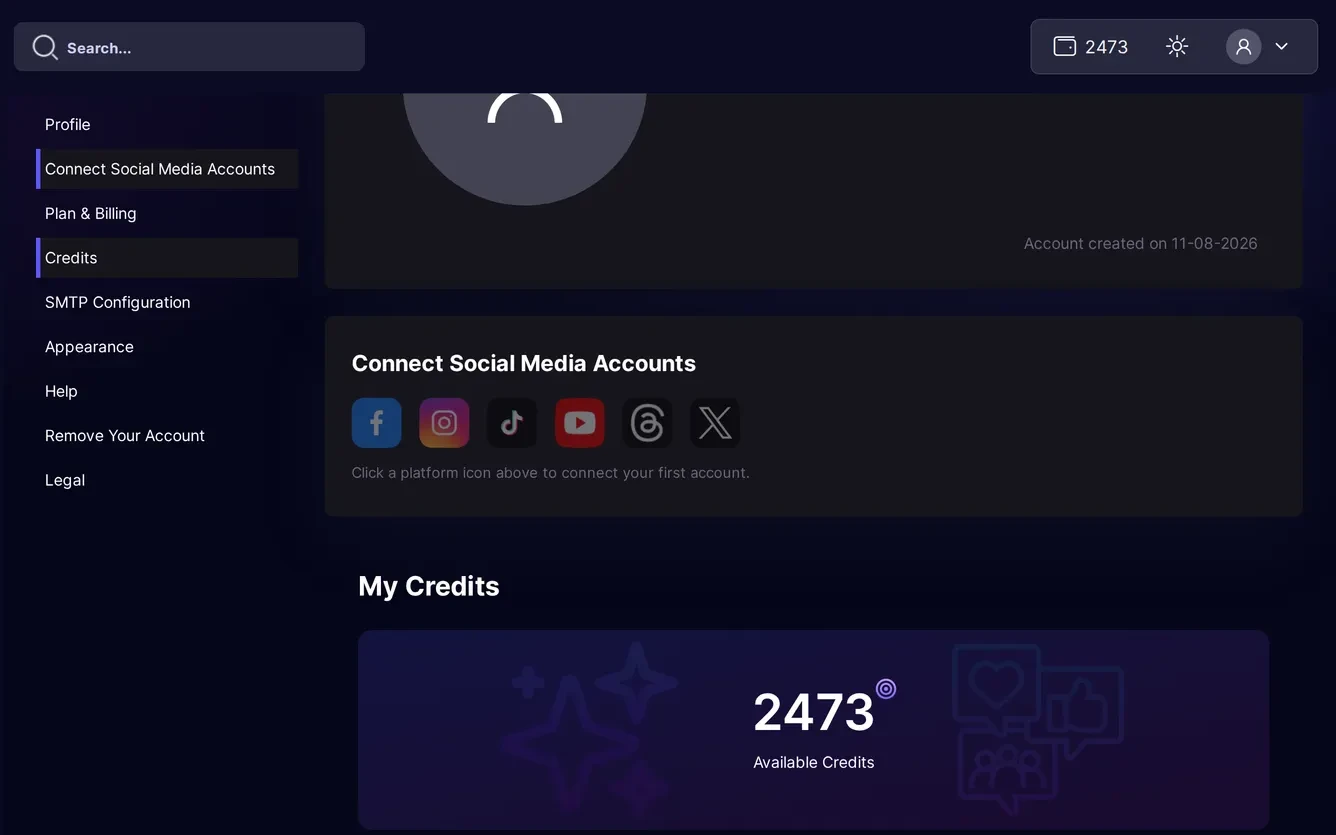
Tip: Greyed-out icons just mean the platform is not connected yet — they are still clickable. The hint below them says Click a platform icon above to connect your first account.
Connect a platform
Connecting always works the same way: you sign in on the platform's own site, approve access, and come straight back.
- Click the icon of the platform you want to connect.
- Sign in on that platform's own page and approve the access it asks for.
- You are returned to Settings: the icon lights up and your account appears below under In this brand.
Tip: Connecting Facebook? On Meta's permission screen, granting All Current and Future Pages lets Nebulum pick up Pages you create later with a simple sync instead of a full reconnect. You can also link more than one account per platform.
Connect Instagram
Where direct Instagram login is available, clicking the Instagram icon opens a Connect Instagram window with two methods; otherwise the icon connects through Facebook straight away.
- Click the Instagram icon — a Connect Instagram window opens.
- Click Connect Instagram directly to sign in with your Instagram login (recommended, no Facebook Page needed).
- Or click Connect via Facebook Page instead if your Instagram account is linked to a Facebook Page.
- Finish the sign-in and you are brought back to Settings with Instagram listed under In this brand.
Note: The direct method needs a Business or Creator (professional) Instagram account. A personal account must be converted first, or connected through a linked Facebook Page instead.
See and refresh what's connected
The pages this brand posts to, including individual Facebook Pages, are listed under In this brand, with a tab per platform.
- Click a platform's tab to see its connected accounts and Pages.
- Created a new Facebook Page, or renamed an account? Click Sync Latest Information at the top of the tab.
- In the confirmation bubble, click Yes to refresh (or No to cancel).
- A new Page still not listed? Click Choose this brand's pages above the list and switch it on.
Tip: Sync only finds new Facebook Pages if you granted All Current and Future Pages when connecting — otherwise reconnect and grant the new Page.
Reconnect when access expires
Platforms expire access from time to time — for example after a password change. A red exclamation badge on an icon or account means it needs your attention.
- Click the flagged platform's icon in the row of icons.
- In the Reconnect or Use a Different Account? window, click Yes.
- Sign in on the platform again — access is restored without losing anything.
Note: Accounts flagged for reconnection are disabled in the post-creation account picker until you fix them, so scheduled posts to that account stop going out. Reconnect before scheduling.
Disconnect an account
- Under In this brand, open the platform's tab.
- Click the broken-link icon next to the account you want to remove.
- Read the confirmation window, then click Yes to disconnect or No to keep it.
Note: Disconnecting also removes that account's scheduled and already-posted entries from your scheduled-content list in Nebulum. Posts already published on the platform itself are not deleted.
Related guides
- Post to your socialsTurn any library item into a social post — pick your accounts, write one caption for every platform, add hashtags, and post now or schedule it.
- Schedule & manage postsEverything you've queued lives on the My Posts page — switch between List and Calendar views, filter, edit or cancel posts, and rescue failed ones.
- Your first stepsYou're in — get oriented with the welcome tour, work through the Getting started checklist, and know where your plan lives.
Signed in? Open this guide in Nebulum. New here? Start free.