
Brand HQ: shoot, edit and post
The Calendar dates the concepts you approve, turns them into shoots, steps and posts, shows who has each step, and hands each finished piece to Posts.
Your week
- Open Calendar. Week lists each day's Moments and shoot days, then each concept once, with its steps on one line per state: Overdue, To do, Waiting and Done. Move a week with the arrows, or back with Today.
- Click Filter to show only some kinds, such as Production, Review or Publishing. When more than one person has steps, pick one next to it: Everyone, Assigned to me or Needs someone new.
- Month shows the same days on a calendar; click a date to open its week. Drag a concept from Waiting for a day onto a day. On a phone the Calendar shows Week and Shoot days: date a concept from its Post date.
- A week says how many posts it holds against your posts a week.
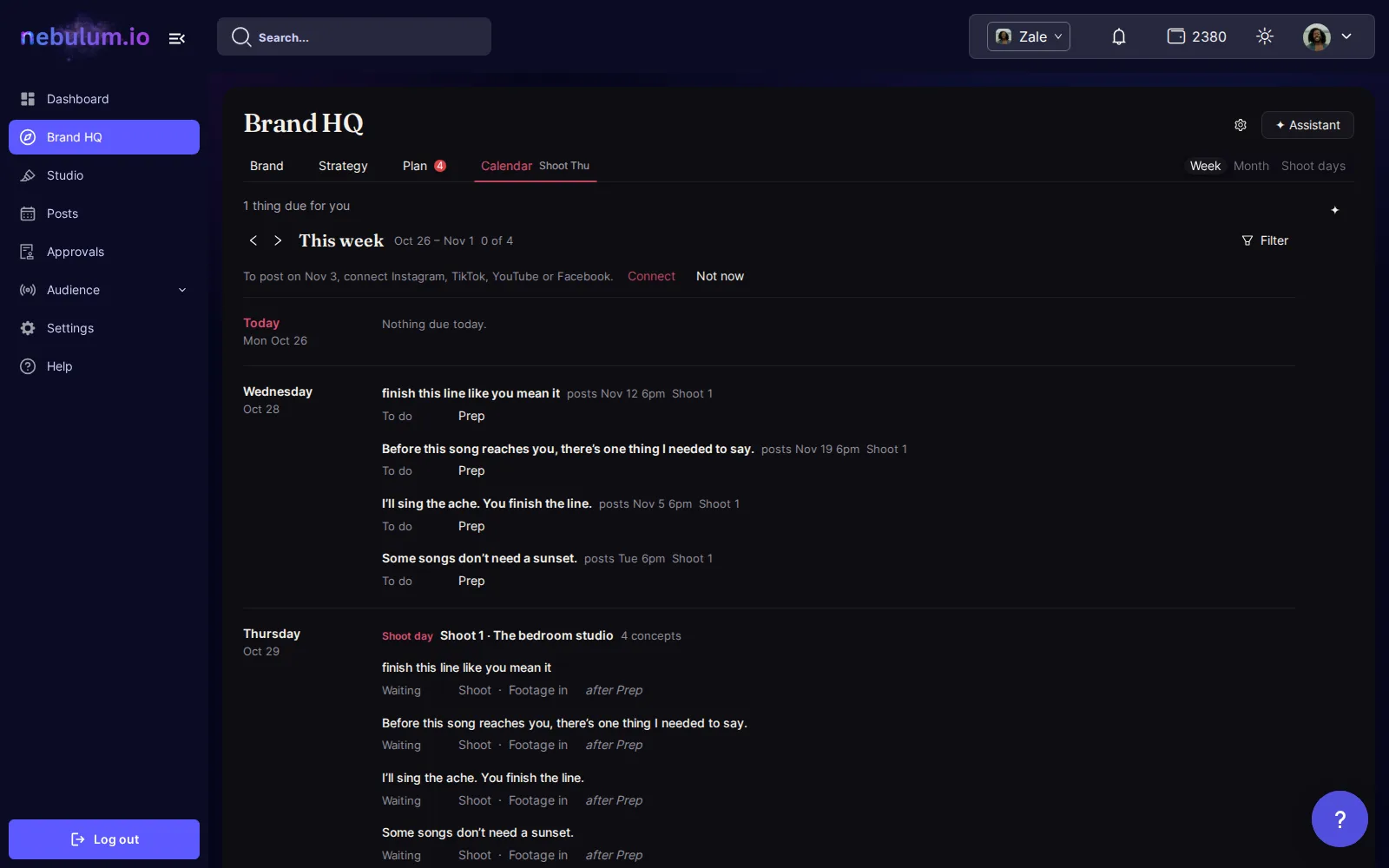
Date what you approved
- Approved concepts with no date wait in Waiting for a day, grouped by shoot. Drag one onto a day, or click Schedule them to date them all by your posts a week, your best times and each series' day; Undo puts them back. On a phone, this week's list holds the same row.
- A filmed concept goes on a day after its shoot. While you drag it, the days it can't take are hatched; days inside your edit and review time are marked tight but take it. One whose shoot has no date says Pick the shoot date first.
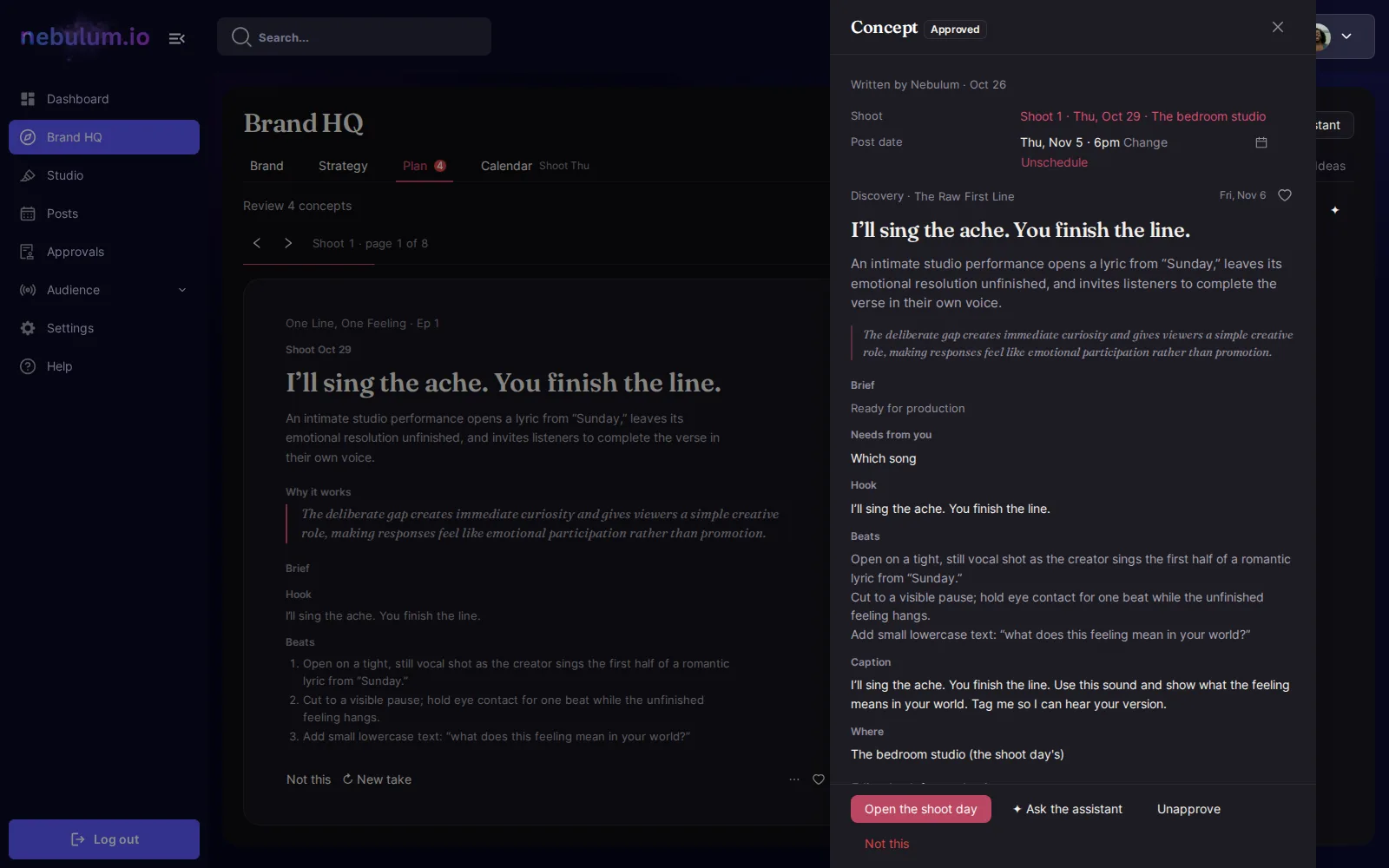
- In a concept, Post date offers Pick a day, then Change or Unschedule, which keeps its approval and its shoot.
- Only an approved concept in your plan takes a date: an idea you approved in Ideas goes in with Add to batch first, which writes its brief.
Shoot days
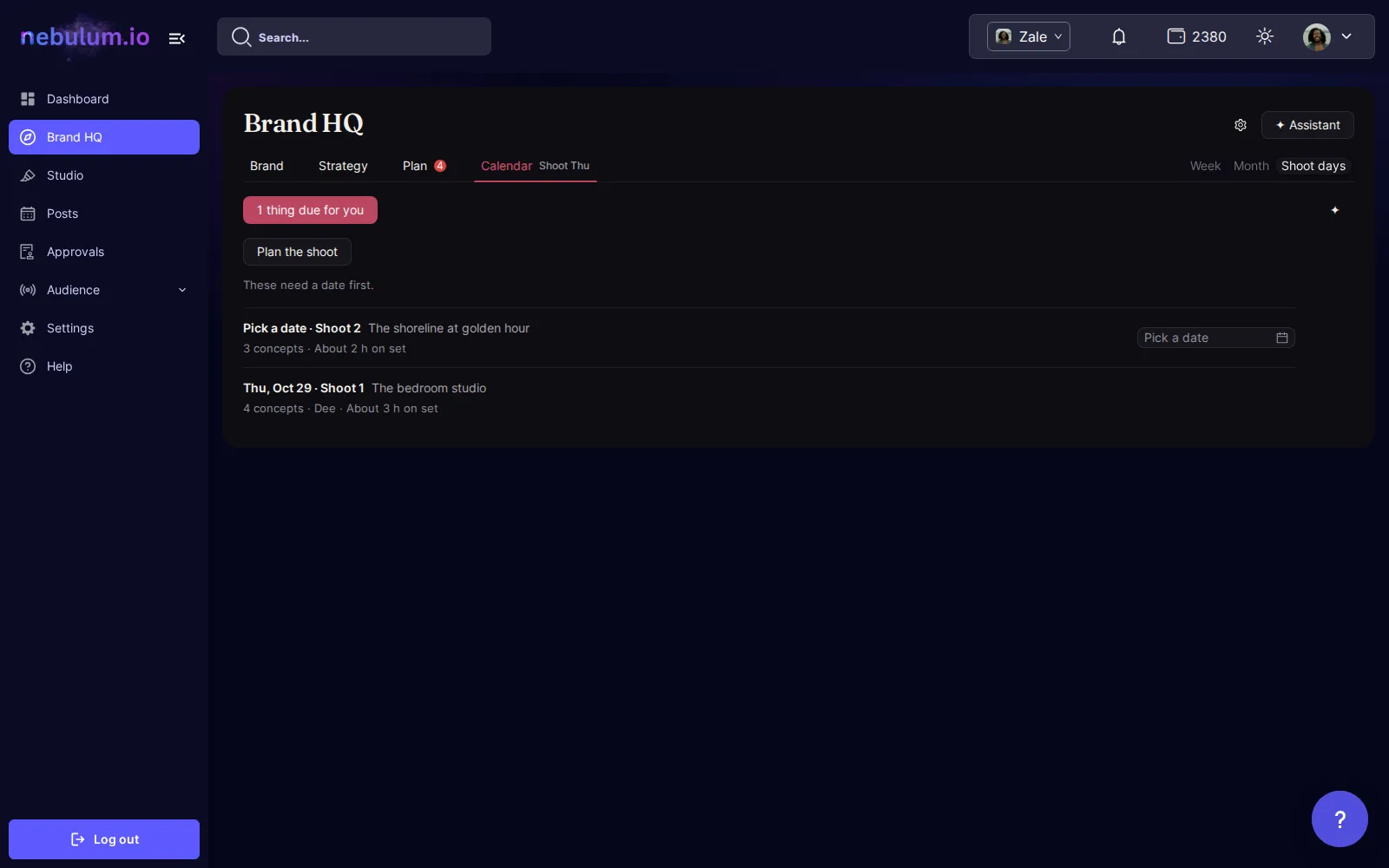
- Approving a concept puts it on no shoot day. A batch's filmed concepts come with their shoots; for an approved one with none, open Shoot days and click Plan the shoot: Nebulum groups them into days that can make every post date. Click Accept these shoot days.
- Each batch's shoots land here, named Shoot 1, Shoot 2 and so on, dated or not; a later batch's read Batch 2 · Shoot 1.
- A shoot without a date asks you to Pick a date. Open a shoot to set its When and Who and see its Concepts; one with no place offers Same place as before? with your earlier places. Click Edit to set its Place, Props, Wardrobe, a Checklist and Setup notes.
- Open a shoot that hasn't begun and click Take off this shoot beside a concept to move it off.
- A post filmed at a shoot goes on a day after the shoot: the Calendar refuses an earlier day and says the first one it can take. Move a shoot onto or past its posts and Brand HQ asks to move them along; when a dated shoot moves later, Undo puts both back. A post in Posts, or a concept marked done, keeps its date, so the shoot can't pass it. Only a shoot's first date can pass a post that already went out or a concept marked done.
Tip: More than six concepts on one day may run long; the day says so.
Give a step to someone
- Click a step in the Week, such as a shoot, a rough cut or a review, to open it.
- Under Give to, pick a teammate, or Unassigned to take it off them. Reminders go to whoever has it.
- Cut steps due the same day for the same person show as one Edit: give it, and every step in it goes together.
- Click Mark done when it's finished. A step that waits on another says which.
- A step whose work happens elsewhere offers it here, such as Attach footage, Edit in Studio or Schedule in Posts.
Tip: When someone can no longer plan for the brand, their steps read Unassigned with their name. Pick Needs someone new to find them, and give all of one person's steps at once.
Fix a date that's too tight
When a post's date leaves too little time for the work it still needs, the Week lists it at the top with its fixes beside it: move the post later, use existing footage, add a shoot day, or simplify the format.
From concept to finished piece
- Open a concept from the Book, the Calendar or Posts. Its main button is the next step: Approve, Add to a shoot day for a shoot, Open the shoot day until the shoot, Attach footage, then Schedule in Posts.
- Every planned concept gets its brief by itself, written with it or soon after. Edit the Brief, then Lock for production when the crew should work from it. A locked brief keeps its concept: no Not this or New take until it is unlocked.
- After the shoot, Attach footage: drop the clips in, or pick them from your library. On a shoot day with several concepts, tick the concepts each clip is for, and Attach sends them all.
- Where the video editor is on your plan, Edit in Studio opens it with the brief beside it: under Clips in this piece, click Add for one clip, or add all the others in one click. Otherwise, Upload the finished edit. Once your render is in, Schedule in Posts shows beside the render button and at the top of the brief.
- In the piece's ⋯ menu (More actions), click Ask for a review. The reviewer sees Review the cut on the Calendar, then clicks Approve the cut or Ask for changes. After changes, the new edit asks for the review again by itself.
Post it
- Click Schedule in Posts. The post composer opens under From your plan: and the concept's name, with its caption, accounts and time filled in.
- Write with AI and Suggest hashtags work from your brand and the concept you're posting, not only from what's in the caption box.
- Post or schedule as usual. With several pieces, the next one opens after each post; after the last, you're back in Brand HQ.
- Once it's out, the Calendar asks How did your last post do?, and its concept asks How did it do?: tap Great, OK or Flopped. What's working learns from your ratings.
- A failed post shows Retry the failed post on the Calendar, which opens it in Posts. A draft you left in Posts shows Finish your draft in Posts.
Tip: Nothing posts by itself unless someone turns on Posting in Automation, and then only what someone on your brand kept by hand.
Related guides
- Brand HQ: plan in batchesSay how many concepts and where you shoot. Nebulum writes them in one go, each with its brief, grouped by shoot; you approve them, then date them in the Calendar.
- Schedule & manage postsEverything you've queued lives on the My Posts page — switch between List and Calendar views, filter, edit or cancel posts, and rescue failed ones.
- Post to your socialsTurn any library item into a social post — pick your accounts, write one caption for every platform, add hashtags, and post now or schedule it.
- Connect your social accountsLink Facebook, Instagram, TikTok, YouTube, Threads, and X once so Nebulum can post for you — and fix or remove connections later.
Signed in? Open this guide in Nebulum. New here? Start free.