
Brand HQ: plan in batches
Say how many concepts and where you shoot. Nebulum writes them in one go, each with its brief, grouped by shoot; you approve them, then date them in the Calendar.
Write a batch
- Open Plan › Batch. With no batch yet, New batch is the page; after one, click New batch on the Book's cover.
- Under How many concepts?, pick a number: it starts at your posts a week times two, up to 40. Adjust mix shows the series, Moments, trends and formats it holds, each with a count.
- Under Toward, tick a Moment, or click + Add a release or show.
- Under Shoots, each shoot has a Where, a When (or Pick later) and Who. The sheet proposes one shoot for every six concepts that need filming; click + Add a shoot for more. Two shoots on the same day at the same place are one shoot.
- Under Details, say in your own words what every concept and brief should follow. More direction holds Who shoots, Effort and Funnel balance for this batch alone. A next batch starts with your last batch's Details and places, ready to change.
- The write button shows how many concepts, with their briefs, and the credits. It is the only tap that spends. Nothing here has a post date: you date what you approve in the Calendar.
Note: Writing runs in the background, a few minutes for a full batch. You can leave; the Book fills as each concept and its brief land.
Your batch as a book
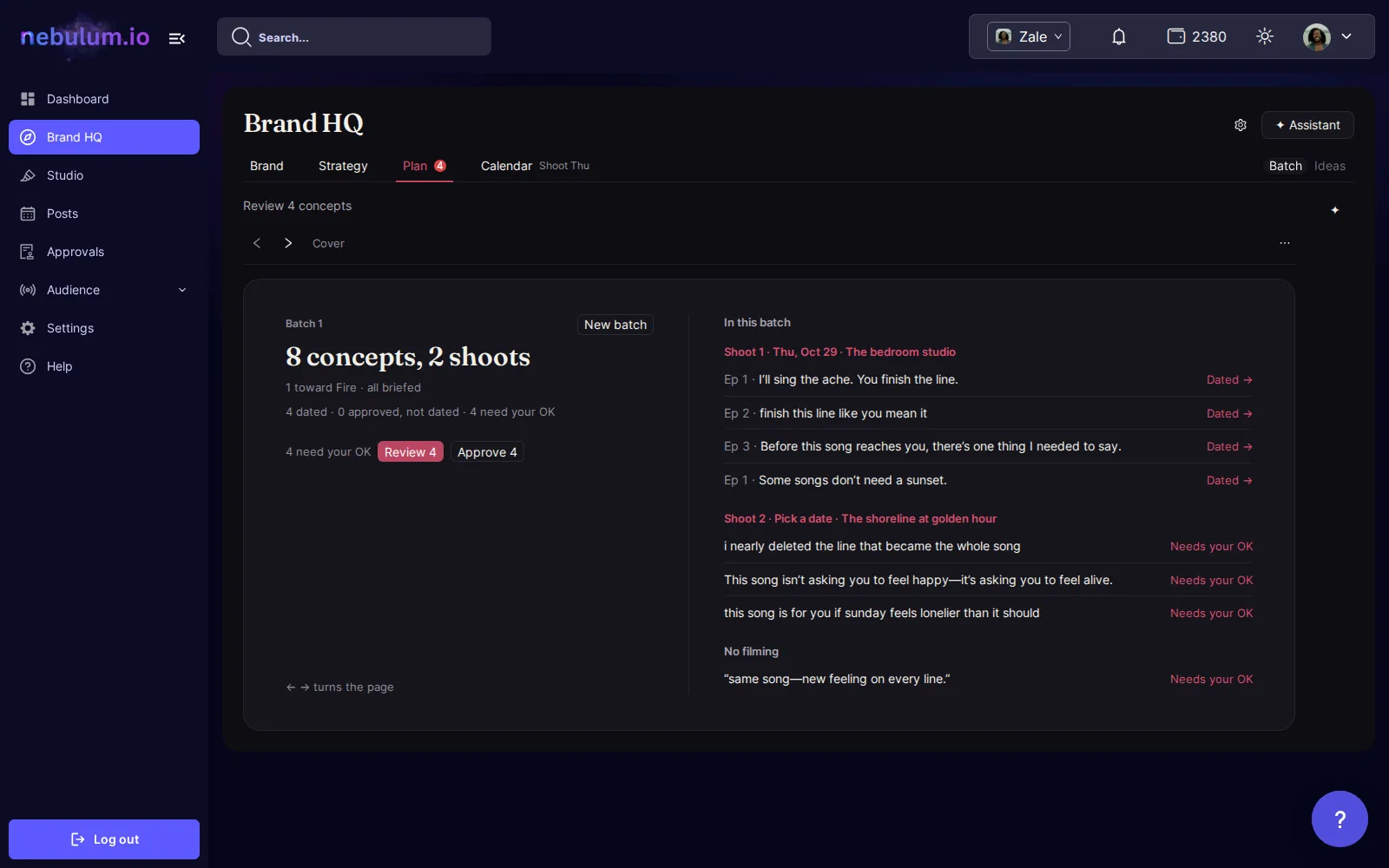
- The cover sums up the batch: its concepts and shoots, how many are dated, approved but not dated, or need your OK.
- In this batch lists the concepts by shoot, then those with No filming. Each says Needs your OK, Not dated or Dated →, which opens that day in the Calendar. Click a concept to turn to its page, or turn with the arrows, the ← → keys or a swipe.
- Click Review to turn to the first concept that needs your OK, or approve them all at once. Once nothing needs your OK, the cover asks for the date of a shoot that has none.
- When some concepts weren't written, the cover says so; you weren't charged, and its button writes the rest.
- The ⋯ menu (More actions) holds Present, which shows the book full screen; Exit or Esc leaves it.
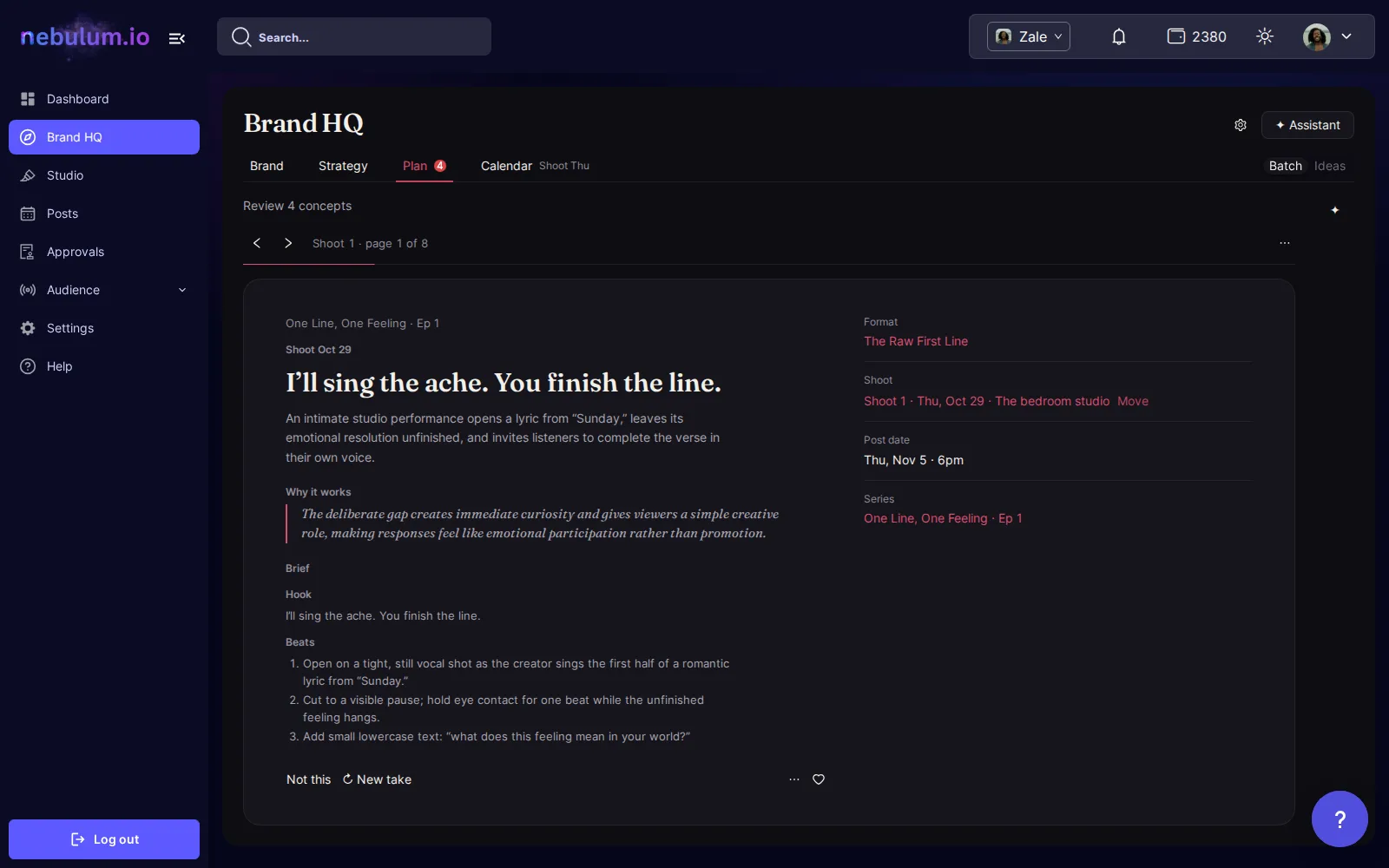
A concept and its brief
- A page is one concept: its idea and why it works, then its Shoot, Post date and series, then its brief: the hook, the shots, what's on screen, the props and the time on set.
- Click Approve, or New take for another version with a new brief. Not this asks for a reason, then Replace (free) or Just remove. With Approve concepts for me on in Automation, as it is for a new brand, a batch's concepts arrive approved; a new take you ask for still waits.
- Unapprove, in the page's ⋯ menu, takes an approval back until production starts; a dated concept loses its date too.
- To film it at another shoot of the batch, click Move beside its shoot.
- A shoot with no place says it once, on the cover: its briefs ask for one.
Tip: Your reasons for Not this steer what Nebulum writes next.
Your ideas
- Open Plan › Ideas. Type an idea in a line and click + Jot an idea, or Brainstorm more for a few new ones; Develop turns a jotted idea into a concept.
- Click Add to batch to put an idea in your latest batch: it gets its brief then. A filmed one asks which shoot when the batch has more than one.
- Ideas keeps ♥ Saved, Jotted, New from brainstorm, Fresh for you, Approved, not in a batch, From earlier batches and Earlier ideas. Tap the heart on a concept to keep it under ♥ Saved.
Tip: Develop and Brainstorm more show their price before you tap. Fresh for you fills only while Fresh concepts is on in Automation.
When Plan is locked
Planning comes with the brand's plan. When it isn't included, the Plan tab and Strategy's Formats say so: the person who pays sees See plans, and everyone else learns whom to ask.
Related guides
- Brand HQ: shoot, edit and postThe Calendar dates the concepts you approve, turns them into shoots, steps and posts, shows who has each step, and hands each finished piece to Posts.
- Brand HQ: your strategy and formatsStrategy says what you're working toward, who it's for and how often you post. It ranks the formats that fit your brand and shows what's working.
- Credits explainedWhat credits are, where to see what each action costs, where to check your balance and spending history, and what to do when you run out.
Signed in? Open this guide in Nebulum. New here? Start free.