
Your first steps
You're in — get oriented with the welcome tour, work through the Getting started checklist, and know where your plan lives.
Your plan is already picked — and never locked
You chose a plan the first time you signed in. Nothing about it is permanent: compare tiers, upgrade, or change billing period anytime under Settings → Plan & Billing (full walkthrough in the Plans & billing guide).
Take the 30-second tour
On your first visit to the dashboard, a welcome bubble points out your credits, Brand HQ, the Studio, and the Help card that brings you back here.
- Click Next to move through the steps.
- Click Finish on the last step — the tour will not auto-run again.
- To watch it again later, open the Getting started card's Checklist options menu (the ... button) and choose Replay intro tour.
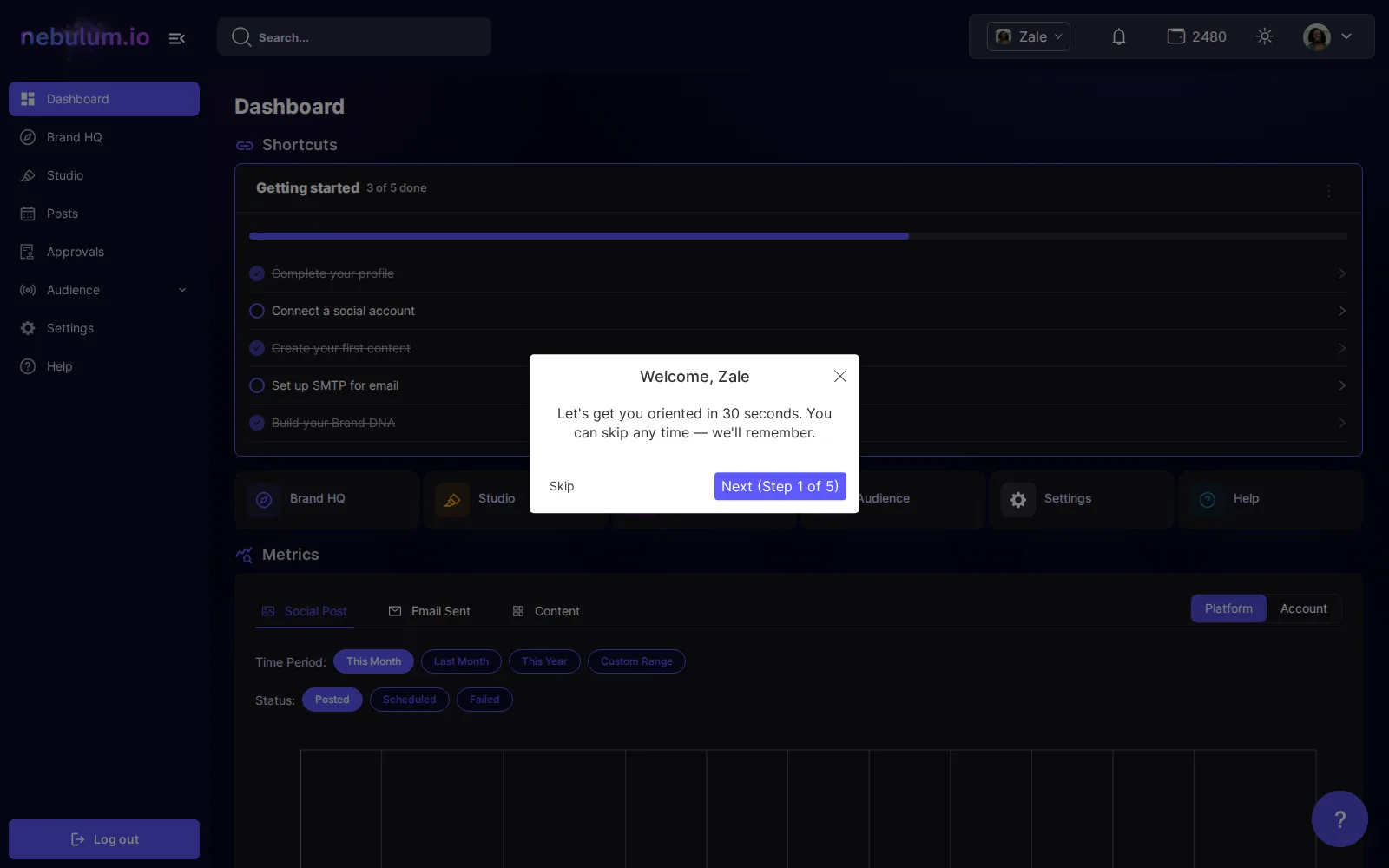
Tip: Click Skip at any point — your choice is remembered on your account, not just this browser. Steps whose target is not on screen are skipped automatically.
Work through the Getting started checklist
The Getting started card on the dashboard tracks your setup with a progress bar. Items check themselves off as you complete things anywhere in the app — you never tick boxes manually. Depending on your plan you may also see Set up SMTP for email and Build your Brand DNA.
- Click Complete your profile to open Settings and fill in your details.
- Click Connect a social account to link a social profile.
- Click Create your first content to jump into the Studio and make something.
Note: Dismiss checklist (in the ... menu) hides the card permanently — there is no way to bring it back. You can still replay the welcome tour afterwards from the Help Center's Take a tour again card.
Related guides
- The dashboard at a glanceWhat lives on your dashboard home — shortcut cards, the Getting started checklist, and your activity charts.
- Plans & billingSee your current plan, compare and switch plans through Stripe checkout, cancel or resume, and find your invoices.
- Account settings & securityUpdate your profile and photo, change your password, switch light or dark mode, contact the team, and delete your account.
Signed in? Open this guide in Nebulum. New here? Start free.