
Account settings & security
Update your profile and photo, change your password, switch light or dark mode, contact the team, and delete your account.
Update your profile
The Profile section sits at the top of Settings — it is the same place the avatar menu's Profile entry opens.
- Click Settings in the sidebar.
- Click the pencil icon next to your name, edit Name, then click Update.
- To change your photo, click the round + button on your profile picture and pick an image (.jpeg, .jpg, .png, or .gif, up to 10 MB).
- Click the green check button to save the new picture, or the red X to discard it.
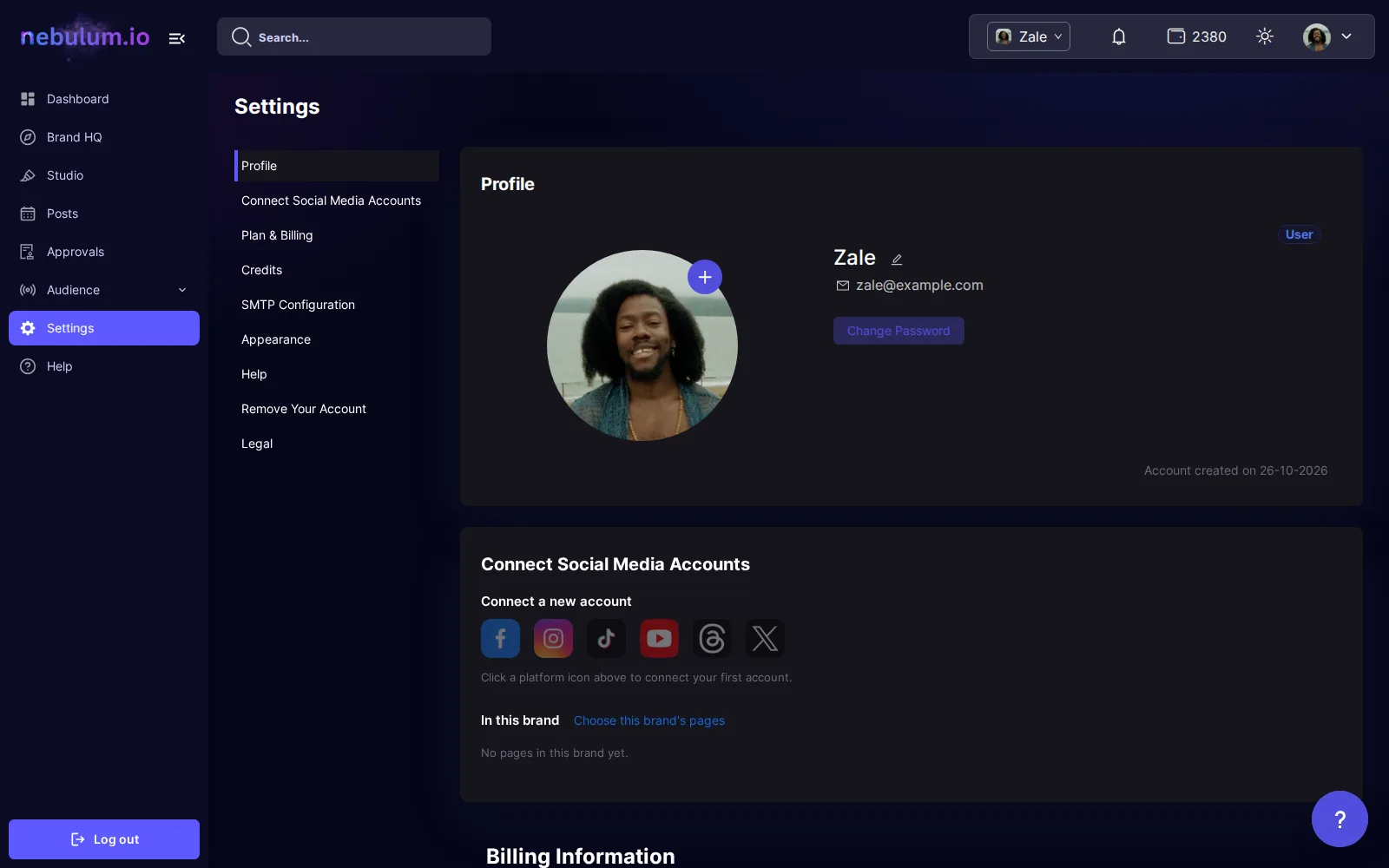
Tip: The Update button stays disabled until you actually change a field. Your email address is shown here but cannot be edited.
Change your password
- In the Profile section, click Change Password.
- Type your current password in Old Password.
- Type a new password in New Password — a live checklist shows the requirements as you type.
- Re-type it in Confirm password, then click Update.
Tip: Passwords must be 8-64 characters with an uppercase letter, a lowercase letter, a number, and a special character — and only the special characters @$.!%^*#?& are accepted.
Switch light or dark mode
- In Settings, click the Appearance tab.
- Click the switch to toggle between Light Mode and Dark Mode — the theme changes instantly.
Announcements from the team
Platform announcements appear automatically as a pop-up when you open the dashboard. Click Got it to dismiss one — if several are queued, the button reads Next with a counter. Once dismissed, an announcement does not reappear.
Tip: There is no notification-preferences screen — announcements cannot be turned off, and email notifications have no user-facing toggle.
Get help from the team
The Help section lets you replay the guided tours and send a message straight to the team.
- Click your avatar in the top-right and choose Help (or click the Help tab in Settings).
- Optional: in the Take a tour again card, click Replay dashboard tour, Replay Studio tour or, with Brand HQ on your plan, Replay Brand HQ tour to re-run a walkthrough.
- Under Submit Help Requests, optionally pick the page your question is about in the Related to dropdown.
- Describe your issue in the Message box, then click Submit — the form clears once it is sent.
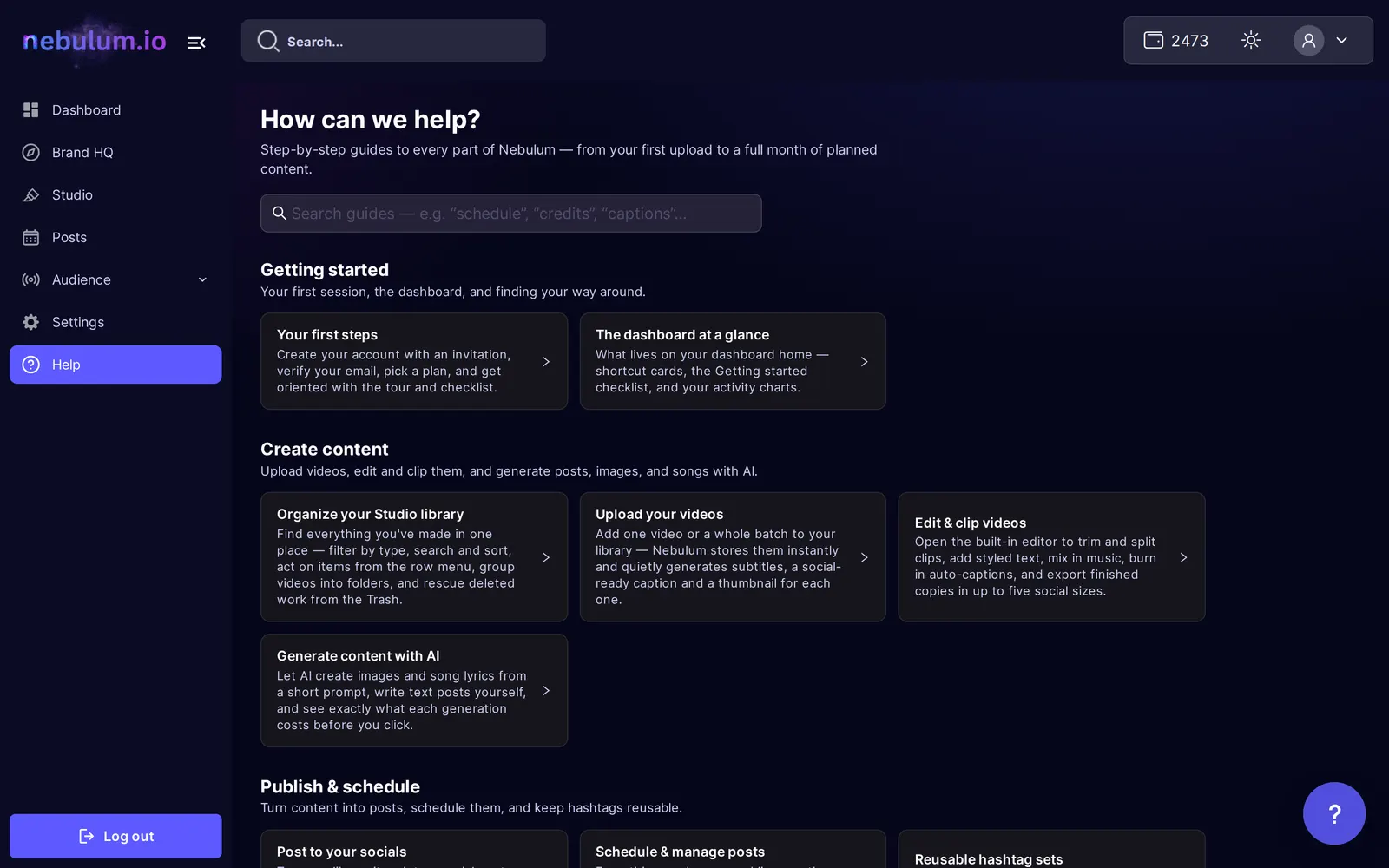
Tip: Related to is optional; only Message is required.
Remove your account
Deleting your account is permanent: it erases all your data, cancels your subscription, and gives no refund. The NebLink pages and song links of the brands you own go offline straight away, and the personal data of their fans is removed after 30 days.
- In Settings, click the Remove Your Account tab and read the warning.
- Click the red Remove button.
- In the Delete Account window, type your password under Enter your password and click Confirm.
- Enter the 6-digit code sent to your email in the OTP Verification field and click Submit — if the timer runs out, click Resend OTP.
Note: This cannot be undone. Your data and any remaining credits are gone for good, and you are logged out once the deletion completes.
Related guides
- Plans & billingSee your current plan, compare and switch plans through Stripe checkout, cancel or resume, and find your invoices.
- Connect your social accountsLink Facebook, Instagram, TikTok, YouTube, Threads, and X once so Nebulum can post for you — and fix or remove connections later.
- Credits explainedWhat credits are, where to see what each action costs, where to check your balance and spending history, and what to do when you run out.
Signed in? Open this guide in Nebulum. New here? Start free.