The dashboard at a glance
What lives on your dashboard home — shortcut cards, the Getting started checklist, and your activity charts.
Your home base
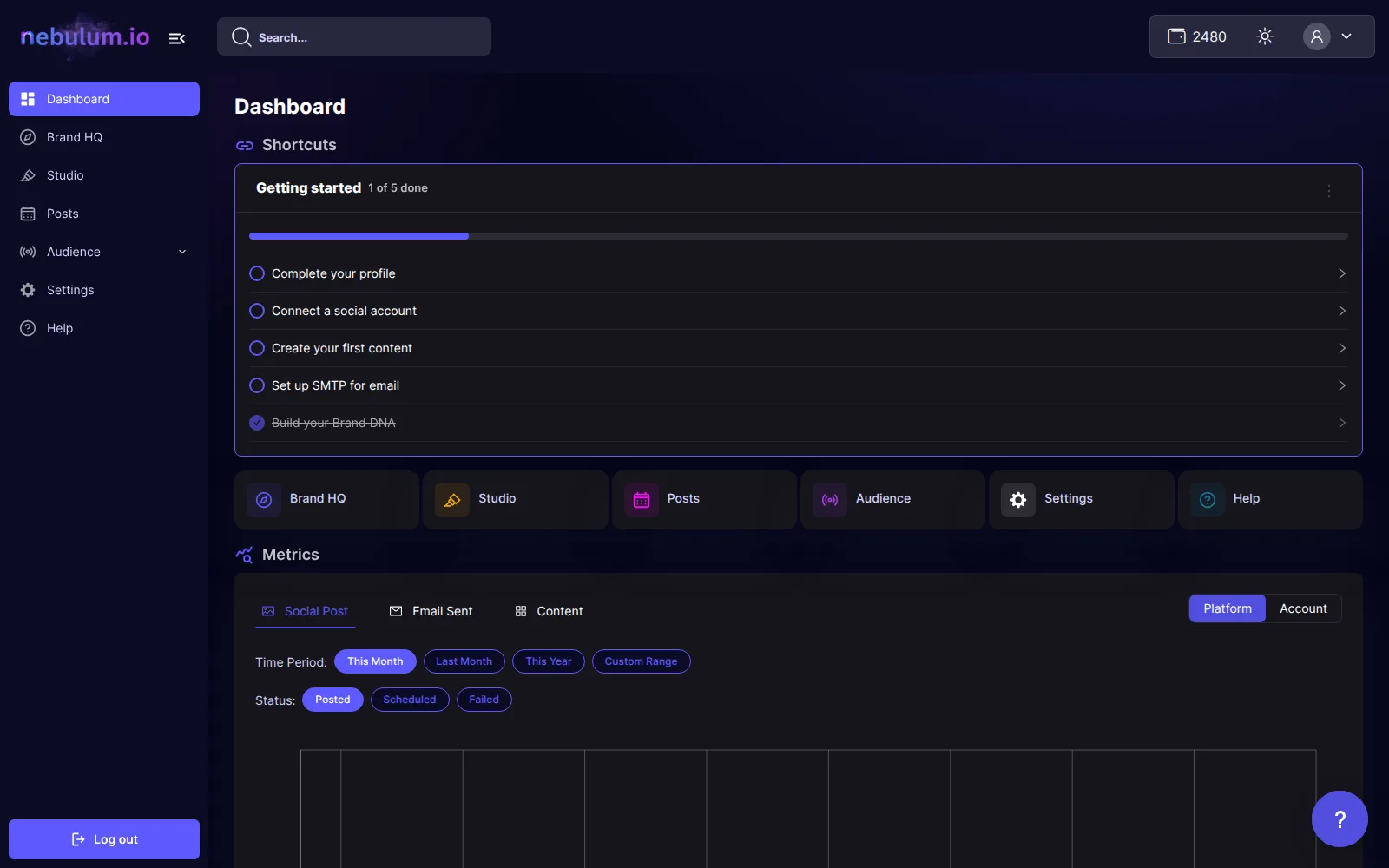
The dashboard is the first screen you land on every time you sign in — a setup checklist, one-click shortcuts to every main area, and charts of your posting and content activity.
Jump anywhere with the Shortcuts cards
- Under the Shortcuts heading, click Studio to create content.
- Click Posts to see your scheduled posts.
- Click Audience to open NebLink and the audience tools.
- Click Settings to manage your account and connections.
- Click Help to open the Help Center — these guides, searchable, plus the tour replays and the support form.
- Click Brand HQ to define your brand and plan content — this card appears only if your plan includes it.
Manage the Getting started card
The Getting started card shows a progress bar and how many setup items you have finished. Done items get a check mark and strike-through automatically, and the card disappears once everything is complete.
- Open the card's Checklist options menu (the ... button).
- Choose Replay intro tour to watch the welcome tour again.
- Choose Dismiss checklist to hide the card early.
Note: Dismiss checklist is permanent — the card does not come back. The welcome tour stays replayable from the Help Center's Take a tour again card.
Read your Metrics charts
The Metrics panel charts your posting and content activity over time.
- Switch between the Social Post and Content tabs — an Email Sent tab also appears on email-enabled plans.
- Filter the chart with the Time Period: chips — This Month, Last Month, This Year, or Custom Range.
- On the Social Post tab, use the Status: chips (Posted, Scheduled, Failed) and the Platform / Account toggle to slice the lines.
- On the Content tab, toggle Category / Source — in the Category view, filter with the Source: chips such as Generated or Uploaded.
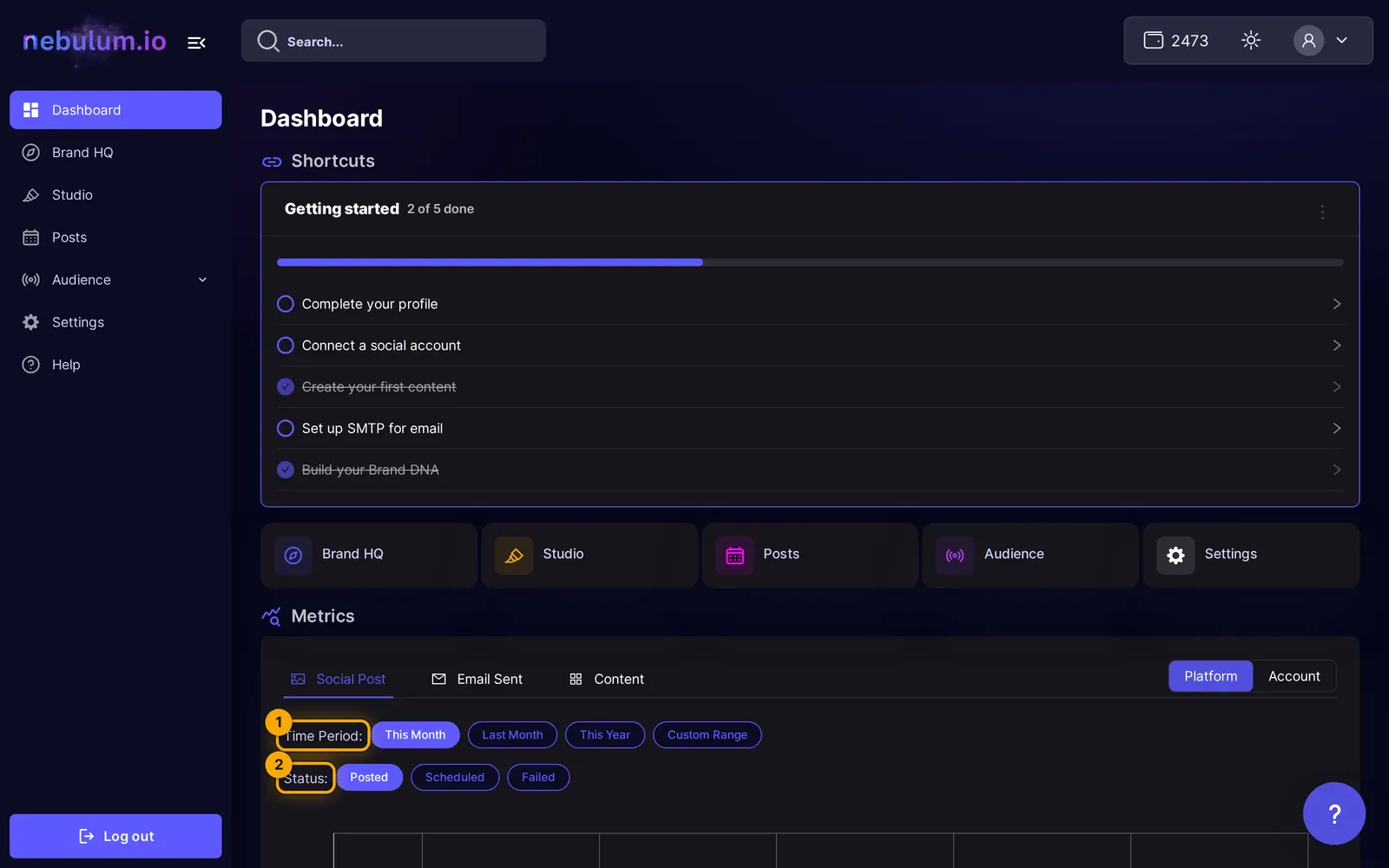
Tip: Custom Range adds a Daily / Monthly / Yearly picker and a date range so you can zoom in on any stretch of time.
What the empty states mean
A brand-new account shows No Data Found ! in the Metrics charts until you create or schedule content, and Platform Insights shows No Accounts Connected ! until you link a social account. Both are normal — the charts fill in as you use the app.
Related guides
- Your first stepsYou're in — get oriented with the welcome tour, work through the Getting started checklist, and know where your plan lives.
- Connect your social accountsLink Facebook, Instagram, TikTok, YouTube, Threads, and X once so Nebulum can post for you — and fix or remove connections later.
- Organize your Studio libraryFind everything you've made in one place — filter by type, search and sort, act on items from the row menu, group videos into folders, and rescue deleted work from the Trash.
Signed in? Open this guide in Nebulum. New here? Start free.