
Work with teammates
Invite people to a brand and choose what they can do, answer invites and access requests, pay for someone else's brand, and approve posts before they go out.
Invite someone to a brand
You invite people to the brand that's open, from Brand team settings. Owners and admins can always invite.
- Switch to the brand, open the brand menu and click Brand team settings.
- Under Invite, enter their Email.
- Under Who can accept, choose They choose: themselves or one of their teams, Only as a person or Only for a team.
- Under Start from, pick Label, Contributor or Viewer, then adjust Permissions and Posting if you need to.
- Click Send invite. They get an email and a notice in Nebulum. The invite works for 7 days.
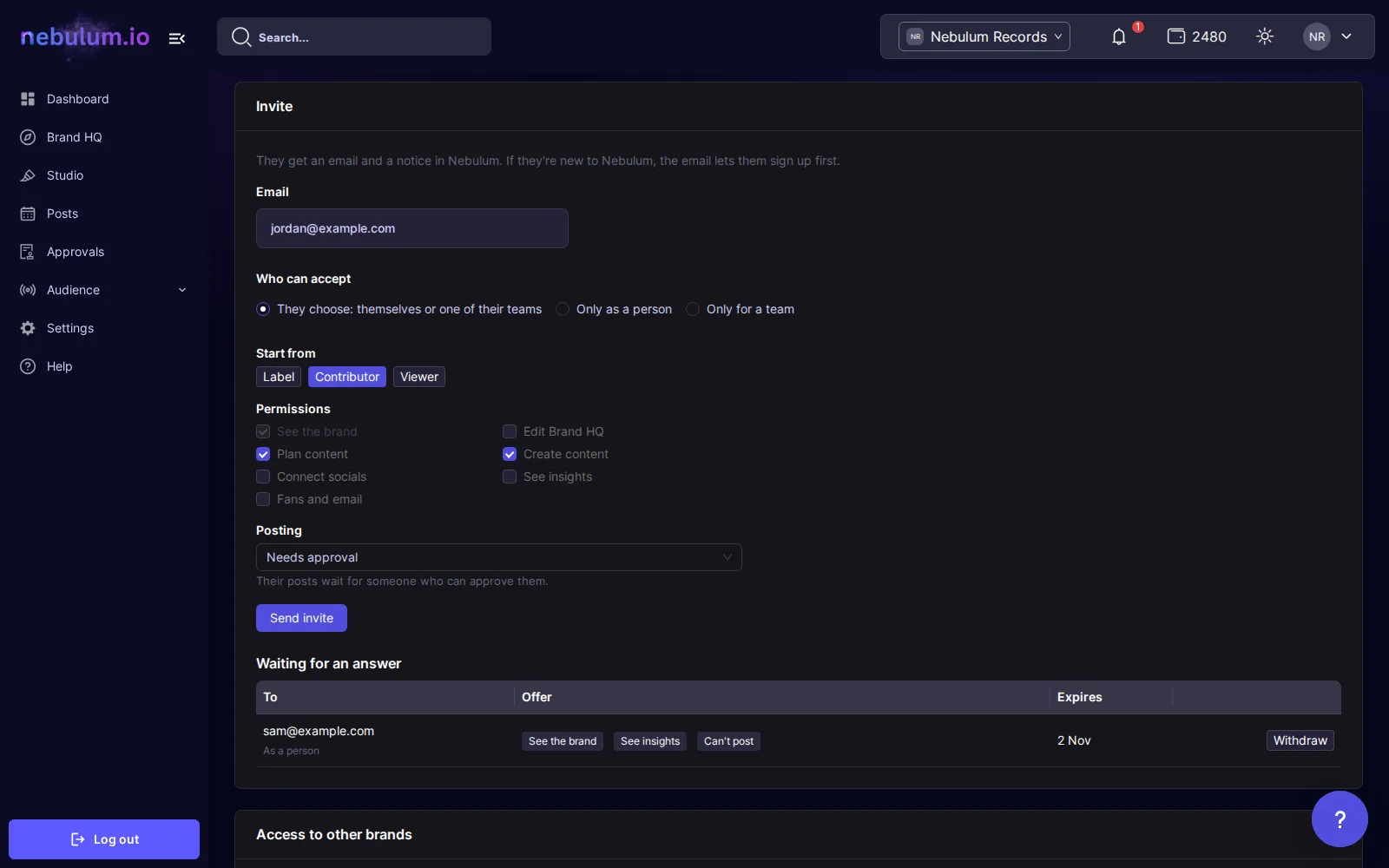
Tip: New to Nebulum? The email lets them sign up first. Your open invites wait under Waiting for an answer, where Withdraw cancels one.
Roles, presets and permissions
Admins manage people, access, settings and socials, approve posts and post freely. Members get the permissions you tick. You can't give access you don't have yourself.
- Label: See the brand, Edit Brand HQ, Plan content, Create content and See insights. Posts freely.
- Contributor: See the brand, Plan content and Create content. Their posts need approval.
- Viewer: See the brand and See insights. Can't post.
- Posting is Posts freely, Needs approval or Can't post.
- To make someone an admin, choose Only as a person, then Admin under Role.
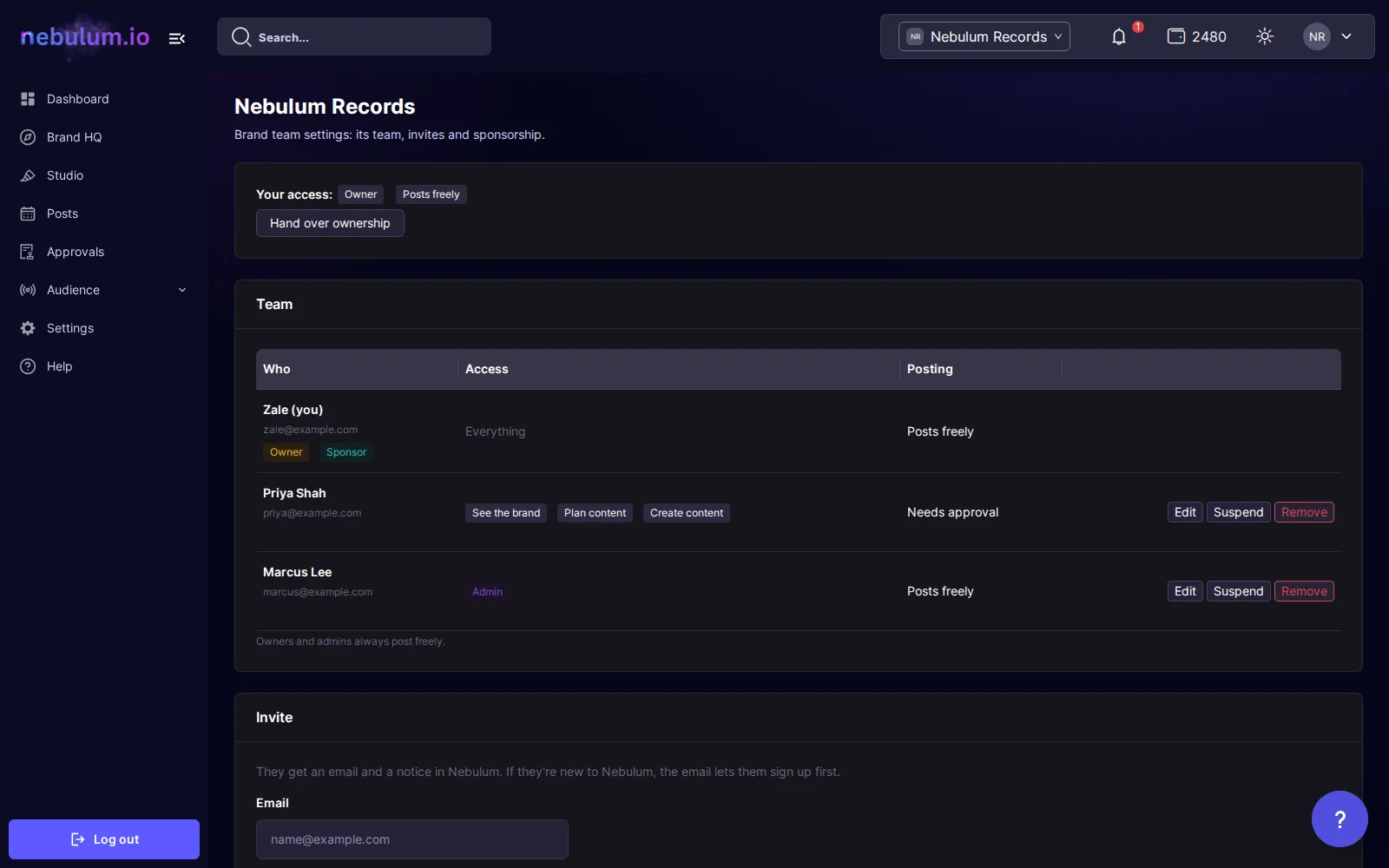
Tip: To change someone's access later, click Edit next to them under Team. Suspend pauses their access and Remove takes them off the brand.
Accept an invite
- Open the link in the invite email, or click the bell at the top of the page to open your Inbox.
- Under Waiting for you, click Review.
- Read What changes. If you're offered the choice, pick Join as myself or Give one of my teams access.
- Click Accept, or Decline.
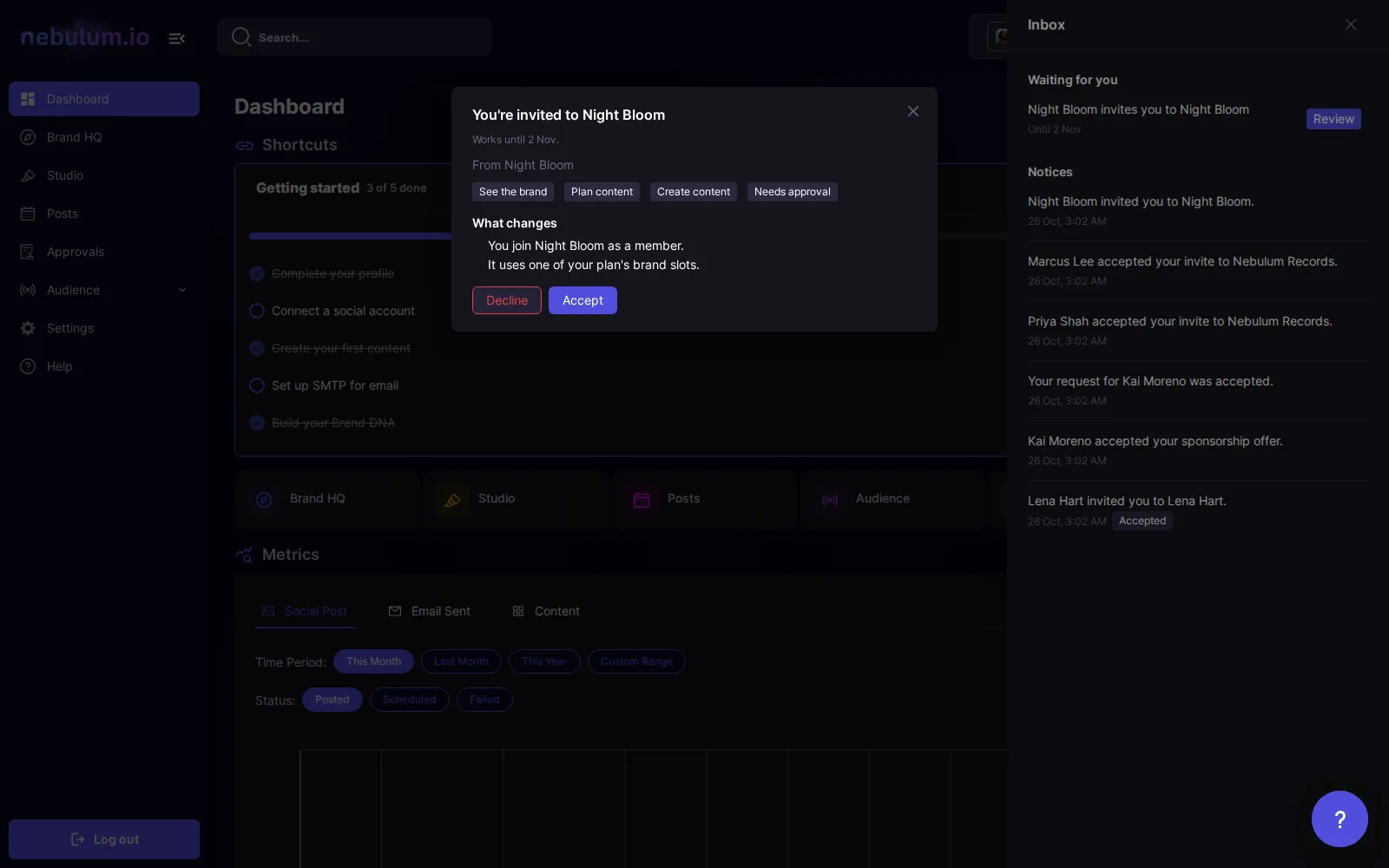
Tip: Joining uses one of your plan's brand slots, unless it's one sponsor's default brand, such as your label's.
Ask for access to a brand
To work on someone else's brand, ask its owner or an admin. They choose which of their brands to open to you.
- Open the brand menu, click Manage brands, then Ask for access.
- Enter Their email.
- If you can, choose Who gets access: Me or One of my teams.
- Pick the access you're asking for, then click Send request.
Tip: Requests to your brands arrive in your Inbox and under Requests to this brand in Brand team settings. Click Review to answer.
Pay for someone else's brand
A label or manager can pay for an artist's brand. While you sponsor a brand, its credits come from you, from the same balance as every other brand you pay for, and it gets the parts of your plan you share. That lasts while you stay a member of the brand.
- On the Brands page, click Ask for access and choose One of my teams.
- Tick Offer to sponsor the brand (you pay for its credits), then choose Share the Label preset or Share everything on my plan.
- Click Send request. Only the brand's owner can accept a sponsorship.
- Your sponsored brands are listed under Brands you sponsor on the Brands page. Edit what you share changes what they get. Stop sponsoring moves the brand to its owner's plan straight away.
Tip: Anything you don't share runs on the free plan for that brand, never on its owner's own plan. Someone sponsors your brand? Sponsorship in Brand team settings says who, and Decline the sponsorship moves the brand onto your own plan and credits.
Note: Over your plan's limit, the brands you started paying for most recently move onto their owners' plans. Click Choose in the warning on the Brands page to pin the ones you keep paying for. You can change that once every 30 days.
Approve posts before they go out
When someone's posting is Needs approval, their buttons read Send for approval or Schedule for approval, and the post waits for someone who can approve it.
- Click Approvals in the sidebar. It appears when you can approve posts in the open brand.
- Each row shows the post, What's pending (New post or Change to a scheduled post) and who it's From.
- Click Approve to schedule it as planned. Or click Send back, write a note and click Send back again.
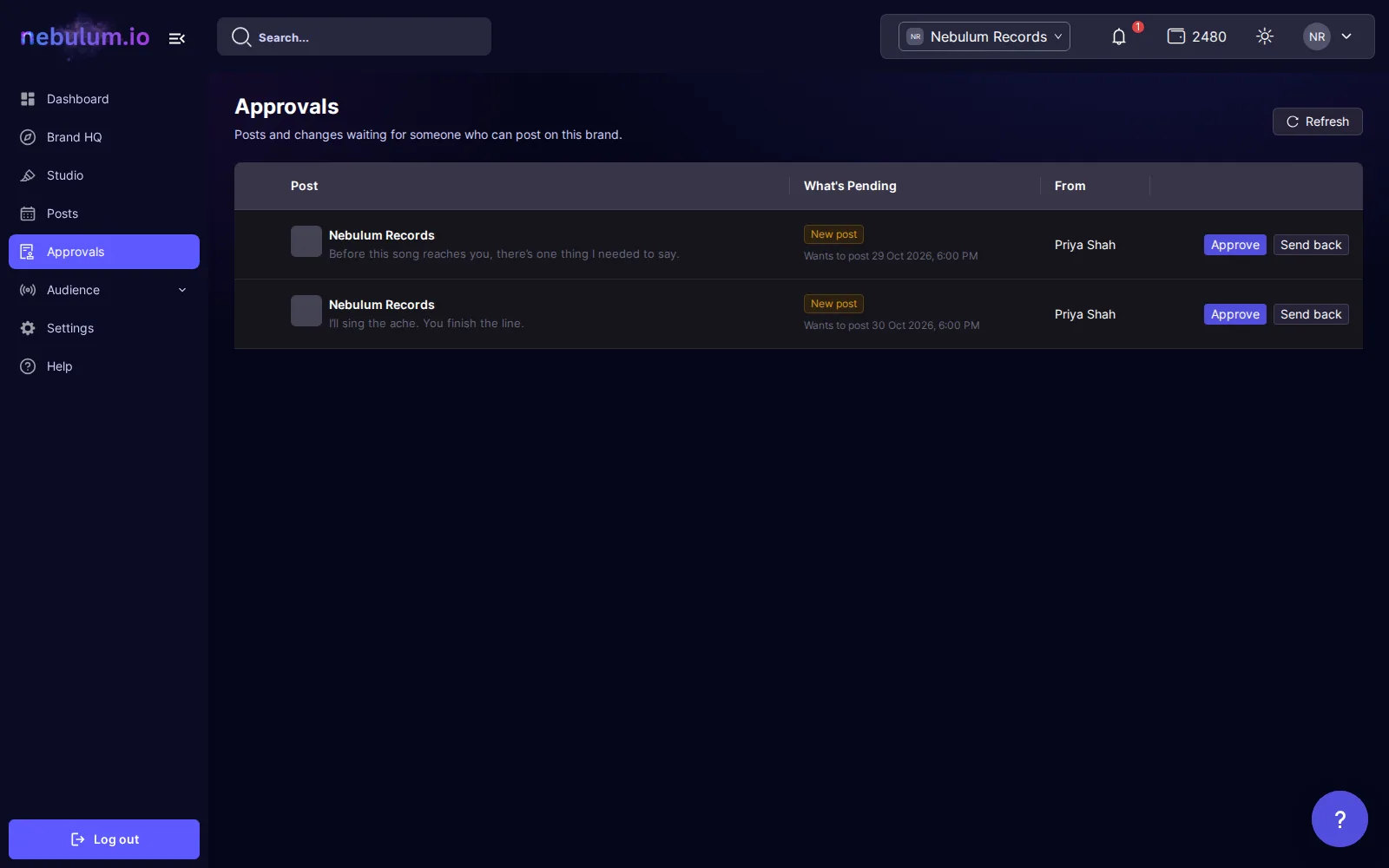
Tip: Approving needs both Approve posts and Posts freely. Nobody can approve their own post. Expand a change to a scheduled post to compare Now and Proposed.
Related guides
- Run more than one brandSwitch between brands, create one, see how many your plan allows, and make a brand your default, hand it over or leave it.
- Post to your socialsTurn any library item into a social post — pick your accounts, write one caption for every platform, add hashtags, and post now or schedule it.
- Schedule & manage postsEverything you've queued lives on the My Posts page — switch between List and Calendar views, filter, edit or cancel posts, and rescue failed ones.
Signed in? Open this guide in Nebulum. New here? Start free.