
Run more than one brand
Switch between brands, create one, see how many your plan allows, and make a brand your default, hand it over or leave it.
Switch between brands
Everything you make, plan and post belongs to a brand. The brand menu at the top of the page shows which one is open.
- Click the brand name at the top of the page. On a phone, it's at the top of the sidebar.
- Pick a brand. Each one shows your access: Owner, Admin, Member or Through your team.
- Nebulum opens that brand and keeps you in the same part of the app.
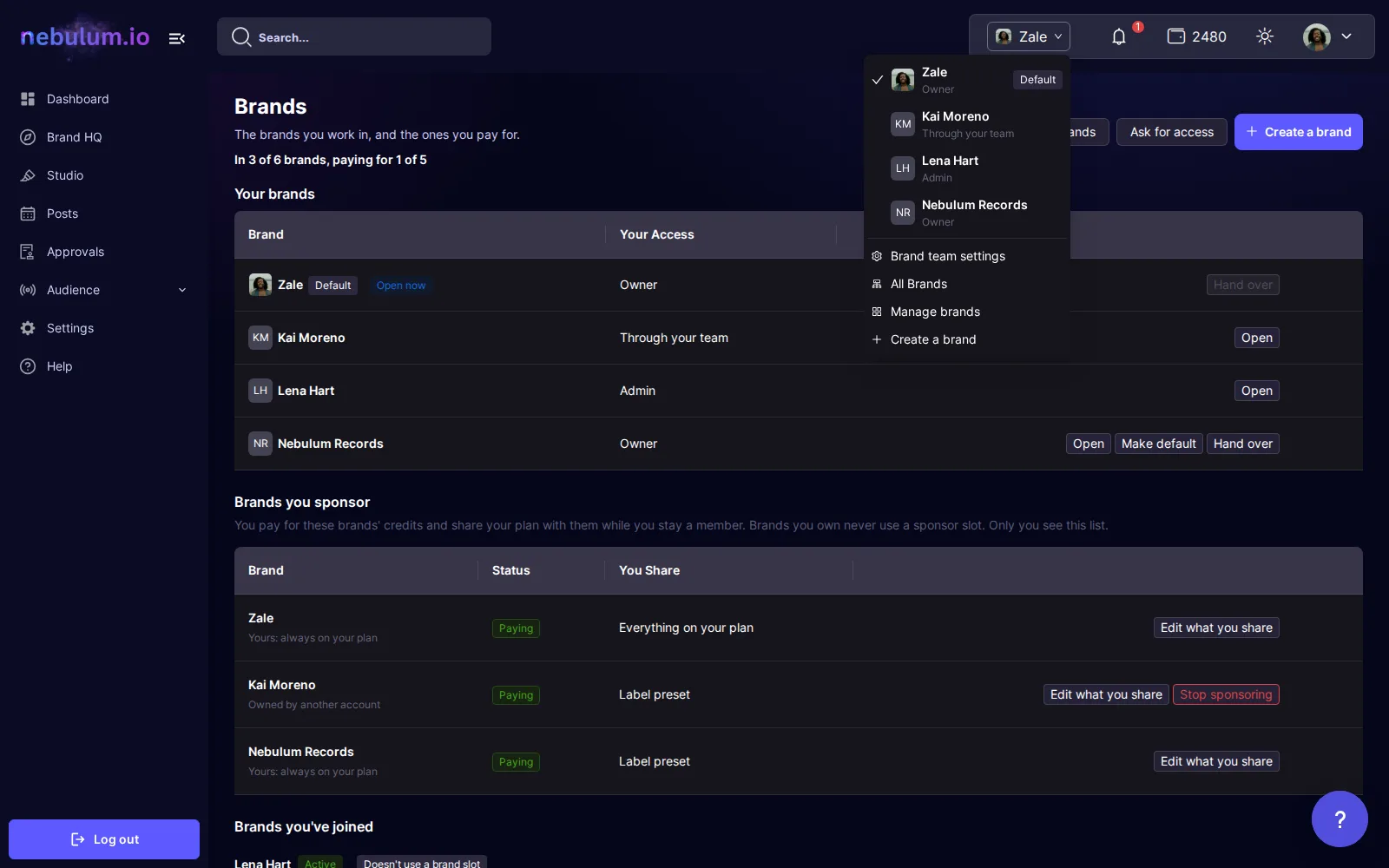
Tip: Manage brands at the bottom of the menu opens the Brands page, with every brand you're in.
Create a brand
A brand you create is yours: you own it and your plan pays for it.
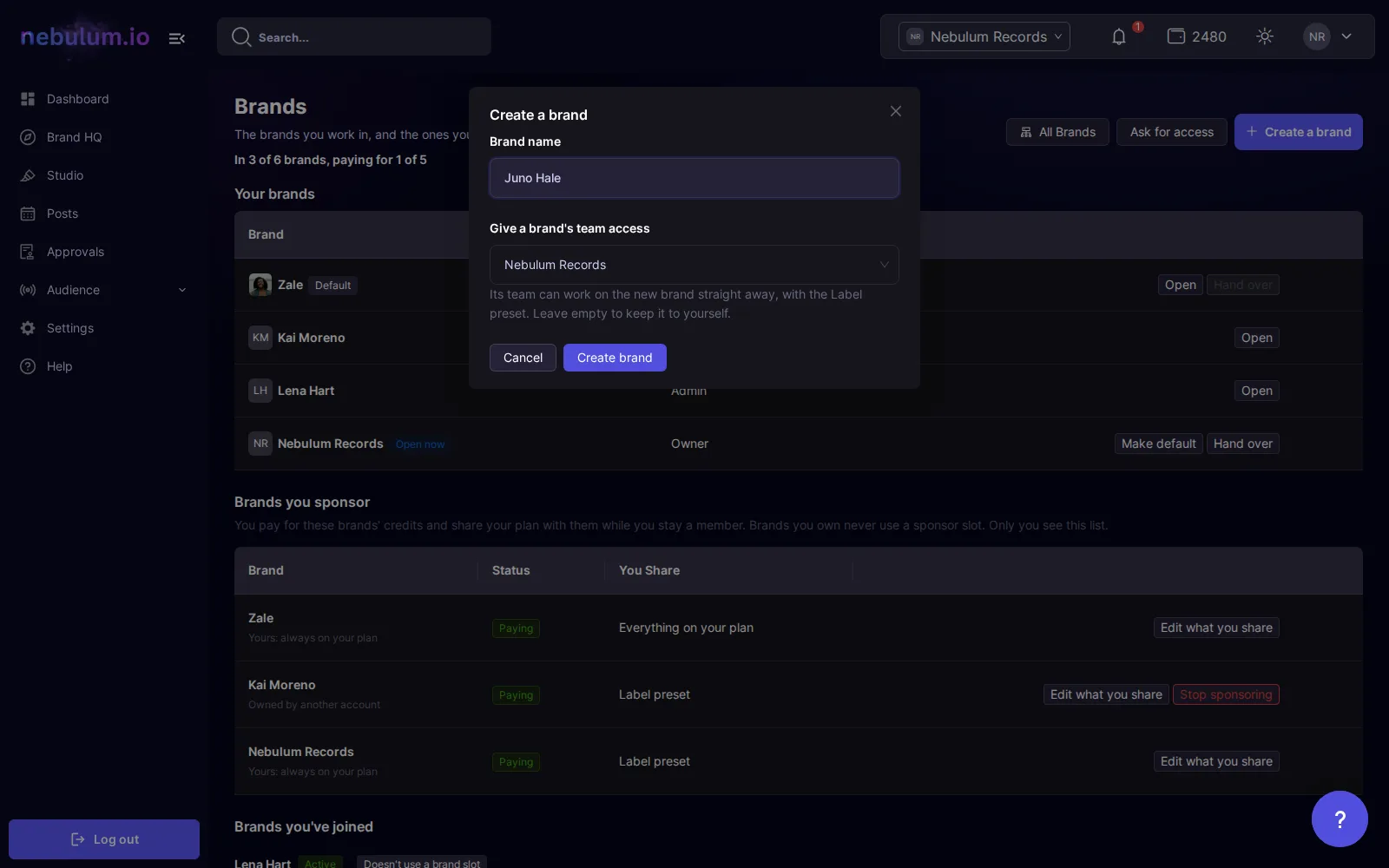
- Open the brand menu and click Create a brand, or click Create a brand on the Brands page.
- Enter a Brand name.
- If Give a brand's team access shows a brand, its team can work on the new one straight away with the Label preset. Clear it to keep the brand to yourself.
- Click Create brand, then switch to the new brand or click Stay here.
How many brands your plan allows
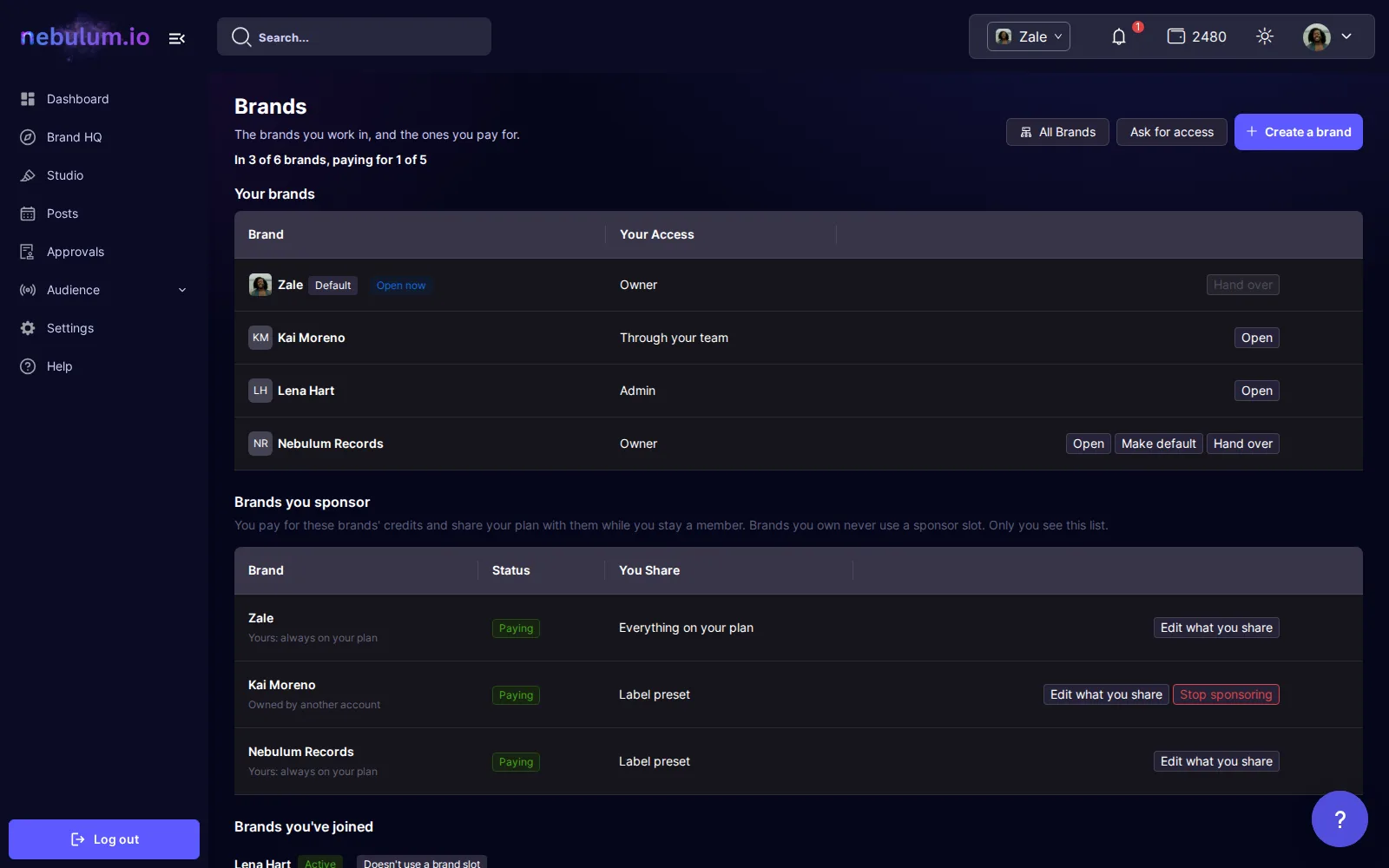
Your plan sets two numbers: how many brands you can be in, owned or joined, and how many brands you don't own that you can pay for. The Brands page shows both, for example In 3 of 6 brands, paying for 1 of 5.
- Open the brand menu and click Manage brands.
- Read the line under Brands. Brands you own or joined count toward the first number. Brands you pay for but don't own count toward the second.
- Under Brands you've joined, a brand marked Doesn't use a brand slot doesn't count. You can be in one sponsor's default brand, like your label's, without using a slot.
Tip: If your plan changes and you're in more brands than it allows, the newest brands you joined are paused until you choose which stay. Under Brands you've joined, switch on Keep active for the ones you want. Brands you own never pause.
Note: At the limit, you can't create, join or take over another brand until you upgrade your plan, or leave or hand over a brand. The message offers See plans.
Make a brand your default
Your default brand shares your account's name and picture. Only a brand you own can be your default.
- Open the brand menu and click Manage brands.
- Next to the brand, click Make default.
- Read what changes, then click Make default again.
Tip: Your account takes the new default's name and picture. Your old default keeps its own.
Hand a brand over
Handing over gives a brand you own to another Nebulum account, for example when an artist takes over their own brand.
- On the Brands page, click Hand over next to the brand. Or open the brand's Brand team settings and click Hand over ownership.
- Read what happens when they accept.
- Enter Their email, the email of their Nebulum account, and click Send the offer. It works for 7 days, only for that address.
- They accept it from their Inbox. Until then, you can withdraw it under Waiting for an answer in Brand team settings.
Tip: When they accept, they own the brand and you stay on as a member with the Label preset. Every connected social account has to be reconnected before it posts again.
Note: You can't hand over your default brand. Make another brand your default first.
Leave a brand
- Switch to the brand, open the brand menu and click Brand team settings.
- Click Leave this brand, then Leave. You lose access straight away.
Tip: An owner can't leave their own brand: hand it over instead. If you reach a brand Through your team, its owner or admins manage that access.
See all your brands at once
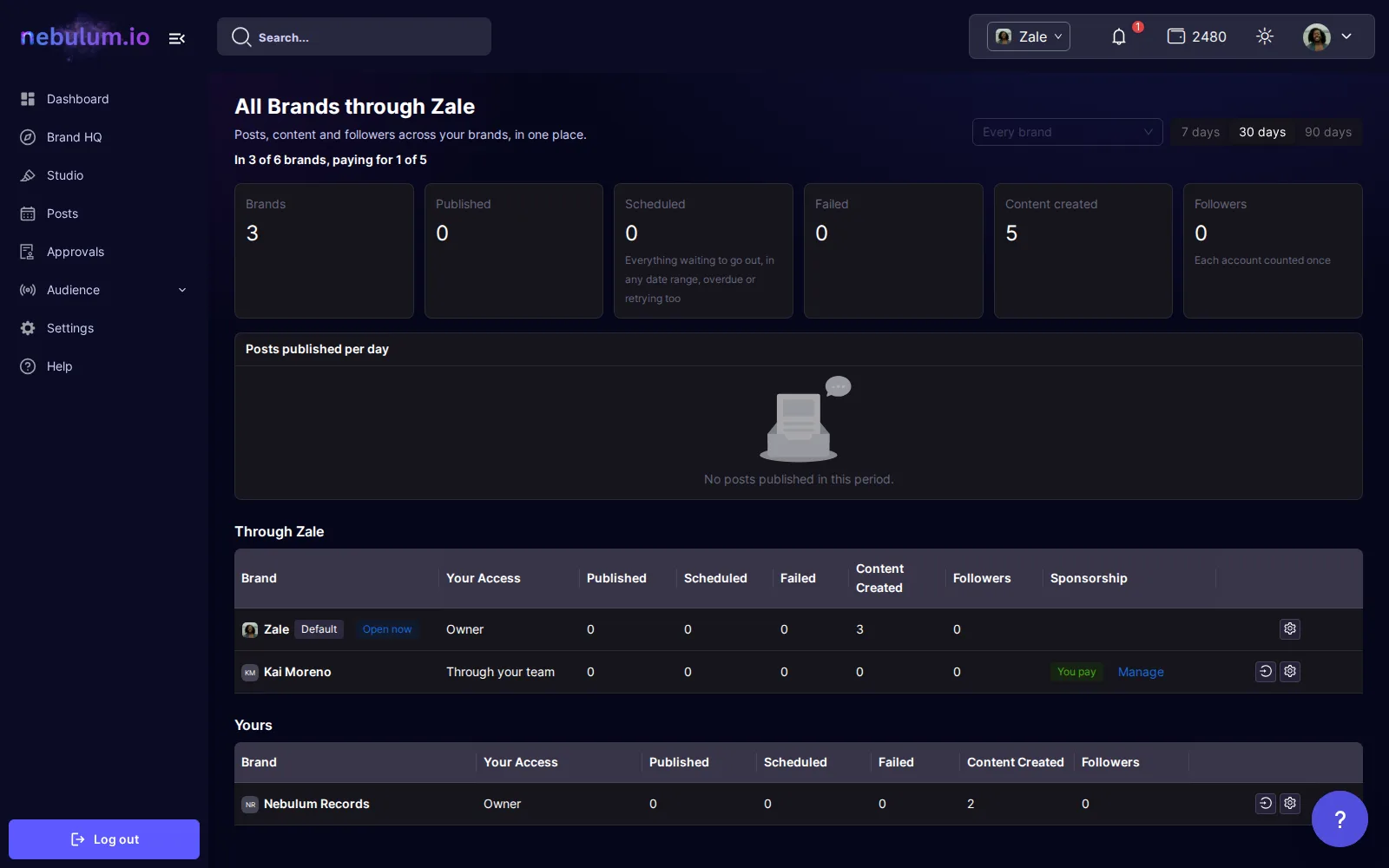
All Brands adds up posts, content and followers across your brands. It appears when your plan includes it and you're in at least two brands.
- Open the brand menu and click All Brands, or click All Brands on the Brands page.
- Pick 7 days, 30 days or 90 days. To look at some brands only, choose them under Every brand.
- The tiles add up Published, Scheduled, Failed, Content created and Followers. Below them, each brand has its own row, with buttons to open it or its Brand team settings.
Related guides
- Work with teammatesInvite people to a brand and choose what they can do, answer invites and access requests, pay for someone else's brand, and approve posts before they go out.
- Plans & billingSee your current plan, compare and switch plans through Stripe checkout, cancel or resume, and find your invoices.
- Connect your social accountsLink Facebook, Instagram, TikTok, YouTube, Threads, and X once so Nebulum can post for you — and fix or remove connections later.
Signed in? Open this guide in Nebulum. New here? Start free.