
Upload your videos
Add one video or a whole batch to your library — Nebulum stores them instantly and quietly generates subtitles, a social-ready caption and a thumbnail for each one.
Find the upload form
Uploading lives in Studio and is available on every plan — no social accounts needed.
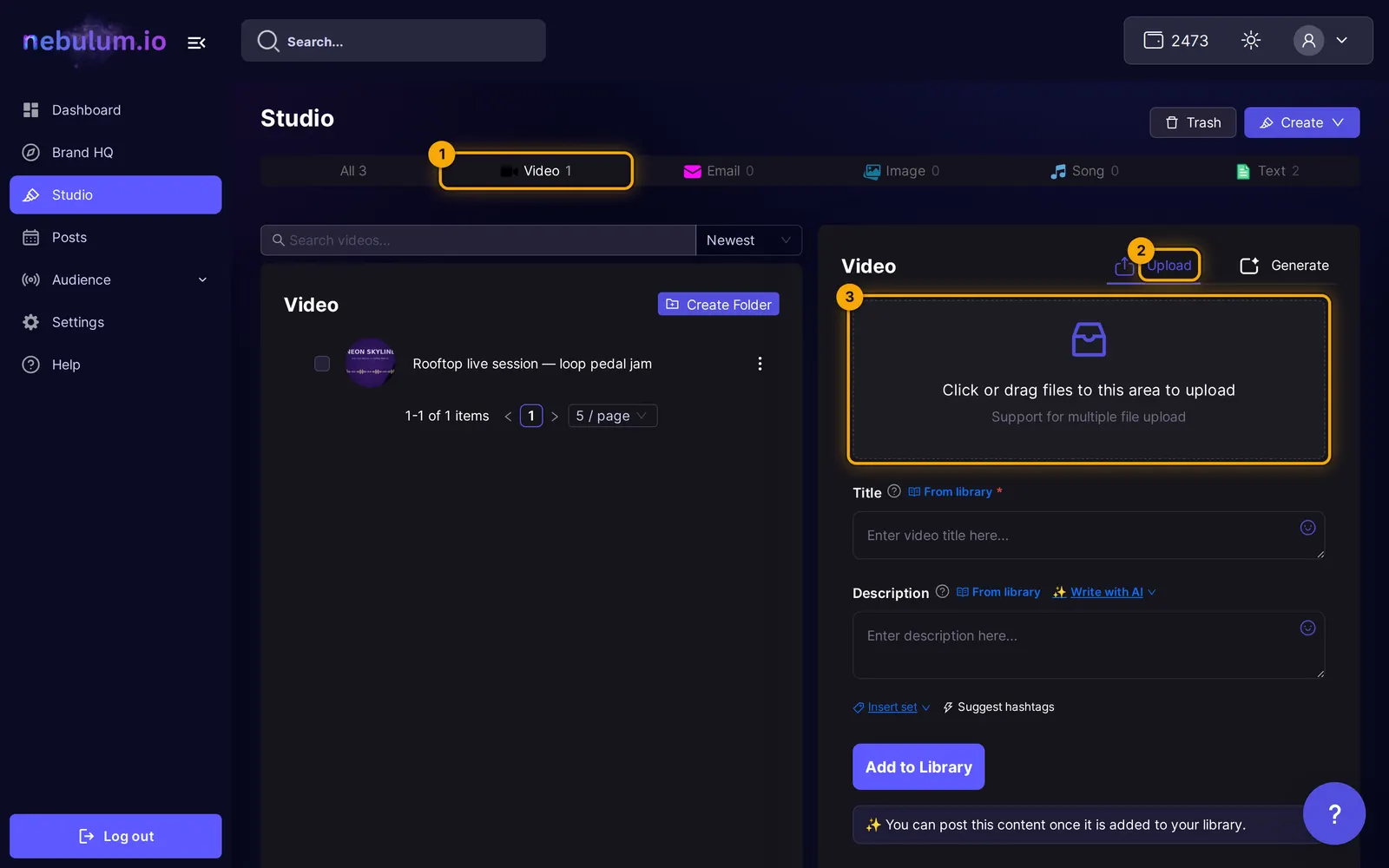
- Click Studio in the sidebar. It opens on the Video pill by default; click the pill if it is not selected.
- In the right panel, stay on the Upload tab — it is the default.
Add your files
- Click or drag your video files into the box that says Click or drag files to this area to upload — you can drop several at once.
- Wait a moment while previews are created — with several files you will see a Processing files: X / Y progress bar.
Tip: Accepted formats are .mp4, .mov, .mkv and .webm, up to 5 GB per file. An iPhone-style .mov may show a note that it could not be previewed in your browser — it still uploads fine, and the server creates the thumbnail and a playable copy for you.
Title, description and the writing helpers
- Type a name in the Title field (placeholder Enter video title here...). Title is required.
- Optionally add a Description (placeholder Enter description here...).
- Click Write with AI next to the Description label to let AI draft it — Generate from scratch, Rewrite this, Make shorter, Make punchier or Change tone…. Any credit cost shows right in the menu.
- Use Insert set below the box to drop in one of your saved hashtag sets, or Suggest hashtags to get AI suggestions for this video.
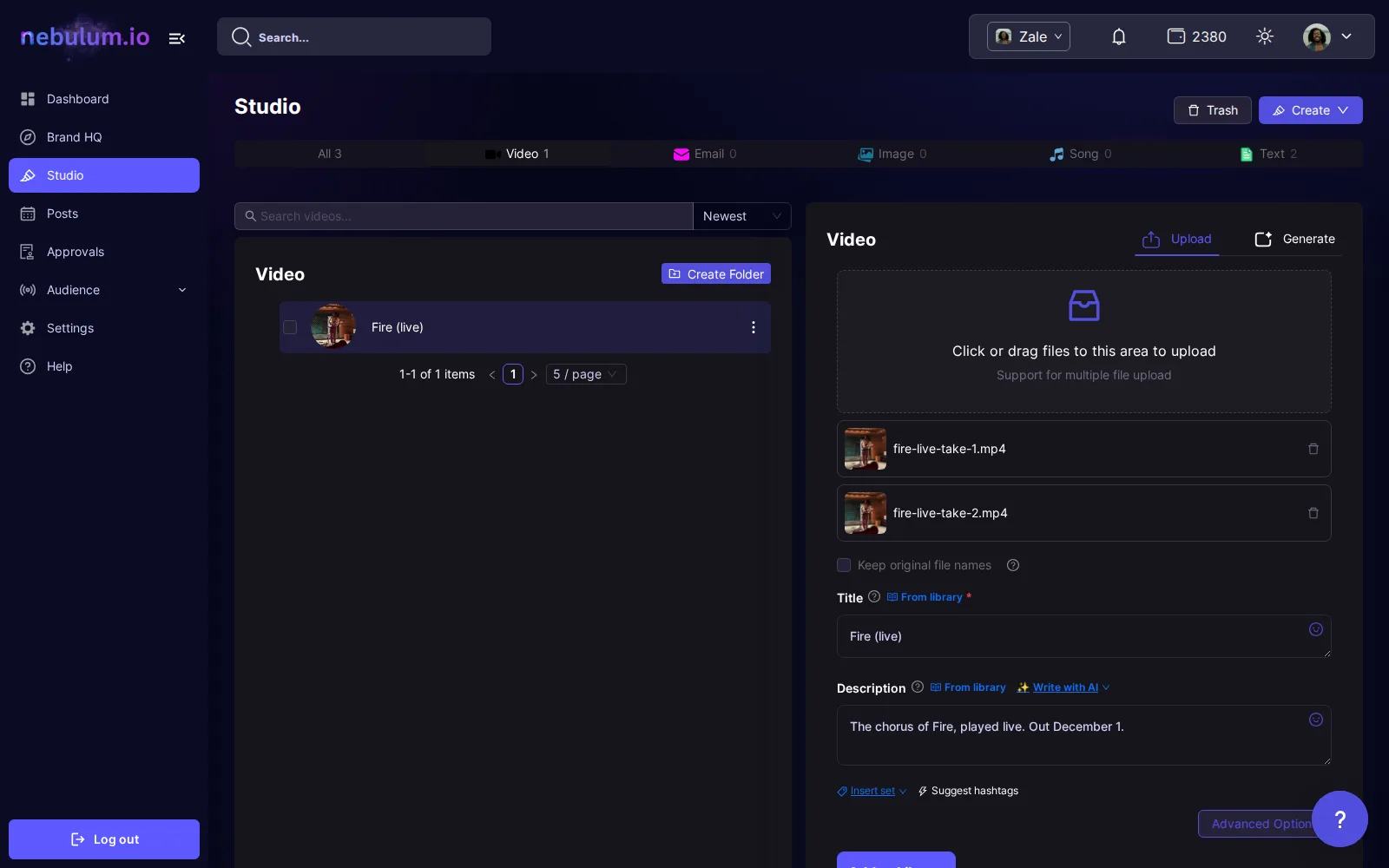
Tip: Tick Keep original file names and each video is added under its own file name. Uploading one file, the Title field disappears — the file supplies the name. Uploading several, the Title names the folder that holds them; unticked, the videos inside are renamed Title_1, Title_2, and so on. The same tick box appears when you upload images.
Advanced Options (on some plans)
If your plan includes advanced content options, an Advanced Options button appears on the form.
- Click Advanced Options and fill in Additional context — who is in the video, name spellings, the key message, or a link to include.
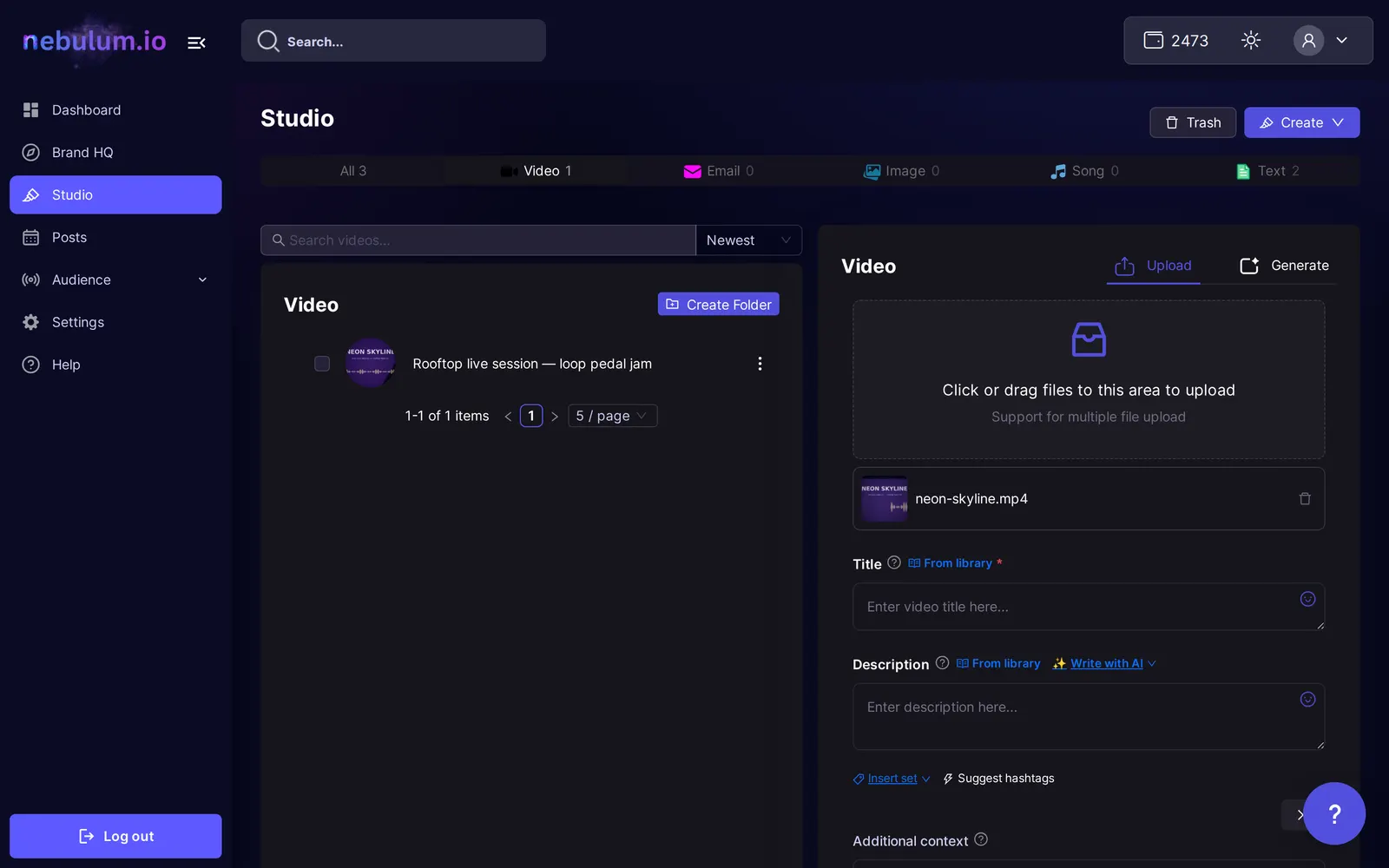
Tip: Names and key messages you put here come out spelled correctly in the AI-written caption.
Add it to your library
- Click Add to Library. The button reads Uploading... while your files transfer — keep the tab open for large files.
- When it finishes, a toast like 1 Video uploaded successfully! appears with a Go to Library button, and Studio opens your new video's details.
Note: Submitting without a title shows Video title is required!, and the button is disabled while it reads Processing files... — wait for the previews to finish first.
What happens after upload
Your video is playable immediately. In the background, Nebulum automatically generates spoken-word subtitles, a social-ready title and caption, and an AI thumbnail for every upload — there is no button to press.
- Open the video in Studio — the AI results land on its details panel, usually within a couple of minutes.
- To see the subtitles, click Edit video on the video's preview, then Add captions to timeline in the Captions card.
Tip: There is no visible processing badge — AI titles, captions and thumbnails simply appear when ready. A video with no speech ends up with no caption, which is normal, not an error.
Related guides
- Organize your Studio libraryFind everything you've made in one place — filter by type, search and sort, act on items from the row menu, group videos into folders, and rescue deleted work from the Trash.
- Edit & clip videosOpen the built-in editor to trim and split clips, add styled text, mix in music, burn in auto-captions, and export finished copies in up to five social sizes.
- Post to your socialsTurn any library item into a social post — pick your accounts, write one caption for every platform, add hashtags, and post now or schedule it.
Signed in? Open this guide in Nebulum. New here? Start free.