
Edit & clip videos
Open the built-in editor to trim and split clips, add styled text, mix in music, burn in auto-captions, and export finished copies in up to five social sizes.
Open the editor
The editor always opens on a specific video from your library. Clips depends on your plan.
- In Studio, open the Video pill and click a video to open its preview.
- Click Edit video under the player (or the clapperboard Advanced Video Options icon).
- The editor fills the screen: a top bar (back arrow, project name, Undo/Redo, save status and Export), a left tool rail (Select, Text, Music, Color and Clips; Transitions is greyed out), the canvas in the middle, a panel on the right, and a multi-lane timeline at the bottom with Video, Overlay, Captions and Music lanes.
- With nothing selected, the right panel shows your project — under Aspect ratio, click a chip (9:16, 1:1, 16:9, 4:5 or 2:3) and the canvas reframes instantly.
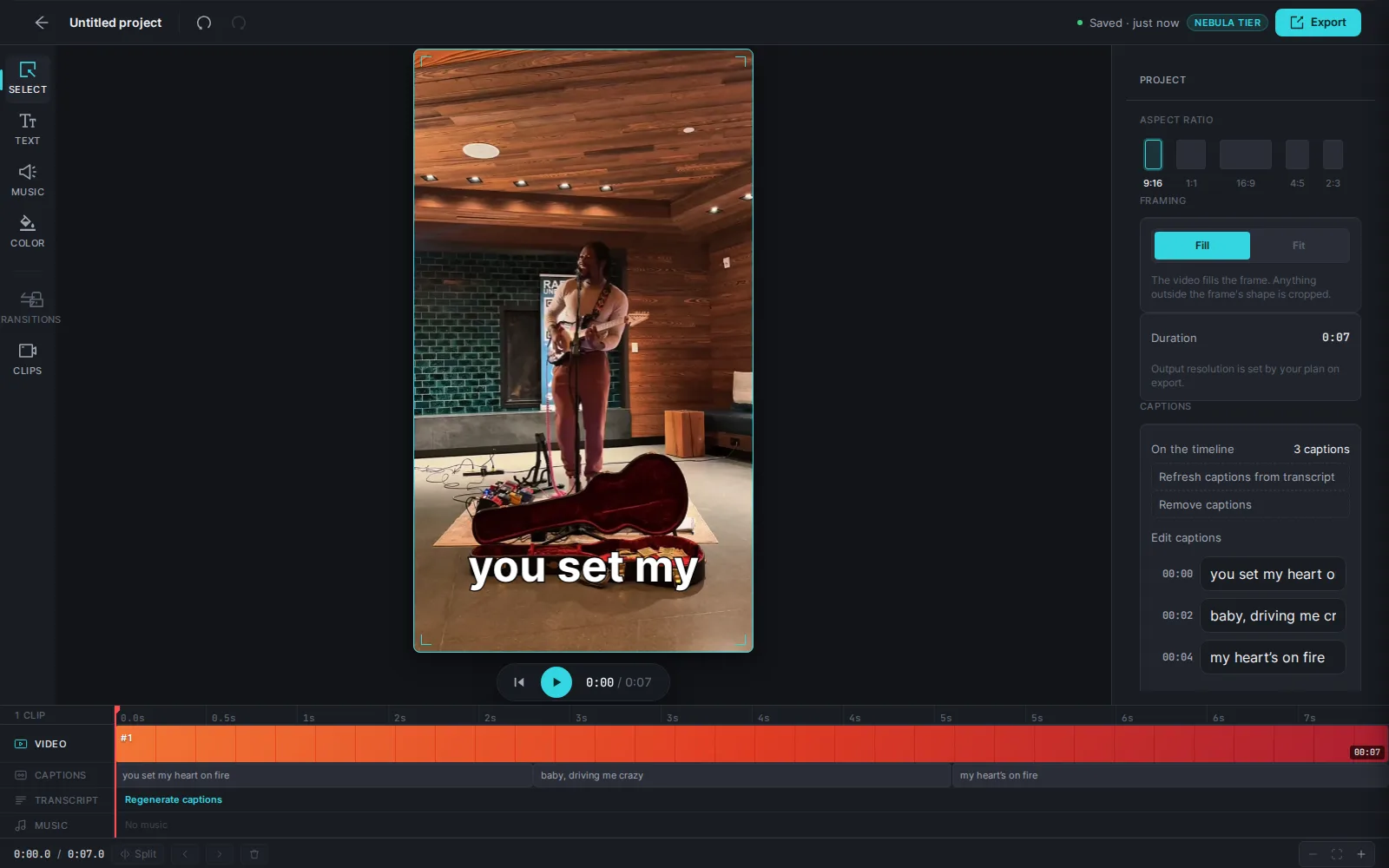
Tip: There is no Save button — everything autosaves, and the top bar cycles Saving… to Saved · just now. Your original video is never modified; exports are saved as new videos.
Trim, split and reorder clips
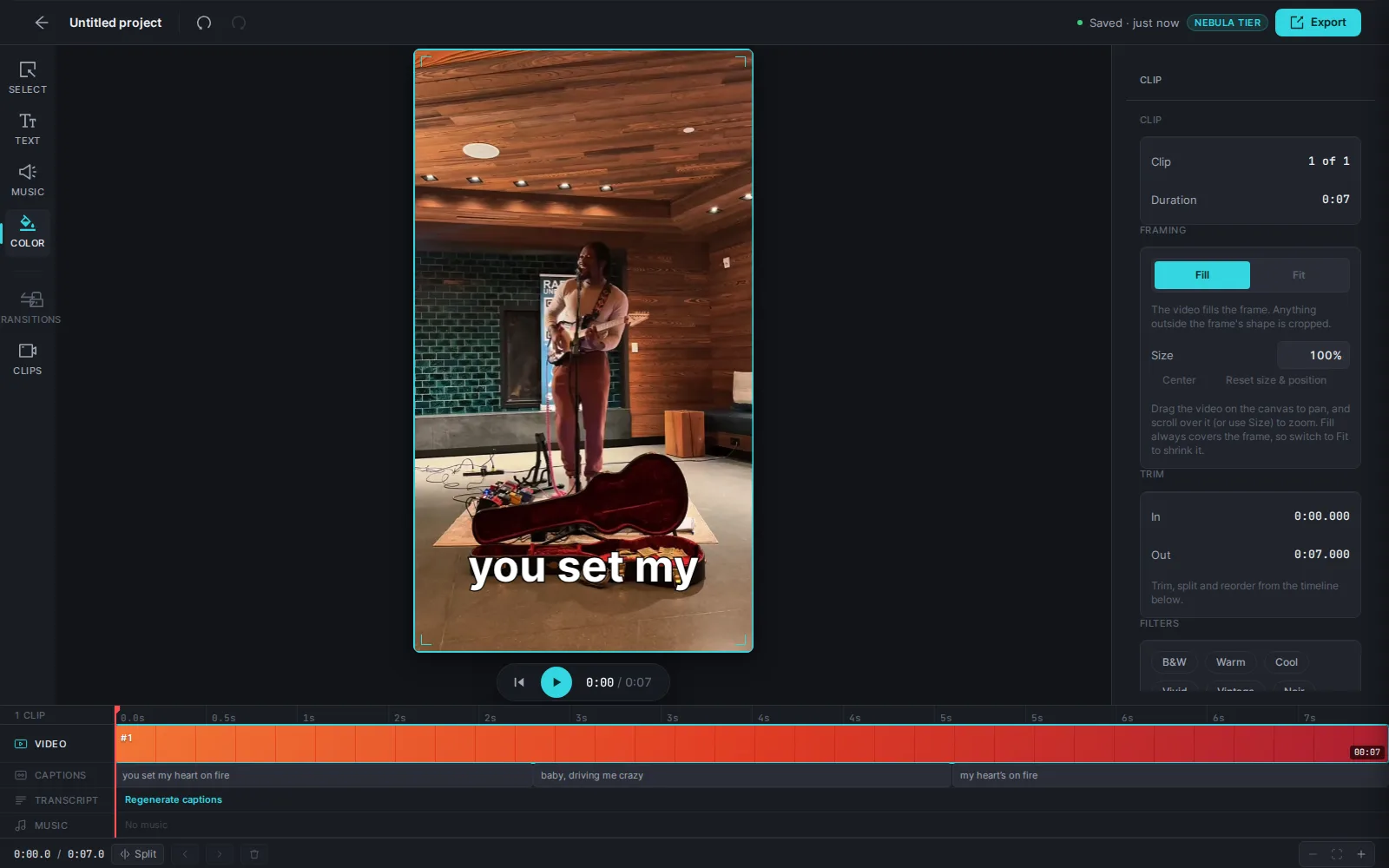
- Click a clip in the Video lane — the Clip panel opens on the right showing its Duration and Trim In/Out times.
- Drag either edge of the clip block left or right to trim it.
- To cut a clip in two, park the playhead where you want the cut, select the clip, then click Split in the timeline footer.
- Reorder with the Move clip left / Move clip right arrows next to Split, and delete the selected clip with the trash button (or Delete clip in the panel).
Tip: Work faster: press Space to play/pause, Ctrl/Cmd+Z to undo, Ctrl/Cmd+Shift+Z to redo, and Ctrl/Cmd+K to open a command palette listing every action.
Note: Split stays greyed out until a video clip is selected, or a text/music block is selected with the playhead inside it. You can never delete the last remaining clip — a project needs at least one.
Add text overlays
- Click Text in the tool rail, then Add text — a new overlay reading New text appears on the canvas at the playhead, already selected.
- Type your words in the Content box — each line renders as its own line on the video.
- Under Style, pick a Font, drag the Size scrubber, and set the text Color with the swatch.
- Drag the text on the canvas to position it; drag its block in the Overlay lane to change when it shows, and drag the block's edges to change how long.
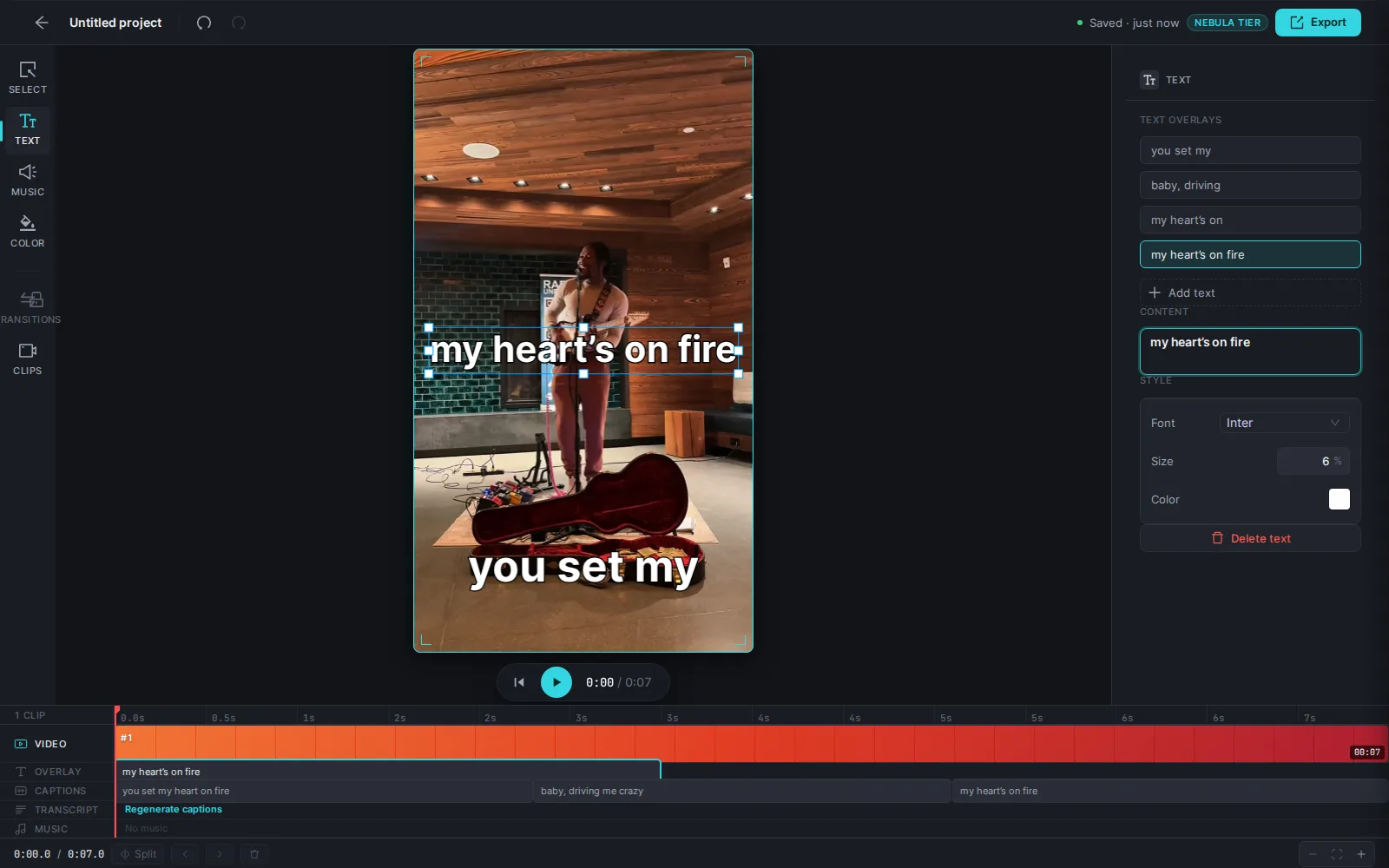
Tip: On paid plans, the Premium text section adds an Outline and a Drop shadow with color and offset controls. Remove an overlay with Delete text at the bottom of the panel.
Add music and balance the sound
- Click Music in the tool rail.
- Under Original audio, set the video's own sound with the Mute toggle and Level slider.
- Under Music, click Add music and choose an audio file from your device — the song appears in the Music lane. Click Add another song to layer more tracks.
- Turn on Auto-duck under voice to automatically lower all music whenever the video's own audio is speaking.
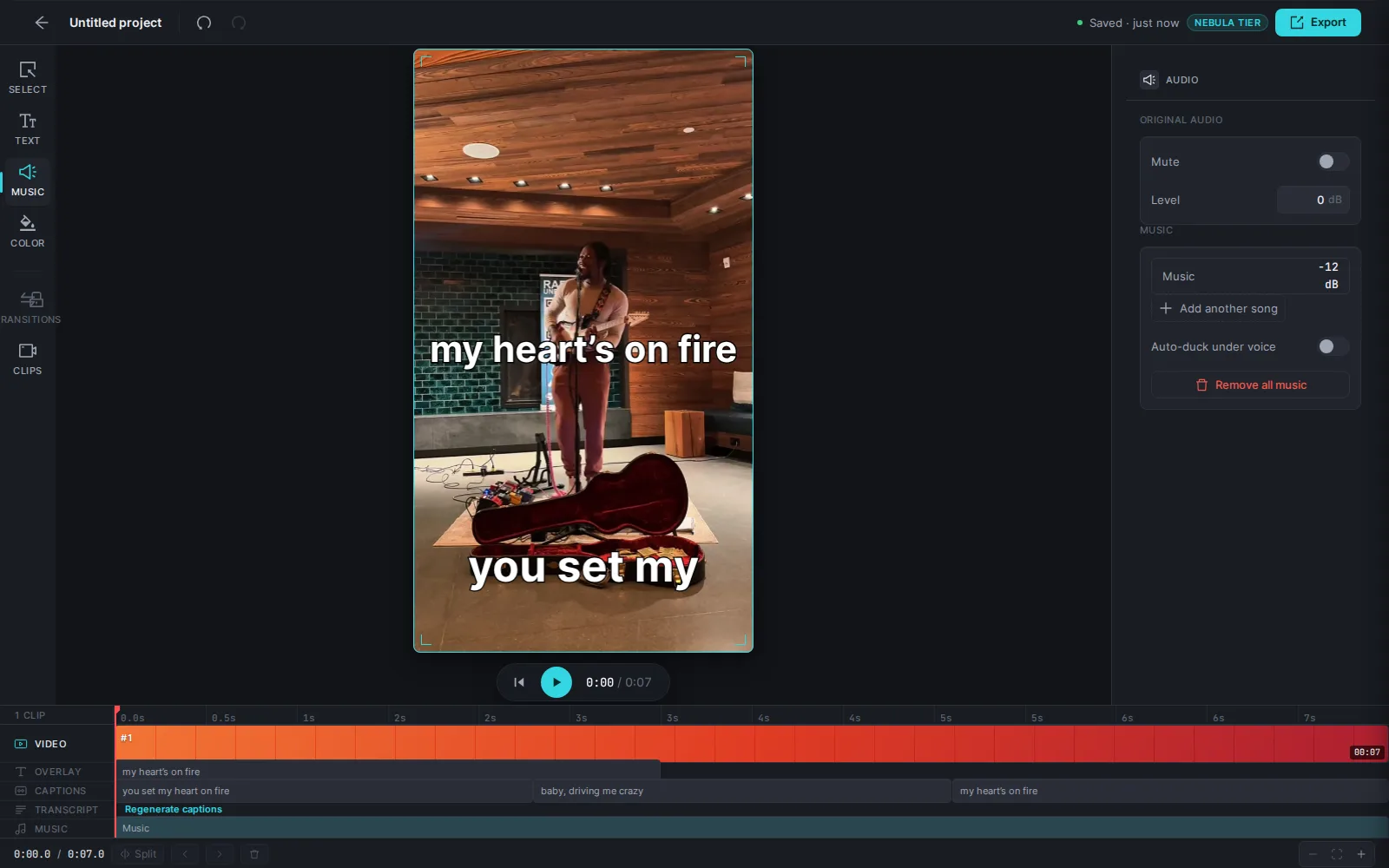
Tip: The Level slider for original audio is disabled while Mute is on — unmute first. A song can't be stretched longer than the actual audio file.
Generate and fix captions
- Click Select in the tool rail, find the Captions card, and click Generate captions — or use the + Generate captions button right on the Captions lane.
- Reload the editor once generation finishes.
- Click Add captions to timeline. Each line becomes a text overlay you can move, restyle, retime or delete like any other text.
- Fix mis-heard words under Edit captions — a caption updates on the canvas when you leave its box. Before captions are on the timeline, fix the words under Edit transcript, then click Save captions.
Tip: Captions are burned into the exported video exactly as previewed.
Note: Refresh captions from transcript rebuilds every caption from the transcript: they keep their look, but your word fixes, retiming and deletions are lost. Fix the transcript before you add captions. Regenerate captions leaves the captions on your timeline as they are.
Export finished videos
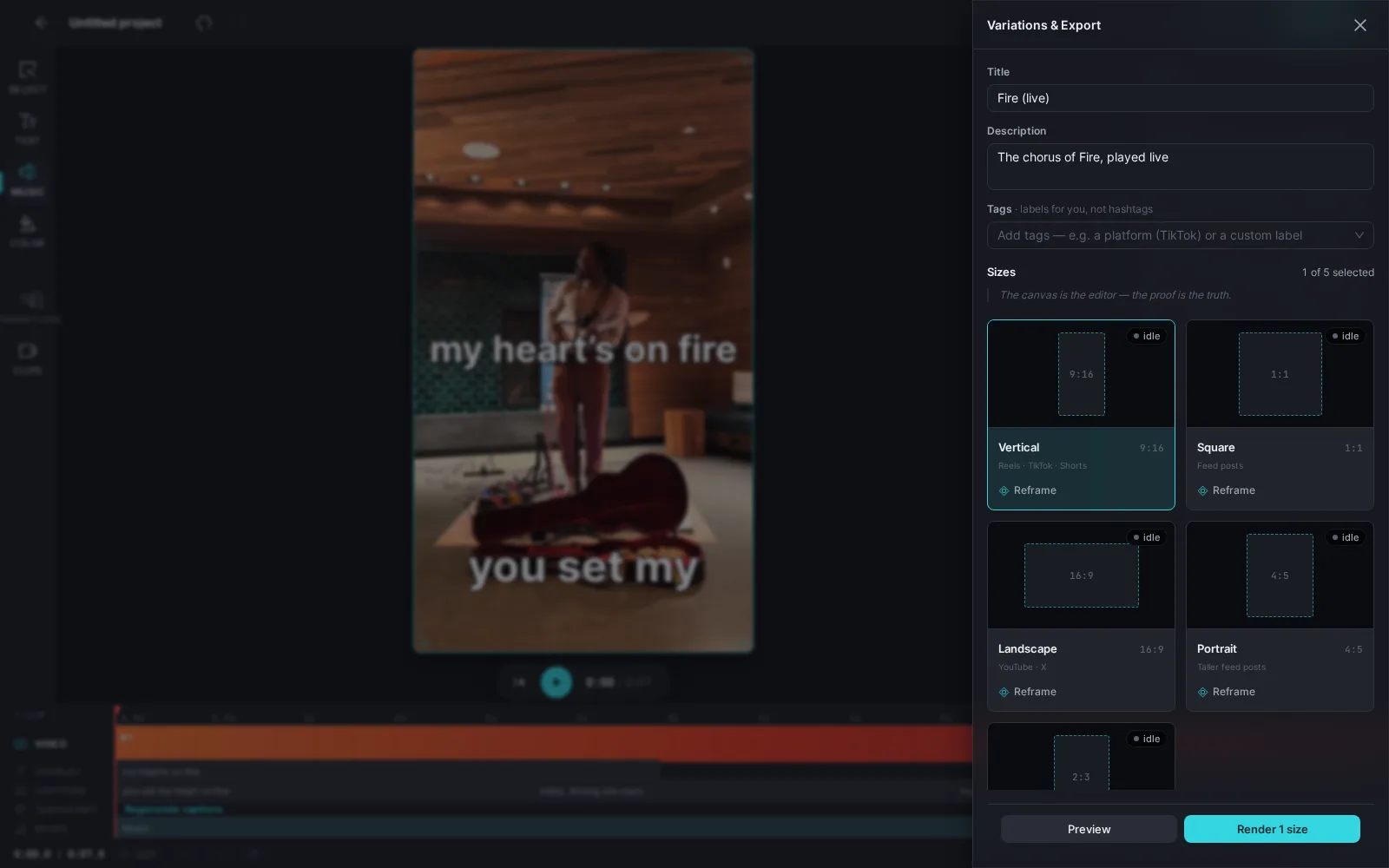
- Click Export in the top bar — the Variations & Export drawer slides in.
- Optionally set a Title and Description (leave them blank to inherit the original's) and add Tags — labels for you, not hashtags.
- Under Sizes, click the size cards you want: Vertical 9:16, Square 1:1, Landscape 16:9, Portrait 4:5 or Tall 2:3.
- Optionally click Reframe on a card to nudge how the video is cropped for that shape, and Preview for a true single-frame proof of each size.
- Click Render 1 size (or Render N sizes). When a card reads ready, click Open — each finished copy is also saved to your library as a new video.
Tip: Closing the drawer doesn't cancel anything — renders keep going and their statuses are there when you reopen it. On the free tier, exports include a nebulum watermark.
Related guides
- Upload your videosAdd one video or a whole batch to your library — Nebulum stores them instantly and quietly generates subtitles, a social-ready caption and a thumbnail for each one.
- Organize your Studio libraryFind everything you've made in one place — filter by type, search and sort, act on items from the row menu, group videos into folders, and rescue deleted work from the Trash.
- Post to your socialsTurn any library item into a social post — pick your accounts, write one caption for every platform, add hashtags, and post now or schedule it.
Signed in? Open this guide in Nebulum. New here? Start free.