
Organize your Studio library
Find everything you've made in one place — filter by type, search and sort, act on items from the row menu, group videos into folders, and rescue deleted work from the Trash.
One home for everything you make
Studio keeps every video, image, song, email and text post you create in one library. The pills across the top filter by type, and each pill shows a live count of your items.
- Click Studio in the sidebar.
- Pick a pill across the top: All, Video, Image, Song, Email or Text. Studio remembers your last-used type.
- In the All view, everything sits in one flat table with Preview, Title, Type, Status and Created columns — handy when you forget what type something was.
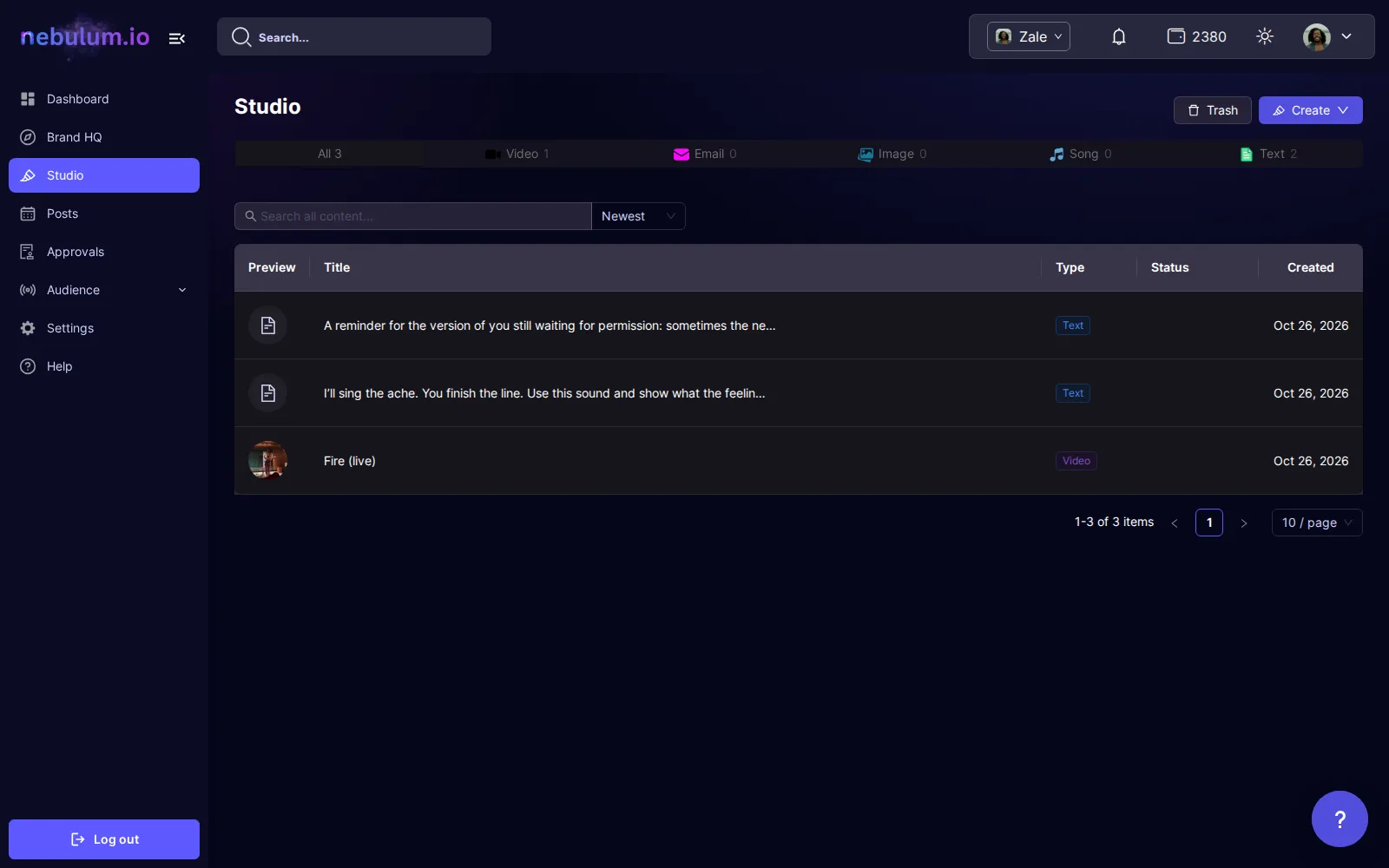
Tip: To start something new, click the purple Create dropdown in the header and pick a type — the All view itself has no create form.
Open an item's details
- Click any row in the list on the left.
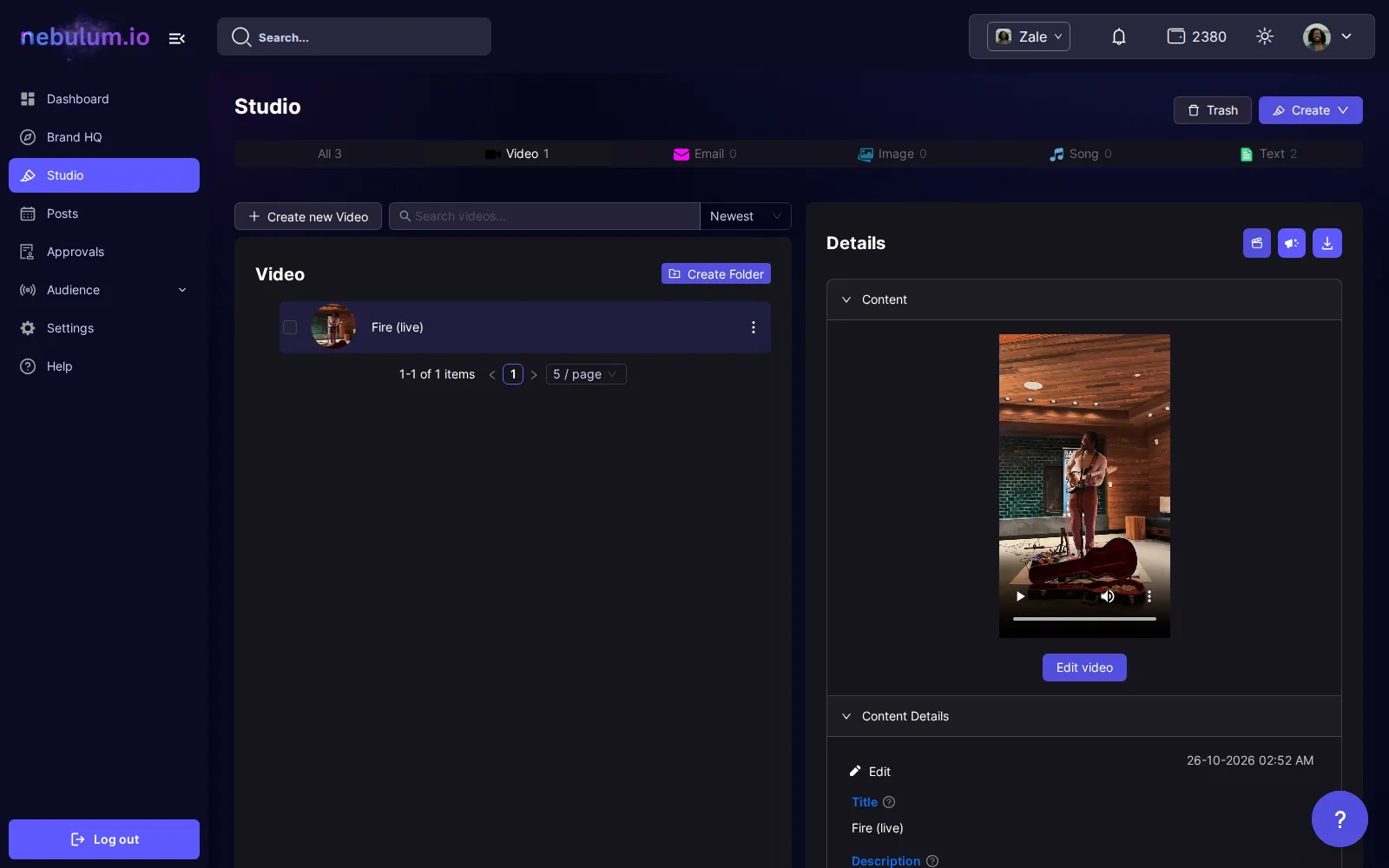
- The right panel switches to Details: a Content section with the preview (player, image, lyrics or text) and a Content Details section with the title, description, tags, file info and creation date.
- For an uploaded video or image, click the Edit button at the top of Content Details to change its Title, Description and Tags in one modal. An image's title is optional — it has one only if you uploaded it with Keep original file names, and you can add or change it here at any time.
Tip: Tags are your own organizing labels (a release name, a platform) — they are not hashtags.
Search and sort
- Type into the search box above the list — its placeholder reads Search videos... (matching the current type) or Search all content... in the All view. Results update about half a second after you stop typing.
- Use the dropdown next to the search box to re-sort: Newest, Oldest, Title A→Z or Title Z→A.
Tip: Search is scoped to the current type and clears when you switch pills — an empty-looking list may just mean you are on the wrong pill.
Act on an item from its row
- Click the ... menu on any row for Download and Delete — video rows also offer Edit Title, and songs, emails and text expand Download into Download as PDF and Download as Text.
- Click the Prepare a Post icon on an image or text row to jump straight into the posting flow. For a video, open it and use the Prepare a Post icon at the top of its Details panel.
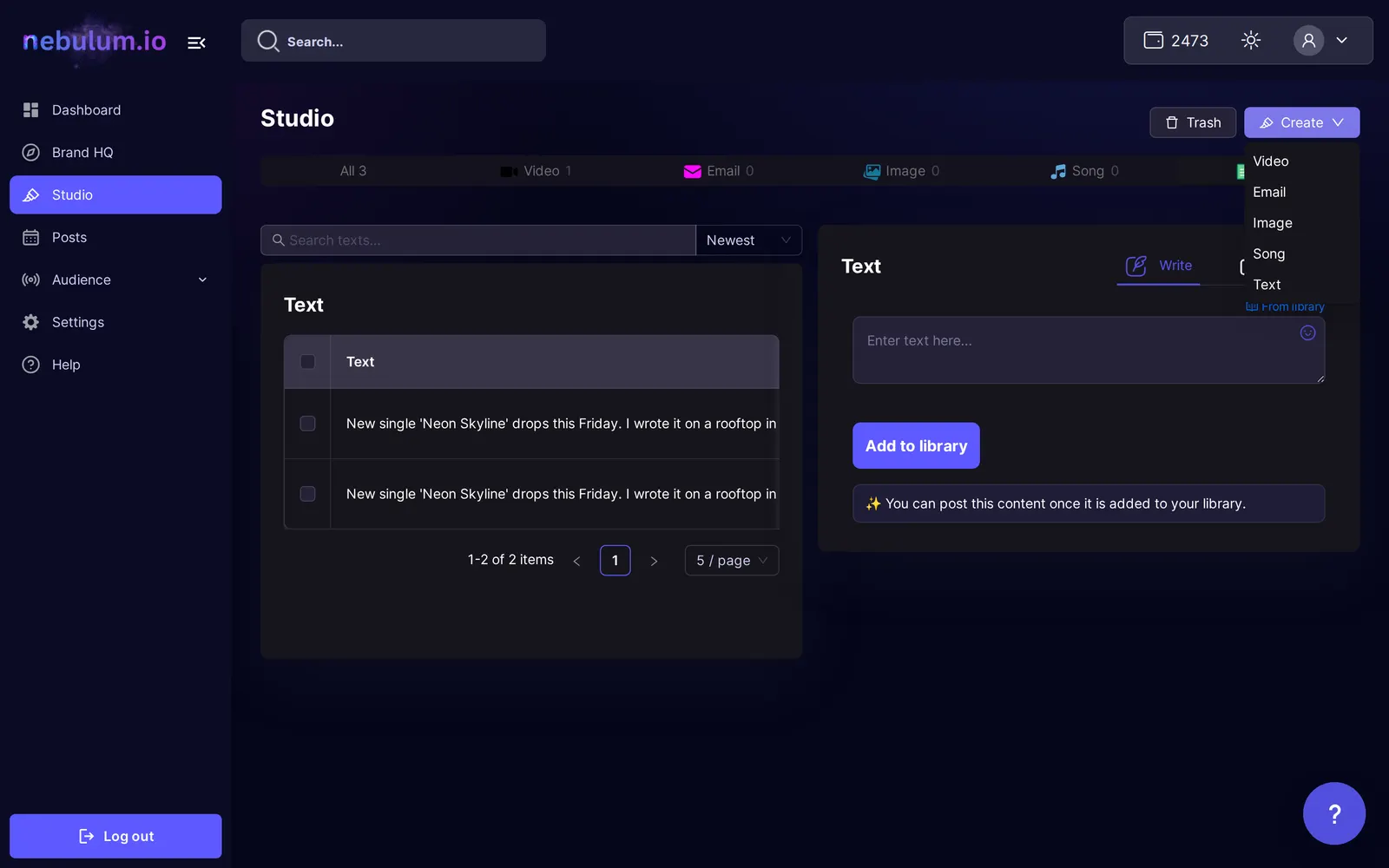
Tip: Prepare a Post needs a connected social account — without one, the row icon simply doesn't navigate; open the item's Details and click Prepare a Post there to see a modal explaining what's missing.
Group videos into folders
- On the Video pill, click Create Folder above the list and name your folder.
- Tick the checkboxes of one or more videos, then click Move to folder in the selection bar and pick the destination.
- Use a folder row's ... menu to Rename Folder, Create Subfolder or Delete it.
Tip: Folders themselves cannot be moved — while a folder is ticked, the Move to folder button disappears from the selection bar; untick the folder to move individual videos.
Delete to Trash — and bring things back
- From a row's ... menu choose Delete. The Move to Trash? modal explains that the item moves to the Trash and can be restored within 30 days.
- Deleting a video that has clips? Pick Delete Only Selected Content or Delete Selected Content and All Child Clips first — the Delete button stays disabled until you choose one.
- To visit the Trash, click the Trash button at the top right of Studio — it is not in the sidebar.
- On the Trash page, click a content-type card, then click the circular-arrow Restore icon on a row to bring it back. A toast confirms Content restored successfully.
- Click Back to Studio in the Trash header when you are done.
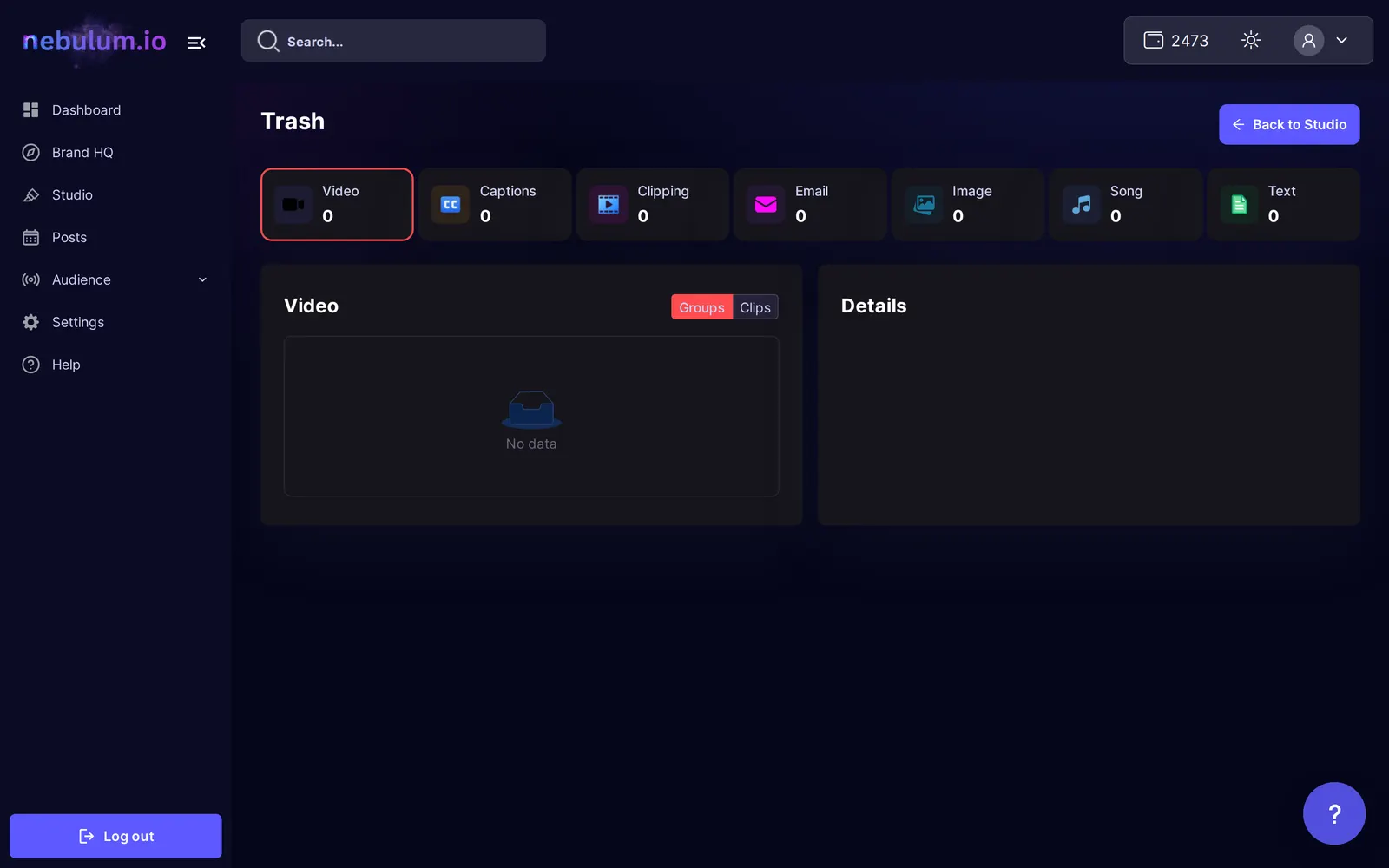
Note: Trashed items are permanently removed after 30 days, and deleting from inside the Trash is immediate and irreversible. Deleting content also removes its scheduled posts from My Posts — restoring the content later does not bring those posts back.
Related guides
- Upload your videosAdd one video or a whole batch to your library — Nebulum stores them instantly and quietly generates subtitles, a social-ready caption and a thumbnail for each one.
- Generate content with AILet AI create images and song lyrics from a short prompt, write text posts yourself, and see exactly what each generation costs before you click.
- Post to your socialsTurn any library item into a social post — pick your accounts, write one caption for every platform, add hashtags, and post now or schedule it.
Signed in? Open this guide in Nebulum. New here? Start free.