
Generate content with AI
Let AI create images and song lyrics from a short prompt, write text posts yourself, and see exactly what each generation costs before you click.
Write a text post
- Click Studio in the sidebar, then the Text pill.
- Stay on the Write tab (the default) and type your post in the box (placeholder Enter text here..., up to 5000 characters).
- Click Add to library — your text is saved at the top of your Text list, ready to post or schedule from there.
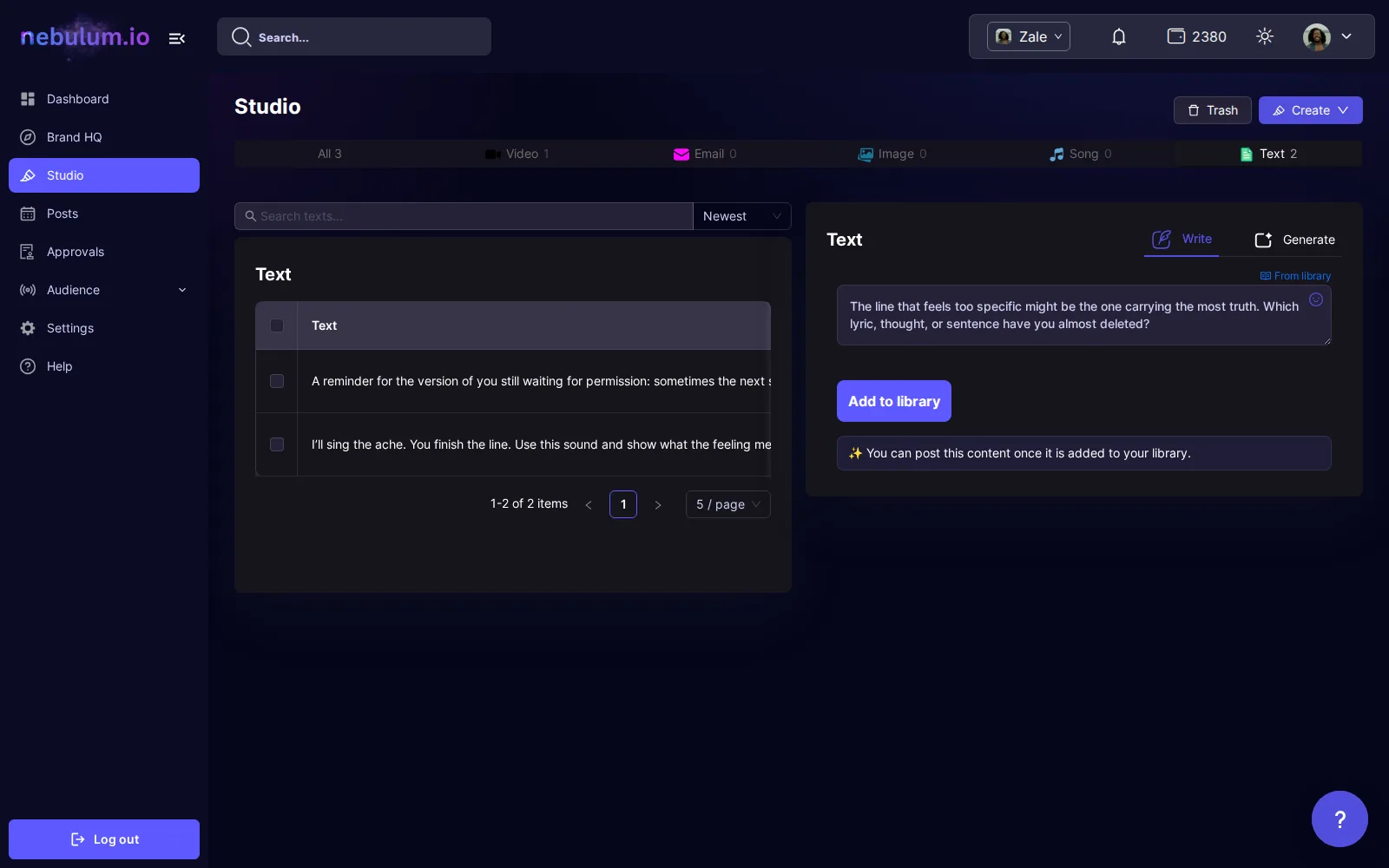
Tip: Writing your own text costs no credits — only AI generation is metered. Use the emoji picker or From library to reuse text you have already saved.
Generate an image
- Click the Image pill (or the Create dropdown top-right and choose Image).
- The card opens on the Upload tab — click the Generate tab to switch to AI generation.
- Describe your image in the Prompt box (placeholder Enter Prompt, up to 200 characters).
- Under Dimensions, pick a size: 256x256, 512x512, 1024x1024, 1024x1792 or 1792x1024. It is required — skipping it shows Please select dimensions!
- Optionally click Show more options to reveal Style, Mood and Text in Image.
- Click Generate. On metered plans the button shows the exact cost before you spend.
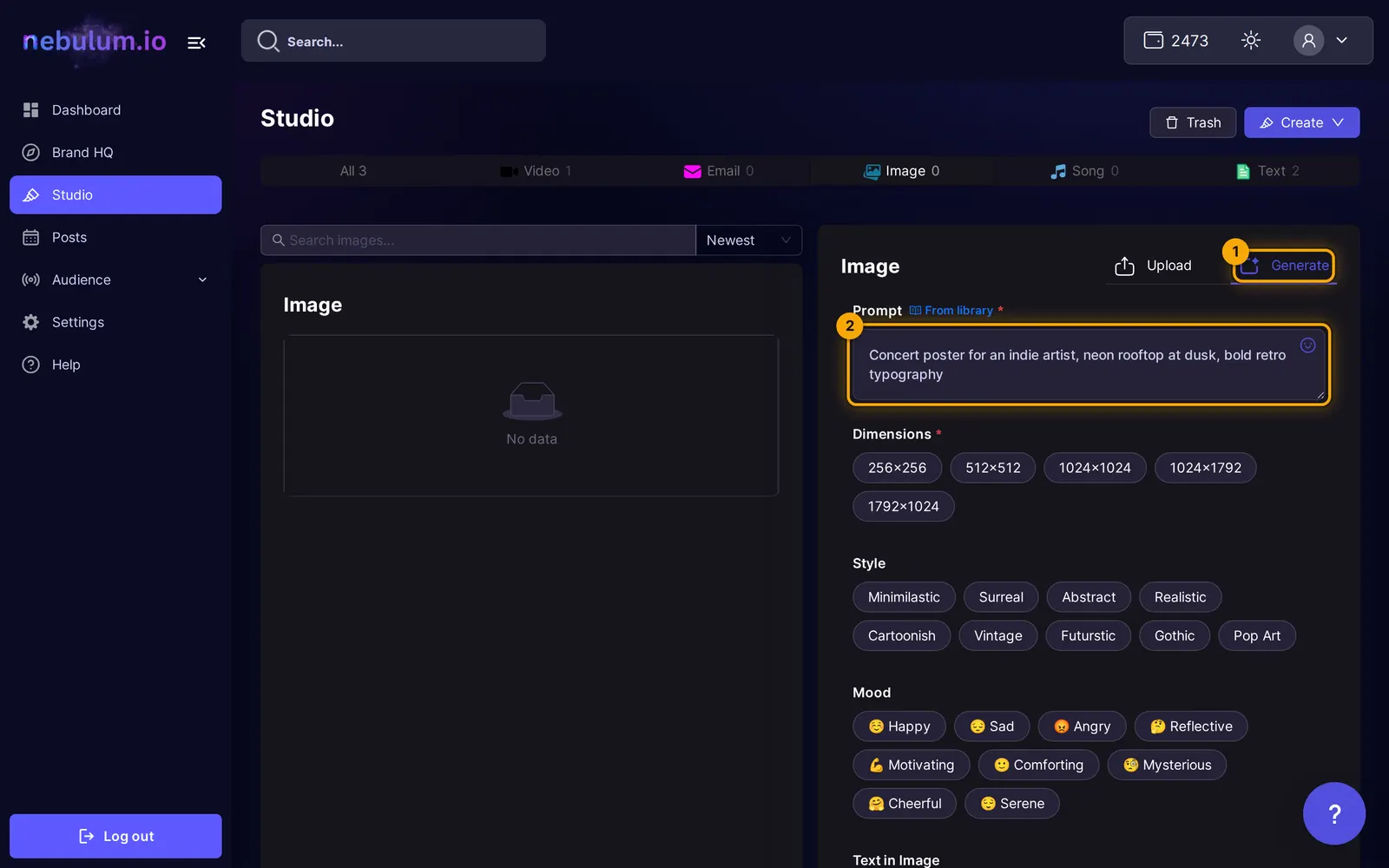
Tip: Left mid-form? Your entries auto-save — the next visit shows Restored an unfinished draft. with a Discard option.
While it generates
The right panel shows progress messages like Creating image... while the AI works. On success you see the toast Image generated successfully. and land on the finished image's Details view.
Tip: Credits are deducted only when generation succeeds — a failed generation shows Failed to generate ... Please try again. and charges nothing.
Where results land — and what they cost
Every generation is saved to your library instantly: it opens in the Details panel and appears at the top of the matching list, with download one click away — and Prepare a Post for images and text.
- Check the wallet pill in the top header for your credit balance — click it to open the Credits page.
- Before anything is selected, the right panel says how many credits a generation uses, and when it costs credits, the submit button shows the same price.
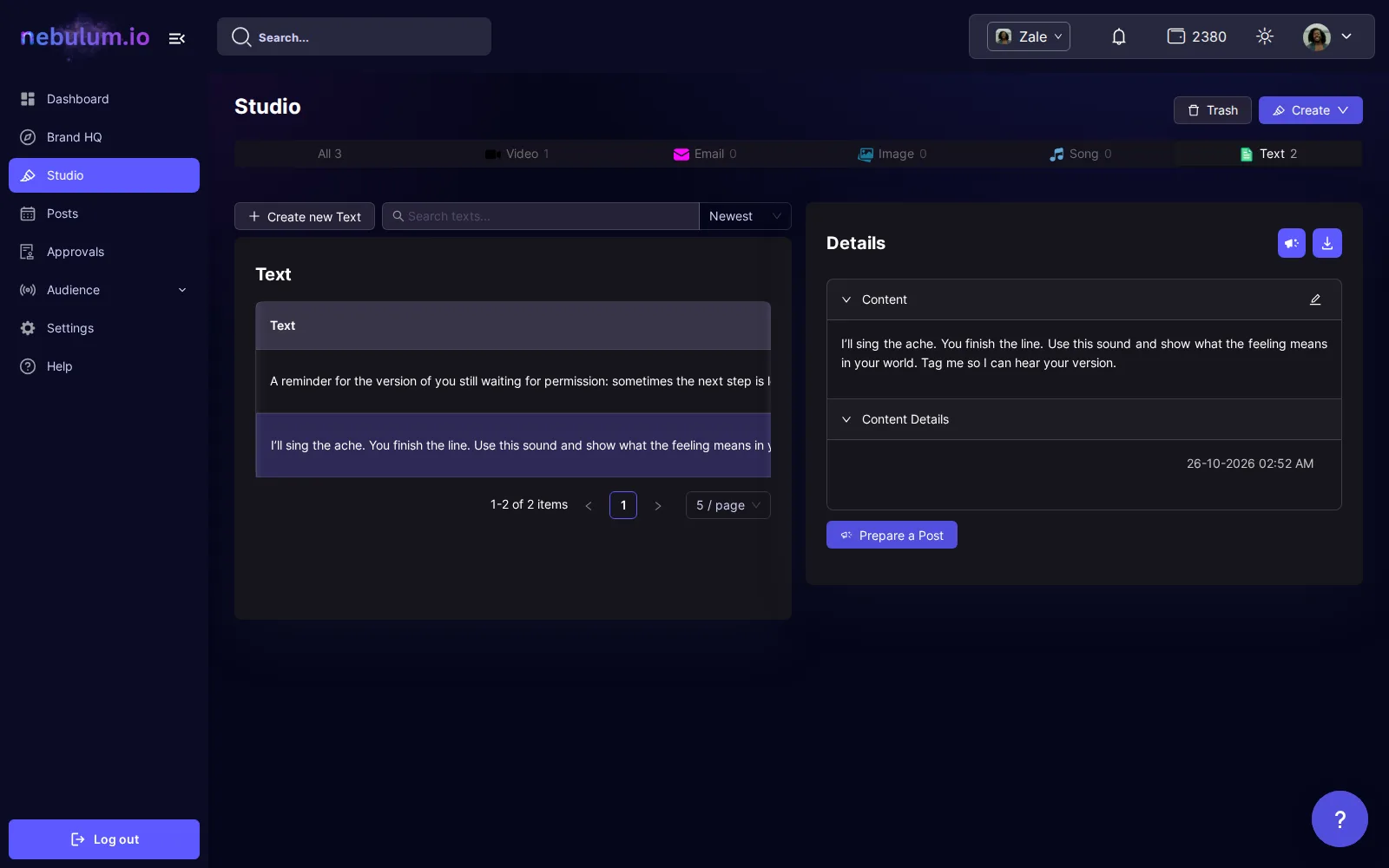
Tip: On unlimited accounts the cost suffix disappears and the button just says Generate.
Related guides
- Credits explainedWhat credits are, where to see what each action costs, where to check your balance and spending history, and what to do when you run out.
- Organize your Studio libraryFind everything you've made in one place — filter by type, search and sort, act on items from the row menu, group videos into folders, and rescue deleted work from the Trash.
- Post to your socialsTurn any library item into a social post — pick your accounts, write one caption for every platform, add hashtags, and post now or schedule it.
Signed in? Open this guide in Nebulum. New here? Start free.