
Brand HQ: your brand book
Brand HQ takes your brand from who you are to what you post, in four tabs. It starts on Brand, where Nebulum writes your brand book with you and keeps it current.
Find your way around
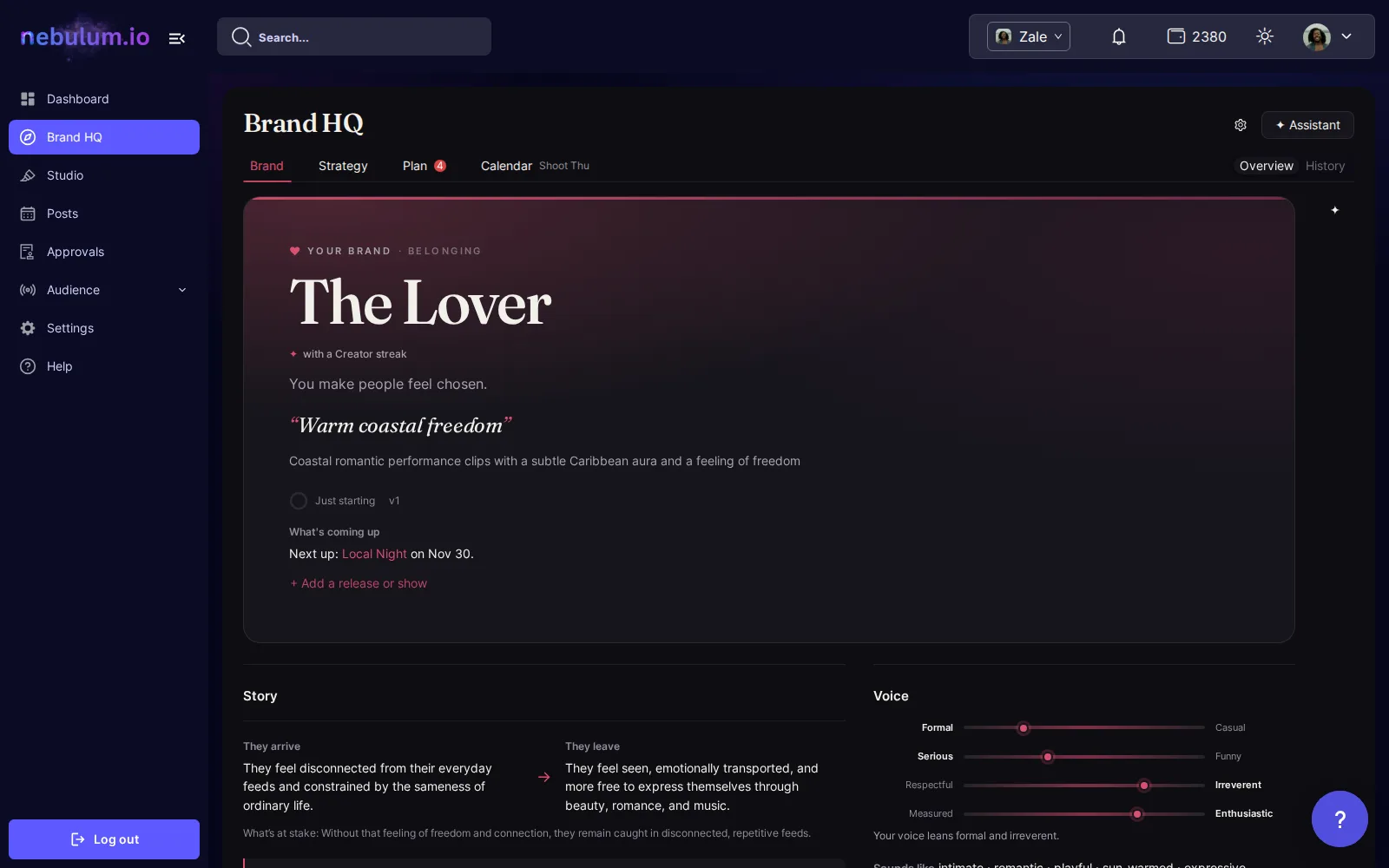
Brand HQ has four tabs: Brand, Strategy, Plan and Calendar. A tab says when something waits for you, and its next step is the one solid button, usually right under the tabs.
- In the sidebar, click Brand HQ. It opens on the tab with the next thing to do.
- Switch a tab's views at the right end of the tabs, such as Overview and History on Brand (on a narrow screen, under the tabs).
- Click ✦ Assistant to open it beside any tab (on a phone it opens as a sheet). The gear opens Automation, which says what Nebulum may write, approve or post for you.
Tip: Brand HQ shows you around on your first visit. To see the tour again, open Help and click Replay Brand HQ tour. On a brand you can only view, you see everything but the buttons that change it.
Start your brand
There are no forms. You tell the assistant about your music and your people, and it writes your Brand DNA.
- On your first visit, click Start the conversation.
- Answer in your own words, or paste your bio or a few captions. Your brand book fills in as you go, in draft.
- When the assistant says Your Brand DNA is ready., click Review your Brand DNA.
- Untick anything that's wrong, or edit it first, then click Confirm.
Tip: Nothing locks in until you confirm, and you can change any value later in its chapter.
Read your brand book
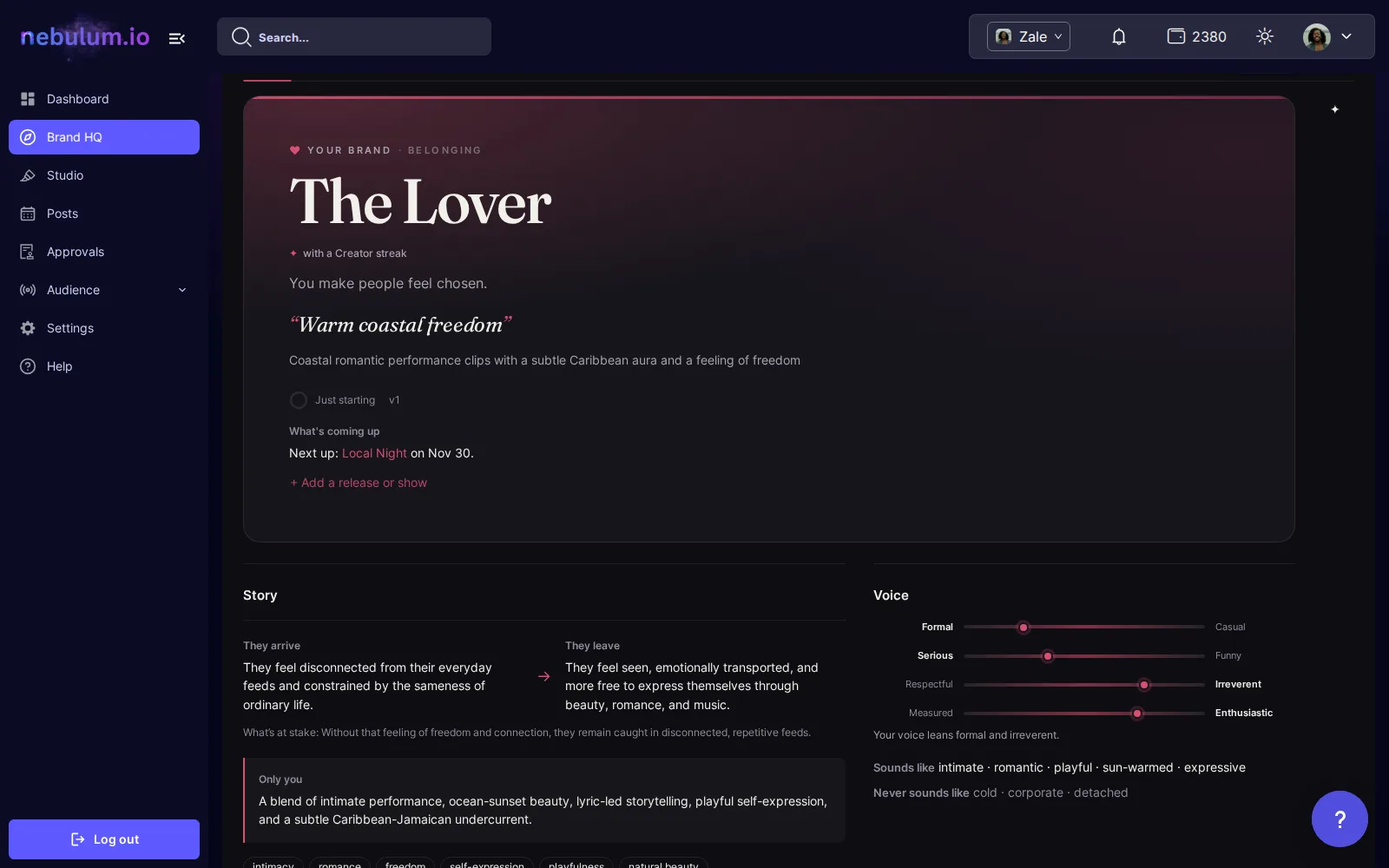
- The hero shows your archetype, your essence and how complete the book is, from Just starting to Complete.
- The chapters follow: Story, Voice, Look, Production style, Audience, Signature elements and Music & references. Your pillars are on the Strategy tab.
- Small tags beside a value say where it came from, such as you said, you edited or Nebulum noticed.
Approve what Nebulum learns
Learnings holds what Nebulum picked up from your chats, your uploads and your teammates. Nothing changes until you approve it.
- Each learning says where it came from: You said, Nebulum noticed, Proposed by a teammate, or the file it came from.
- Click Approve, Edit or Reject. When one upload brings several, Approve all above the first approves them together.
- Under the assistant's reply, Apply approves everything that reply proposed in one click; Review opens them here.
- Confirm what Nebulum wrote lists the values an AI wrote before you could review them: Keep all, or Keep, Edit or Clear each one.
- To go back, open History, pick an earlier version, tick what you want back and click Restore what you ticked.
Change it by talking
- Tell the assistant what should change, in your words:
less corporate,drop the vlog pillar. On the Brand tab it comes back as proposals in Learnings. - To change one chapter at once, hover its header and click ✦ Ask: the assistant works on that chapter, and what it changes lands in your brand book.
Add your songs, audiences and signature elements
- Click + Add a song or project for a song, demo, show, project or a place you shoot. No upload needed.
- Under Audience, click + Add an audience: who's here now, who you're building toward, and nearby communities.
- Under Signature elements, click + Add a signature element: an object, a jacket or a place people tie to you.
- Click any of them to open it: its details, its files and the concepts that use it. Where song links are on for your brand, Music & references lists your Song links too.
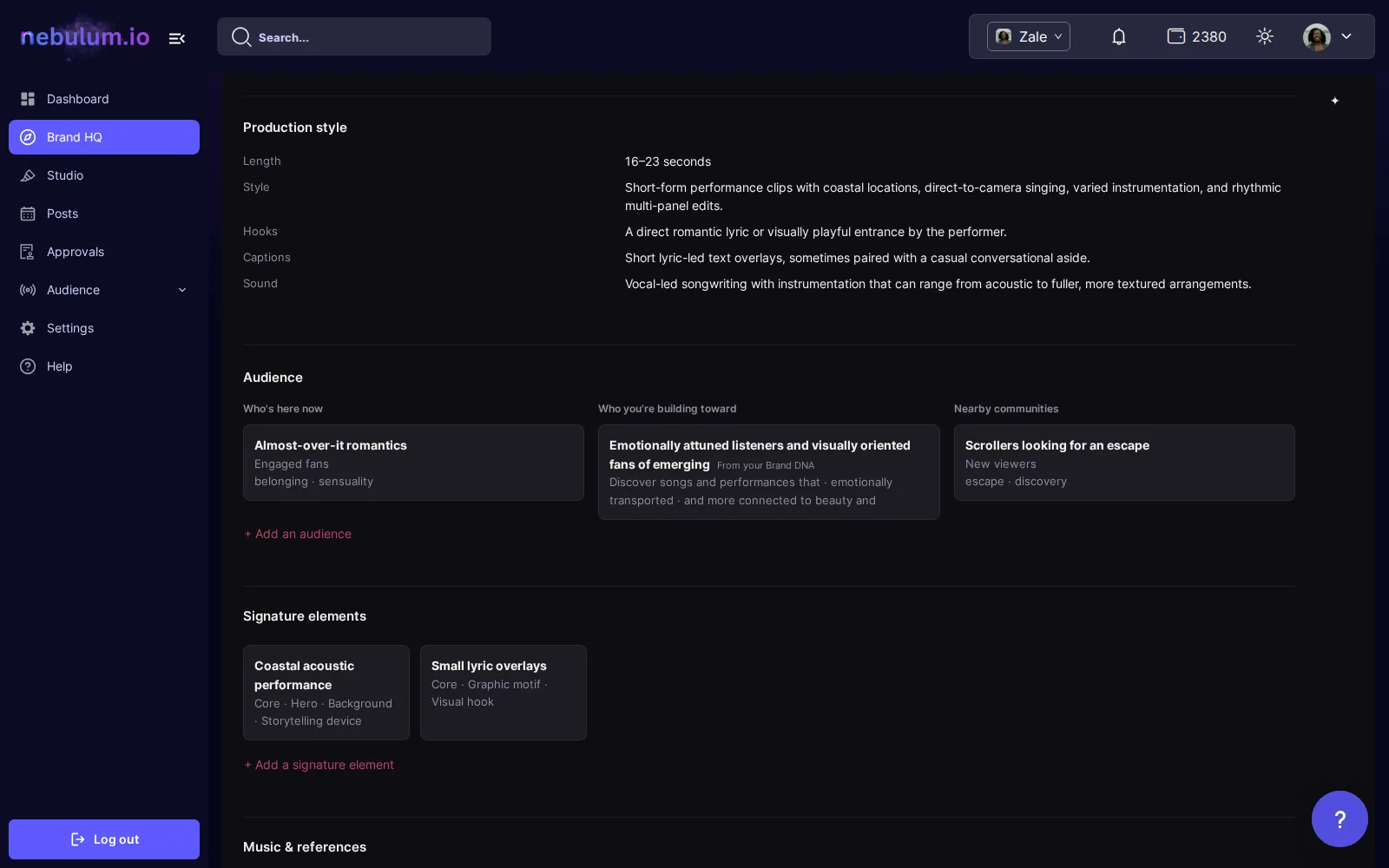
Tip: Concepts name these by name, so the more of your real world is here, the less generic your plans.
Your look: the Visual kit
- In Look, click Visual kit.
- Start with colour: lock a palette, and type, wardrobe and stage open after it.
- Once something is locked, export a brand deck.
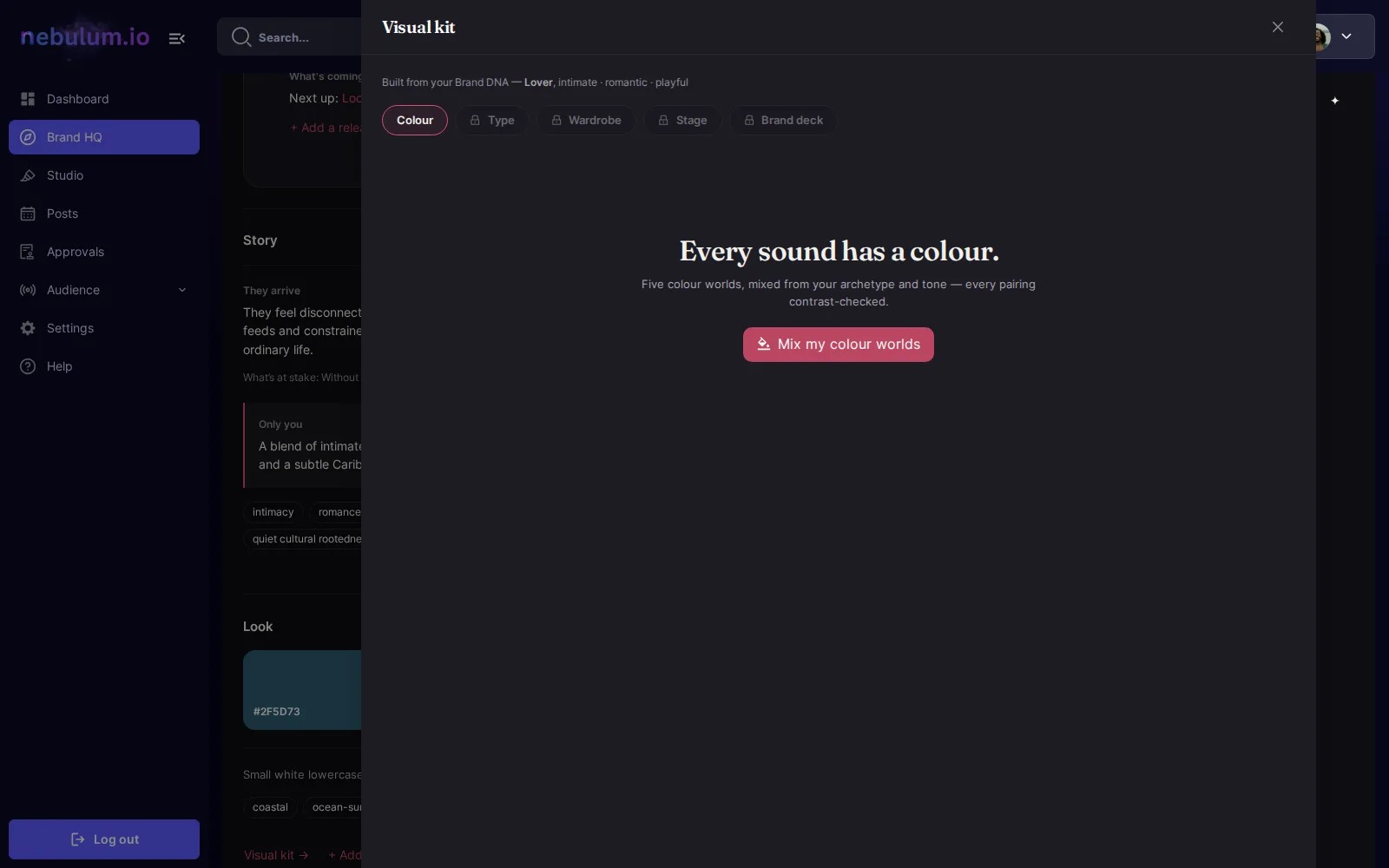
Tip: A locked palette tints Brand HQ in your brand's colour.
Visual worlds
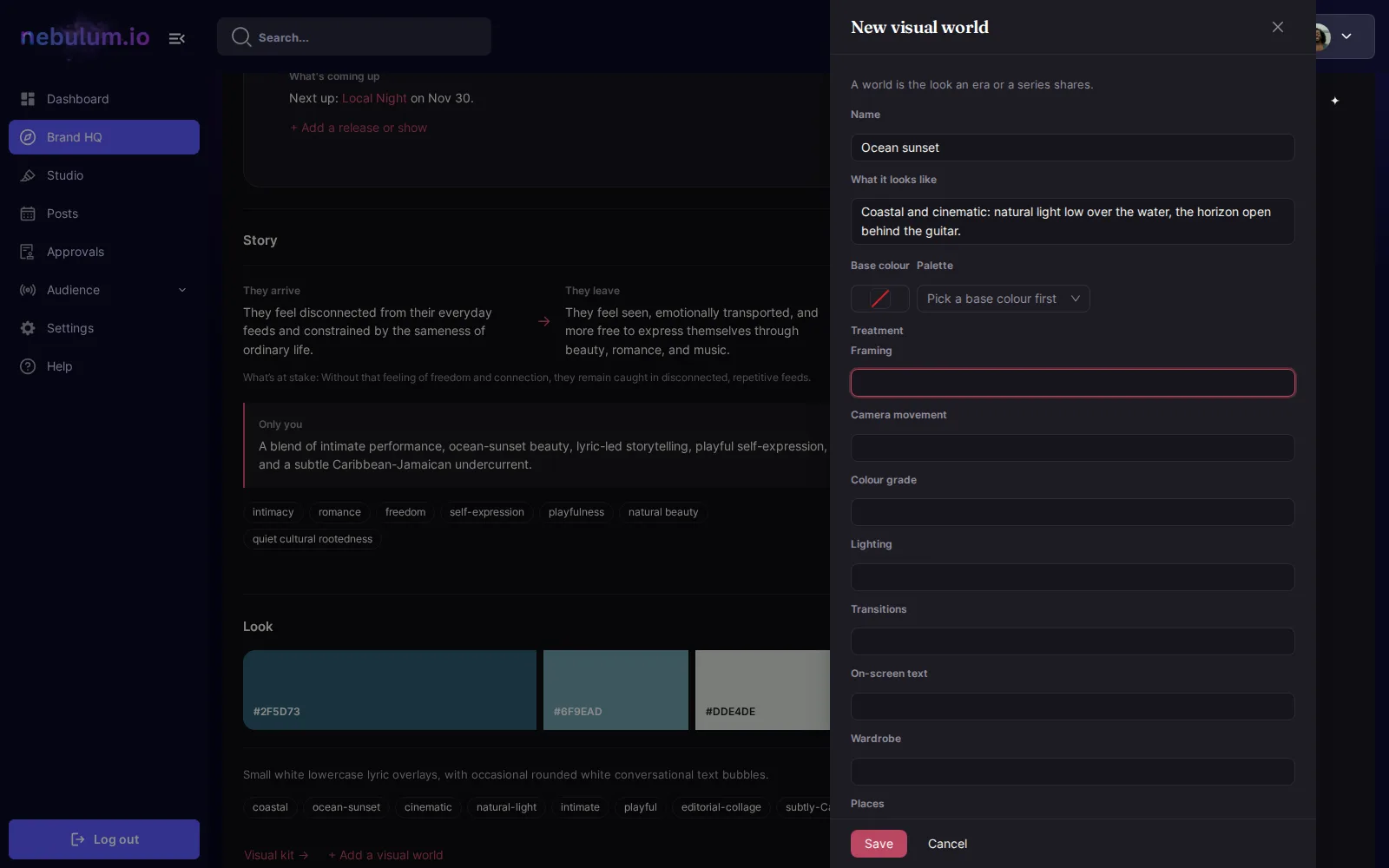
A visual world is the look an era or a series shares: its colours, its treatment and its rules.
- In Look, click + Add a visual world: next to Visual kit for your first, then under Visual worlds.
- Name it, then pick a Base colour and a Palette, describe its Treatment and add Rules.
- Mark a rule Fixed and no concept can set it aside; a Flexible one can be.
- Give a program its world in the program's drawer, under Visual world. Its concepts then show the world in their World section.
Related guides
- Brand HQ: your strategy and formatsStrategy says what you're working toward, who it's for and how often you post. It ranks the formats that fit your brand and shows what's working.
- Brand HQ: plan in batchesSay how many concepts and where you shoot. Nebulum writes them in one go, each with its brief, grouped by shoot; you approve them, then date them in the Calendar.
- Brand HQ: the assistant and AutomationAsk the assistant to change what's in front of you, give it photos and files to learn from, and choose what Nebulum may do on its own.
Signed in? Open this guide in Nebulum. New here? Start free.